Community is a public page of your project where your users help you localize your product. They can:
- suggest translations and vote for the best ones,
- report missing or wrong translations, with a screenshot,
- follow the latest suggestions in the whole project.
This guide will help you get started with Community and show you how to set it up for your project.
Get started
Enable Community for your project in the Settings tab. You can find this option in the Community section.
Click on the Enable Community to activate the feature.

Once you enable Community, you will see your Public URL and the configuration options for the feature.
Configuration
You can configure the following options for Community:
- Project logo
- Project display name
- Intro message for users
- Available languages for suggestions

Welcome page
Community welcome page is a place where you can see an overview of the translation project and the messages from the project maintainers.

Adding suggestions
First, choose a language you want to add suggestions for. Click on the Translate button in the list of project languages. You will be redirected to the translation page that shows the list of missing translations in the chosen language and the translation in the default project language.
Click on the translation you want to suggest a translation for. Type your suggestion in the text box and add a comment if you want to provide additional context.
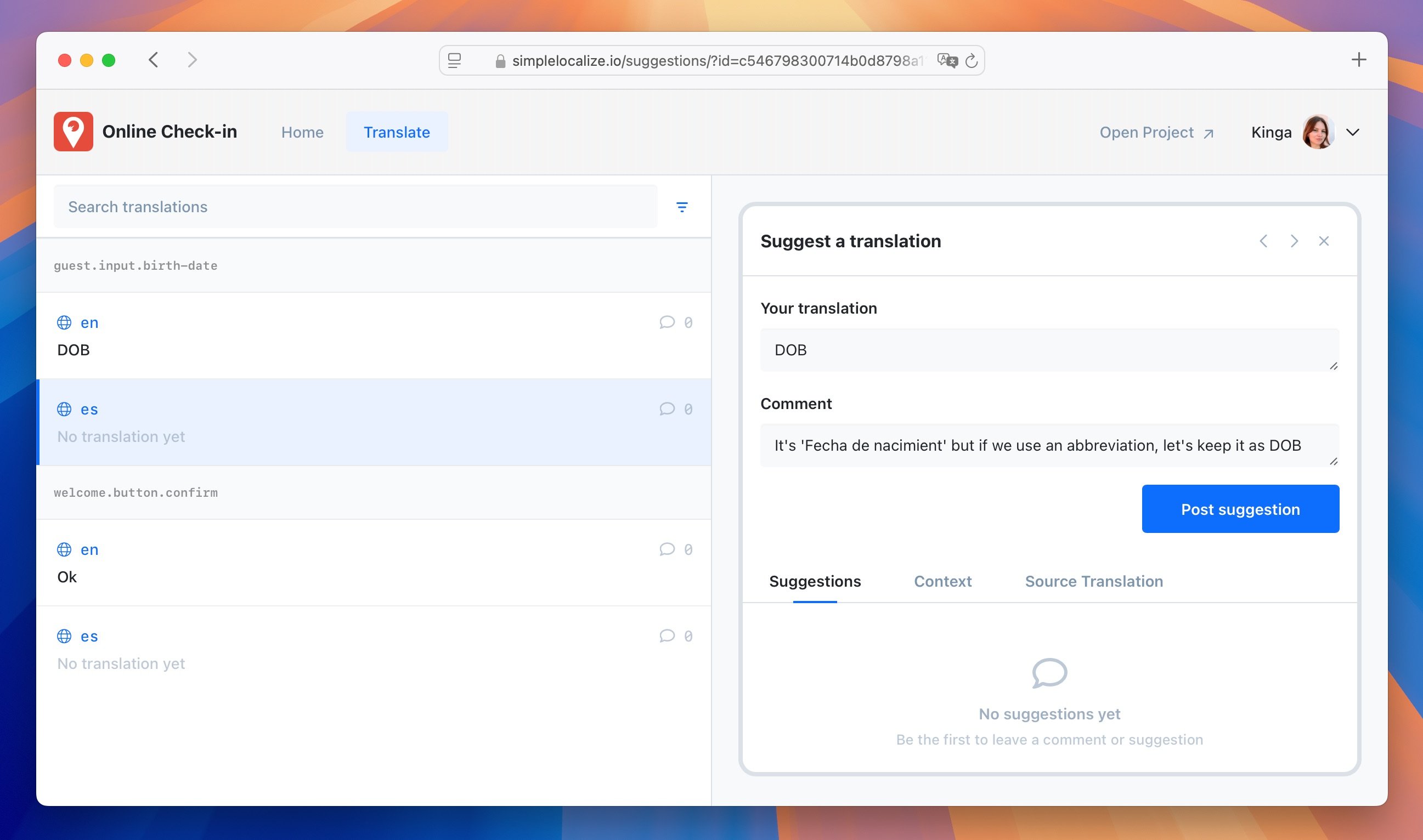
Once you are done, click on the Post suggestion button to send your suggestion. You will see your suggestion in the list of suggestions for the translation.

Filter translations
Use the filter to show all translations or more languages. You can also search for specific translations by typing in the search box.

Reporting issues
Not every problem can be fixed with a suggestion. A text may be missing from the translations at all, or a user may not know where a wrong translation comes from. In the Report issue tab of the Community page, users can tell you about:
- Missing translation: a text that is not translated,
- Wrong translation: a translation that is incorrect,
- Something else: any other problem with the translations.
Users describe the problem, e.g. copy the text and say where they saw it, and can attach a screenshot. They can drop an image, paste it from the clipboard or choose a file (up to 4 MB). Then they click Send report.
When users know how a translation should read, the Wrong translation option points them to the Translate tab, where they can suggest a better version that you can accept in one click.
Reporting needs an account, so you can contact the person if you need more details. Reports and screenshots are visible only to your project team, never on the public page.
Activity
The Activity tab of the Community page shows the latest suggestions from the whole project. For each suggestion, users can see the text in the default language, the suggested translation, the comment, and whether the suggestion was accepted. Filter the activity by language or by person, and click on a suggestion to open the translation.
The activity shows only the languages and translations that are available on your Community page.
Notifications
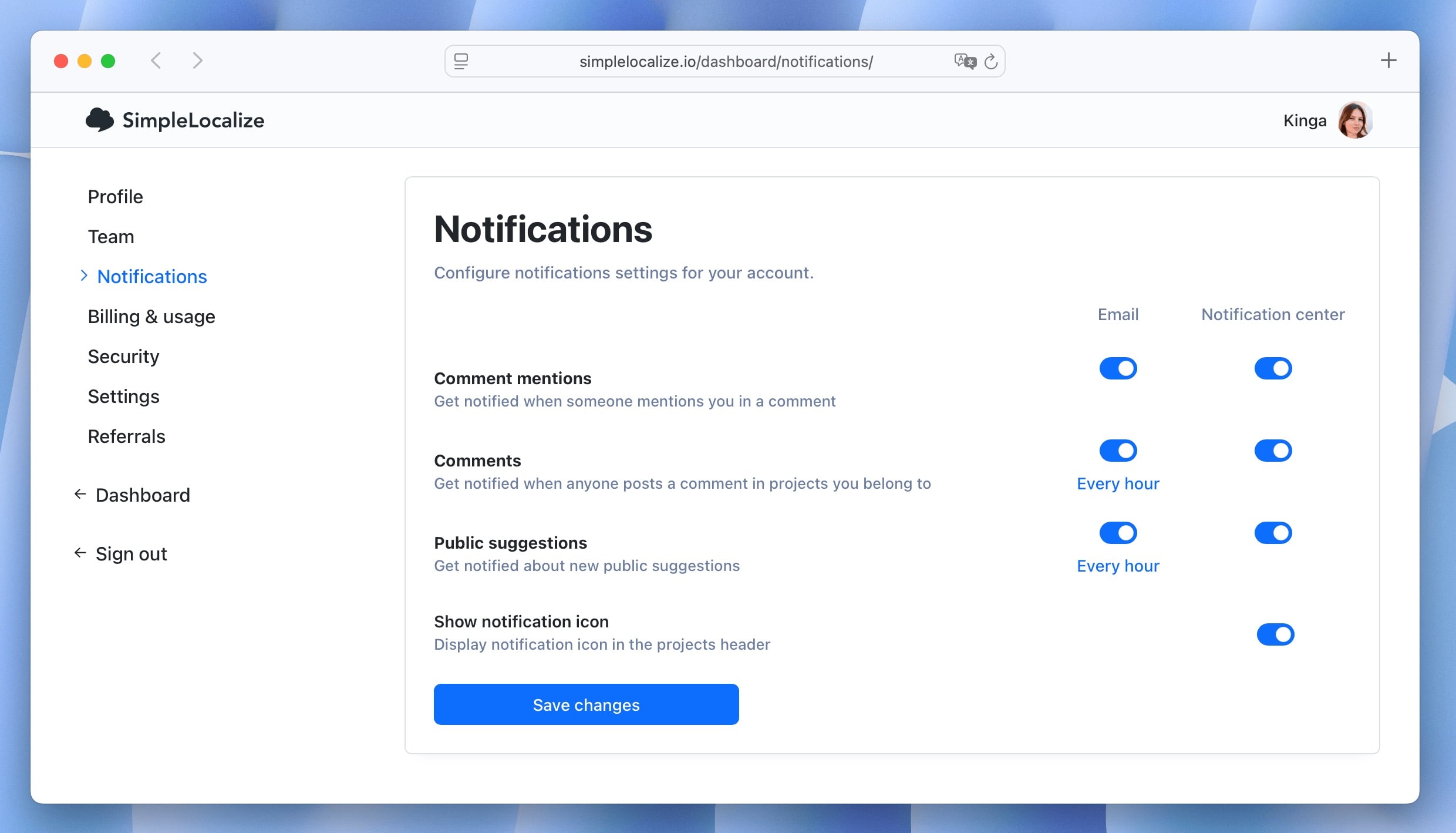
When a user submits a suggestion, you will receive an email and in-app notification with the suggestion details. When a user reports an issue, you will receive an in-app notification that opens the report. Enable notifications for Community suggestions in your user settings to stay up-to-date with the latest feedback.
Accepting suggestions
You can see all the suggestions in the Community tab of your project and in the Comments section of a translation. Click on the comment icon to view the suggestion details and accept it.
Filter suggestions by Pending to see only the suggestions that are waiting for your review.
Once you accept a suggestion, it will automatically replace the original translation in your project.
The suggestion will also be marked as accepted on the Community page.

Ignoring suggestions
In the Translation Editor, you can also ignore public suggestions that are not relevant for a given translation.
Ignored suggestions are removed from your pending suggestions workflow, helping you keep the list focused on actionable items. If needed, you can restore them later using the Unignore option.

Resolving reports
Reported issues are listed in the Community tab of your project together with the suggestions, the newest first. Click on a report to see its details: the description, the screenshot, and the person who sent it with their email address.
Once you fix the problem, click Resolve. If you need to come back to it, click Reopen. The filters work for reports too:
- Pending shows the reports that are still open,
- Accepted shows the resolved reports,
- Any person and the search box find reports by the person or by the text.
Reports have no language, so they are hidden when you filter by a language.
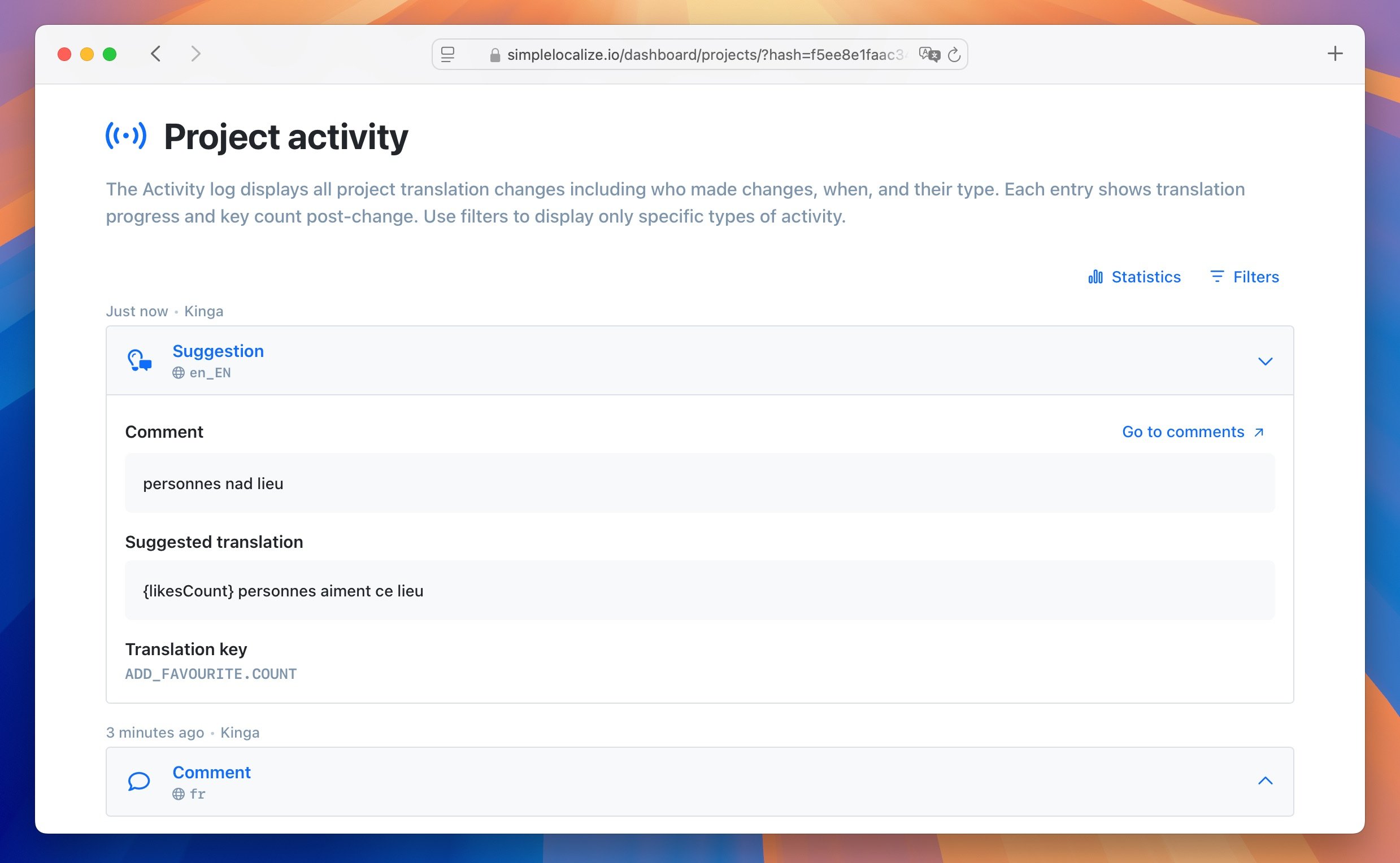
Project activity
You can see all the activity related to the community suggestions in the Activity tab of your project. This includes all the suggestions submitted by users, as well as the comments.