
Edit translations
right on your website
The SimpleLocalize Chrome extension highlights every translation on your page.
Click one to edit, accept or comment on it in Chrome's side panel, without hunting for keys in files.
Set up in minutes
No script on your site,
no framework limitations
The extension reads which project and language your page shows from one hidden element. Nothing else ships to your users.
Install and sign in
Add the extension to Chrome and sign in with your personal access token. The token stays in your browser.
Add one element
Put a hidden element with your project token and the page language on your site, for example on staging. The extension generates it for you.
Show translations
Enable the extension on your website and open the side panel. Every translation on the page gets outlined by its status.
For a step-by-step walkthrough, see the getting started guide.
Everything you need, in context
Translators, reviewers and developers work on the real page, exactly where users see the texts.
Every action follows their role and permissions in the project.
See every translation
where it appears
Translations on the page are outlined by their status: accepted, needs review, not translated, or missing in your project. Hover a text to see its key and open it in the side panel, no more searching JSON files for the right key.
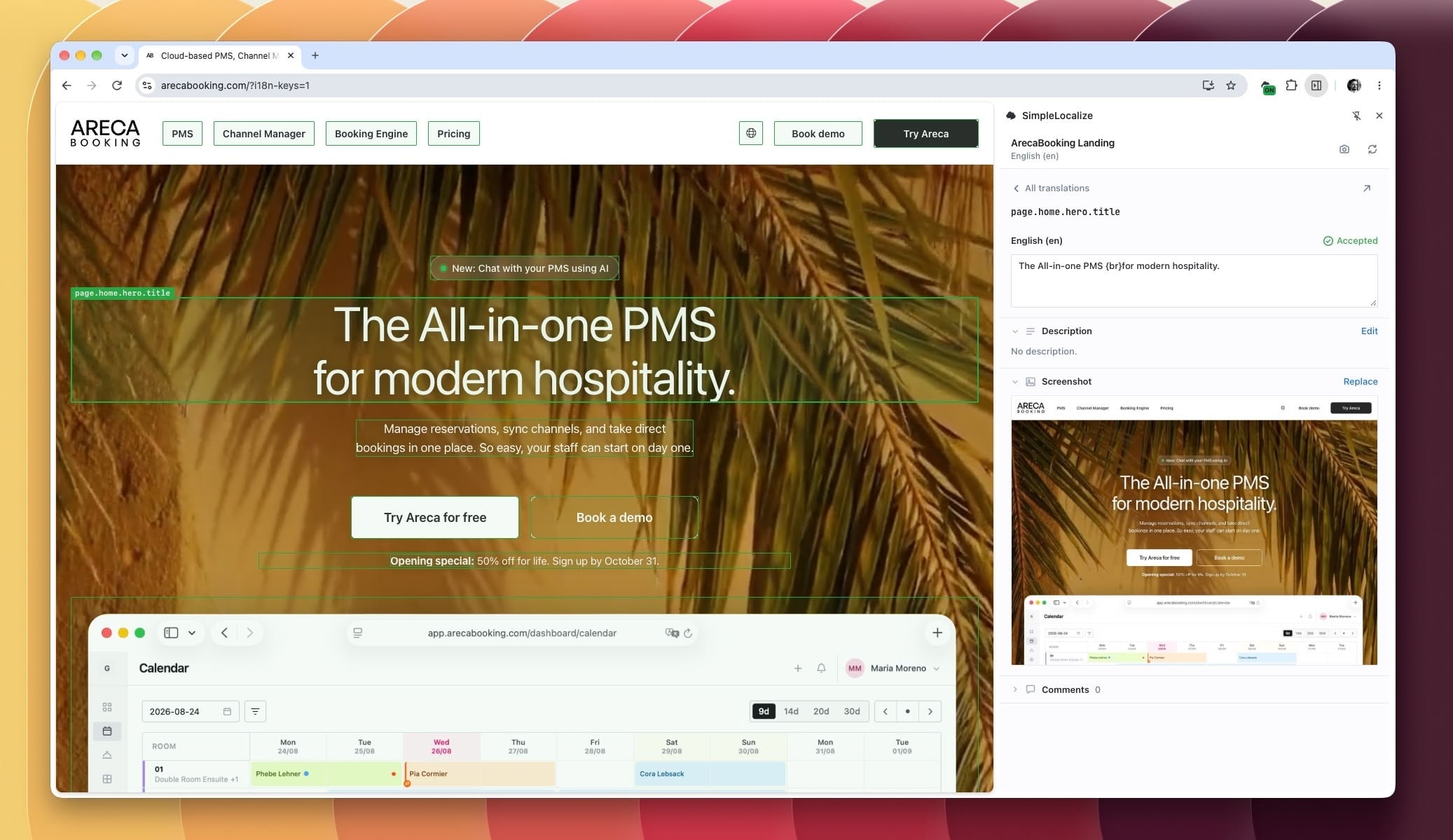
Edit and accept
without leaving the page
Change a translation and see it on the page right away. Save it, or save and accept it in one click. Accept & next takes reviewers straight to the next translation waiting for review, and each accepted translation shows who accepted it and when.
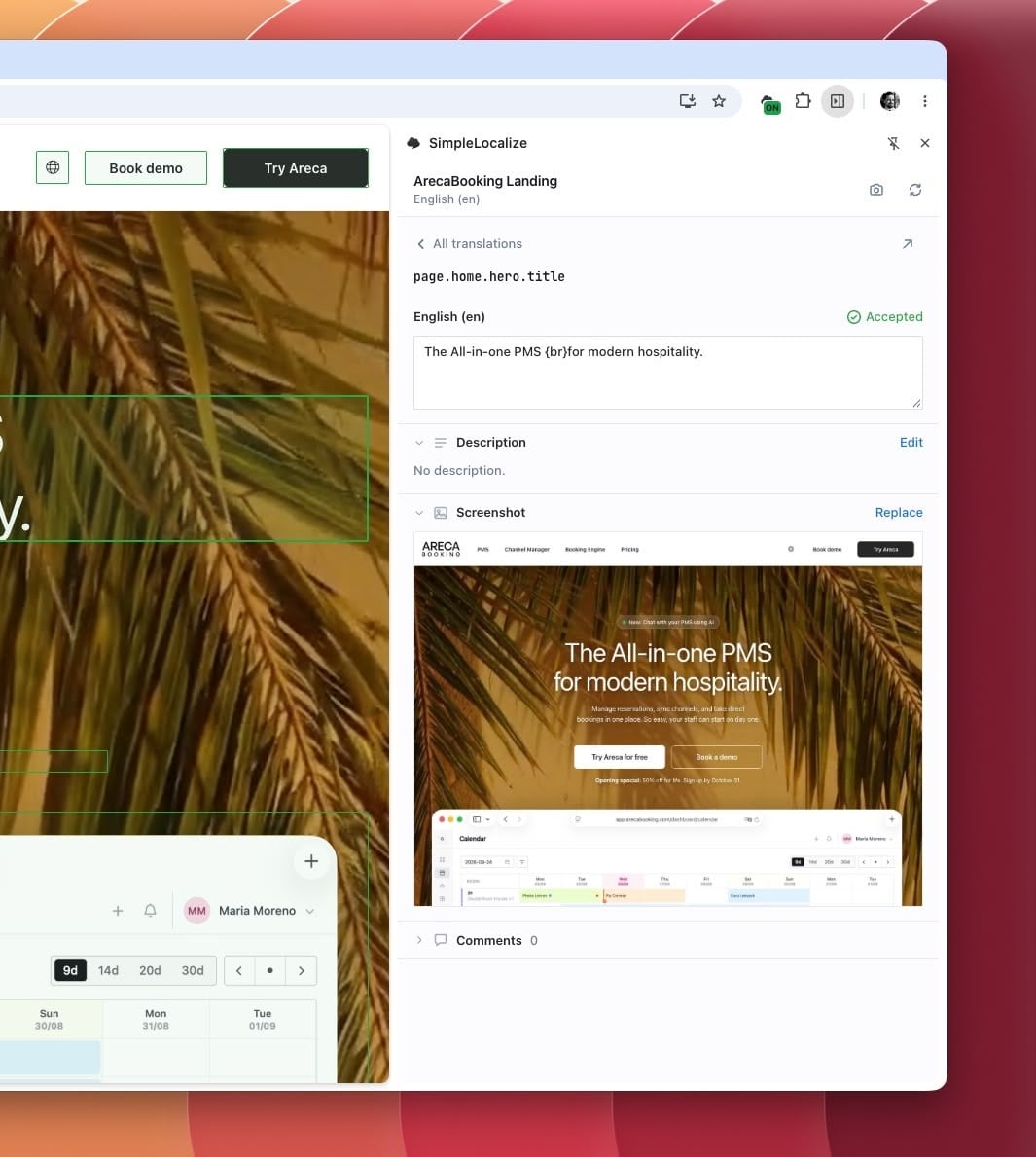
Review a whole page
in minutes
Filter the translations on the page by what needs attention: needs review, not translated, missing in the project, or changed but not live yet. When everything looks right, accept all translations shown on the page at once.
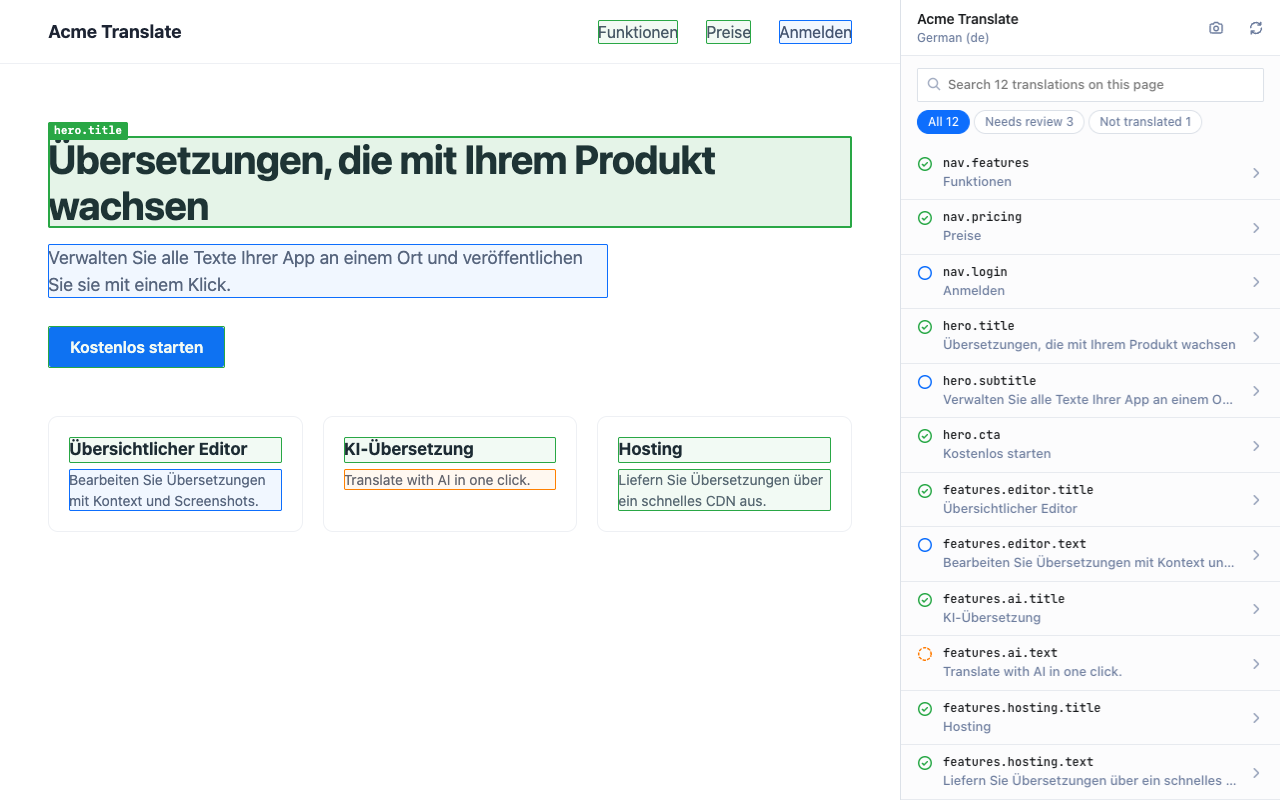
Screenshots as context
for translators and AI
Capture the visible part of the page with the camera button or Ctrl+Shift+S, and attach it to every key in view. Translators and AI translation see exactly where each text is used.
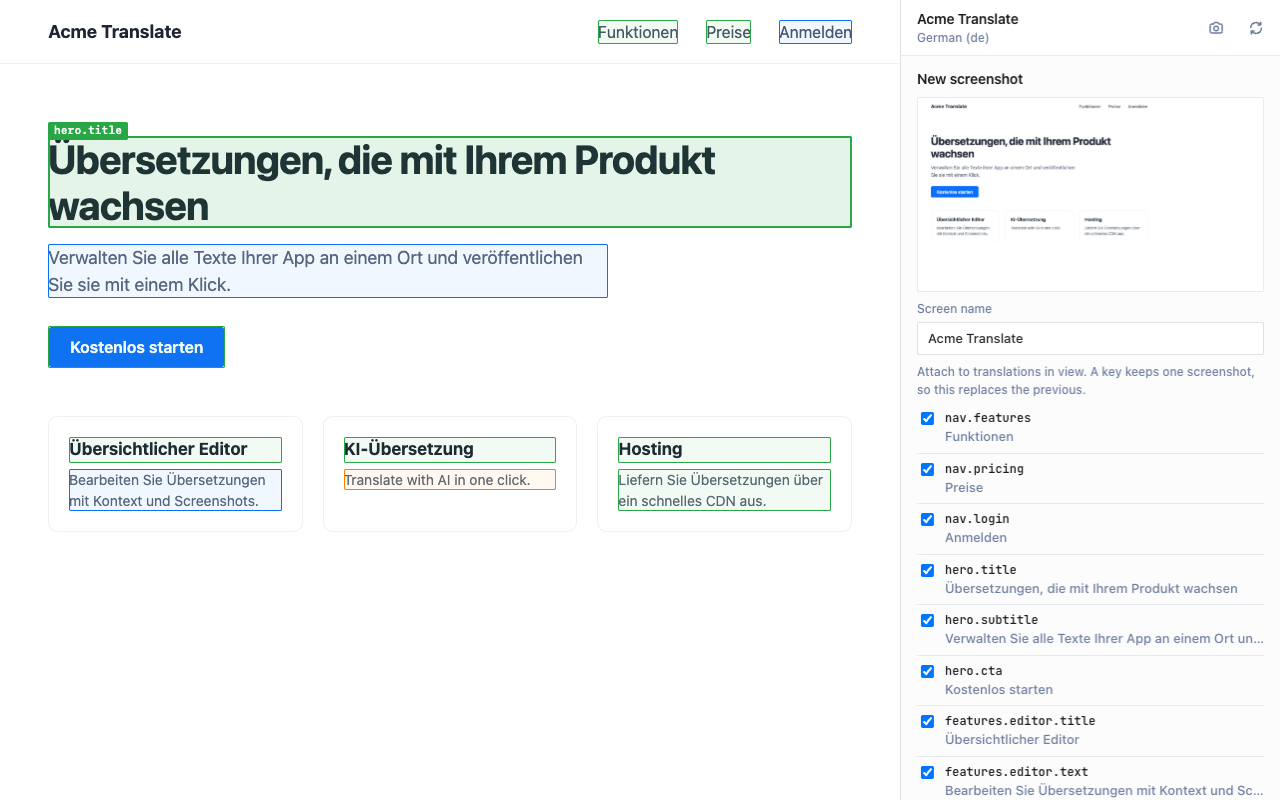
Comments, descriptions
and the full editor
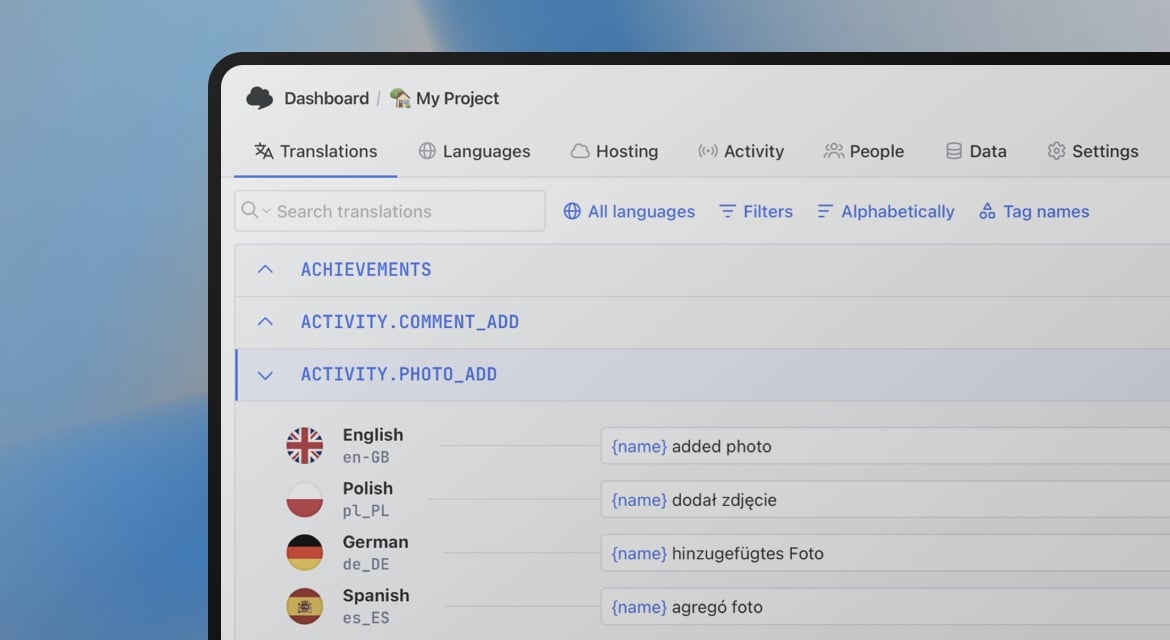
Ask a question about a translation, explain how a text is used in the key description, or create a key the page uses but the project doesn't have. Changes sync with your Translation Editor, and any key opens there in one click.
Learn more about the Translation Editor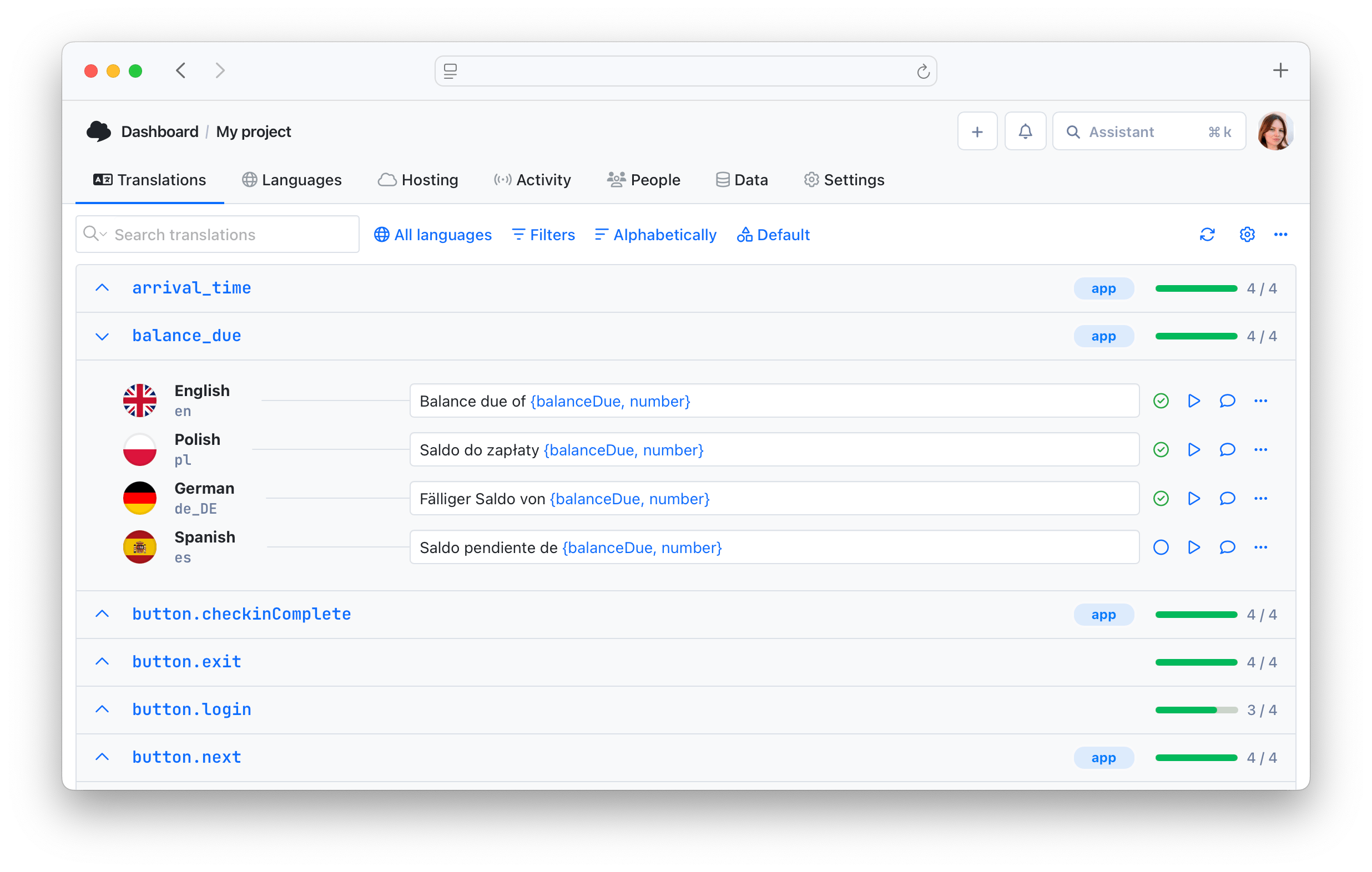
Private by design
Your site stays clean, your data stays yours
The extension runs only for your team, in their browsers. Your website ships no editor code, and translation data is never exposed publicly.
Token stays in the browser
Only team members with a personal access token can use it, and pages never see the token.
Only sites you enable
Chrome asks for access to one website at a time. The extension doesn't read any other pages.
Roles and permissions
Translators edit only their languages, reviewers accept, developers manage keys and screenshots.
Trusted by developers and translators at














Start translating in context
- Free Chrome extension, no script on your website
- Every translation on the page outlined by its status
- Edit, accept and comment in the side panel
- Screenshots as context for translators and AI
- Follows your team's roles and permissions
"The product
and support
are fantastic."
"The support is
blazing fast,
thank you Jakub!"
"Interface that
makes any dev
feel at home!"
"Excellent app,
saves my time
and money"
Learn more about translating in context
See the latest news from our blog, including product updates, tutorials, and more.
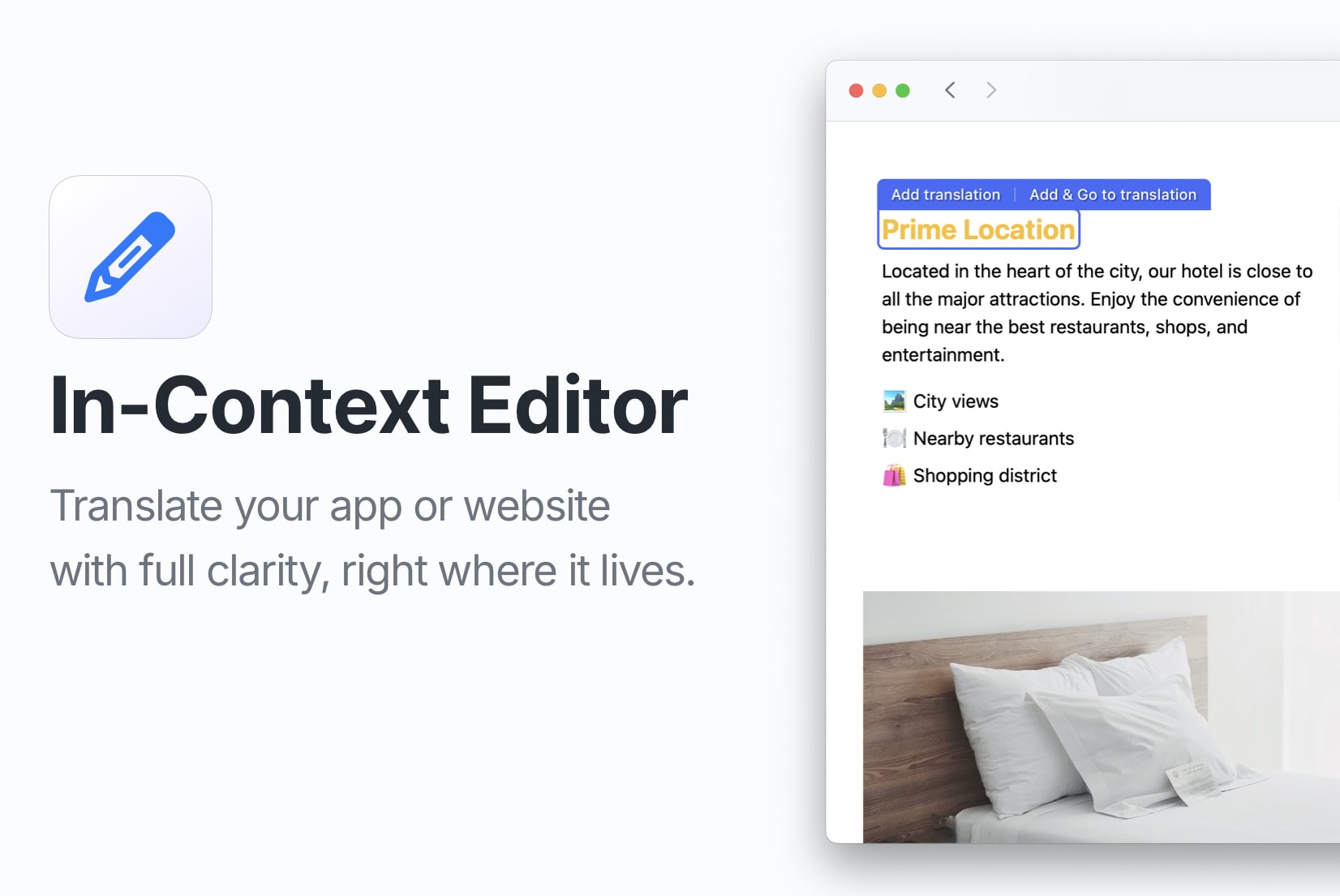
Introducing: In-Context Editor
Edit your website or app translations directly within the context with our new In-Context Editor feature. Learn how to set it up and use it effectively.
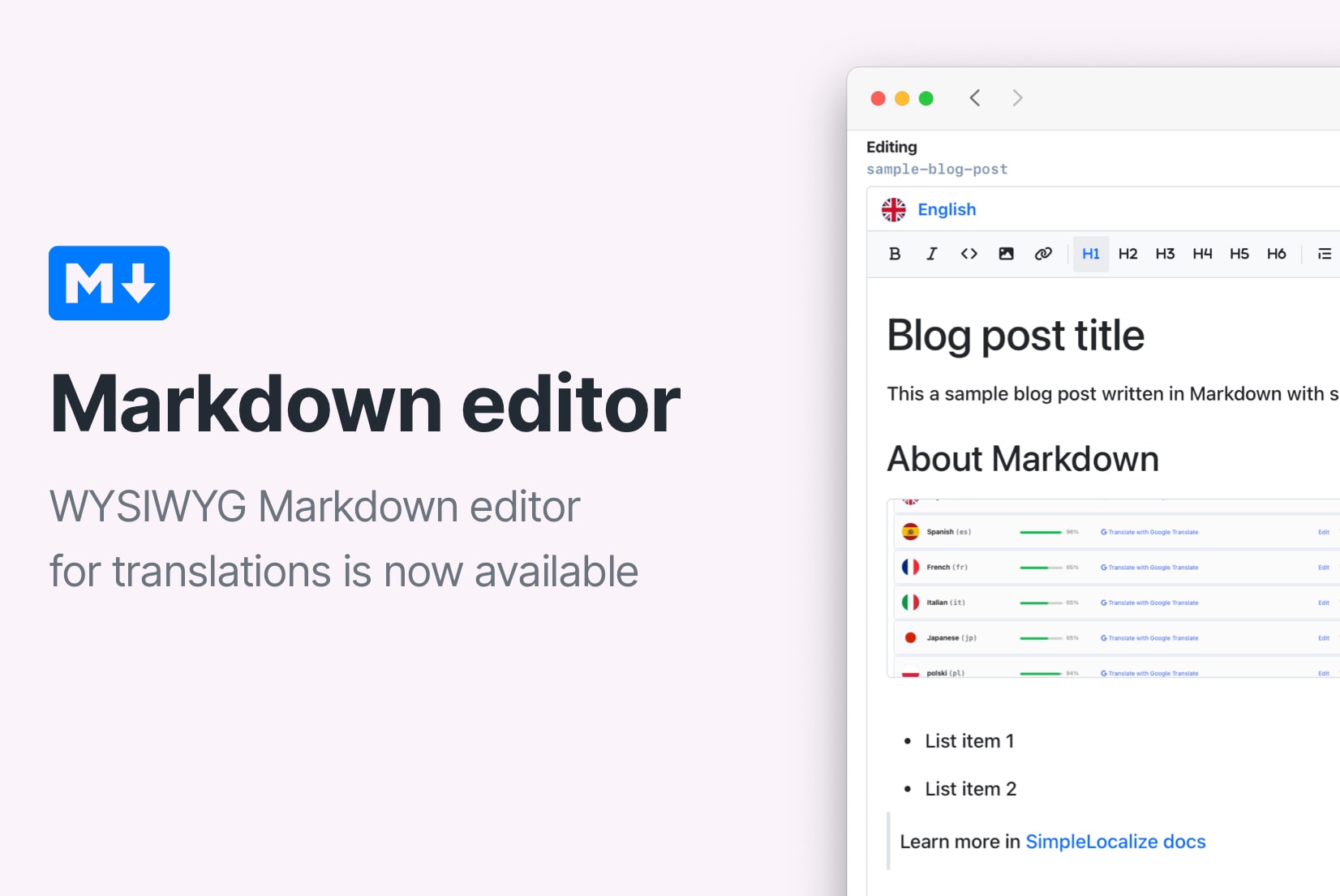
Introducing: Markdown visual editor
Markdown visual editor is a new feature in SimpleLocalize that allows you to edit Markdown files in a user-friendly way, without needing to know the syntax.
Organize translation keys with Tags
Organize translation keys with tags in SimpleLocalize. Learn how to create, assign, and filter tags to streamline your localization workflow and team collaboration.
What is the SimpleLocalize Chrome extension?
It's a free Chrome extension for SimpleLocalize users that finds the translations on your website and lets you edit, review and comment on them in Chrome's side panel. It replaces the In-Context Editor script: nothing has to be loaded on your website, and the extension works on any page you enable, from local development to production.
How does the extension find translations on my page?
By the data-translation-key attribute on your elements, which is the most reliable option, or by matching the texts on the page with the translations in the page's language. Most i18n libraries can add the attribute for you; the documentation shows how, including an example for react-intl.
Does it work with my framework?
Yes. The extension reads the page your app renders, so it works with React, Next.js, Vue, Angular, Svelte, static HTML and any i18n library. Your app keeps rendering its own language; the extension never switches it.
Is it safe to use on production?
The extension runs only in the browsers of your team members who install it and sign in with a personal access token. Your website doesn't load any editor code, and every change goes through the same permissions, QA checks and review workflow as in the Translation Editor.