Google Play Localizer
Translate your Google Play listing into up to 87 languages in a minute. Free, no sign-up.
How it works
1. Paste your link
Copy the link to your app from Google Play, or just the package name, and paste it above.
2. Pick languages
Choose from 87 Google Play languages. AI translates every field within the character limits.
3. Upload with fastlane
Download the ZIP and send every language to Google Play with one fastlane command.
The texts are read from the public Google Play page in English, or in the default language of the app. To translate from another language, change them under Edit source texts. Nothing is stored.
What is fastlane?
fastlane is a free, open-source command-line tool that uploads store texts for you. Its supply command sends every language from the ZIP to Google Play, so you don't copy them by hand in Play Console.
1. Install fastlane
On a Mac, install it with Homebrew in the Terminal app:
brew install fastlane
fastlane --version
2. Get a service account key
fastlane signs in to Google Play with a Google Cloud service account:
- Open the Google Cloud console, select or create a project and enable the Google Play Android Developer API.
- Go to IAM & Admin, Service accounts, create a service account, open it, go to Keys and create a JSON key. Save the file as
service-account.jsonnext to yourfastlanefolder. - In Play Console, go to Users and permissions, invite the email address of the service account and allow Edit store listing, pricing and distribution for your app.
3. Unzip the texts
Unzip the downloaded file into the fastlane folder of your project:
your-project/
├── service-account.json
└── fastlane/
    └── metadata/
        └── android/
            ├── en-US/   (title.txt, short_description.txt, full_description.txt)
            ├── de-DE/
            └── pl-PL/
Folder names are Google Play language codes such as en-US, de-DE or pl-PL. Keep them as they are, Google Play rejects other names.
4. Upload to Google Play
Run, with the package name of your app:
cd ~/path/to/your-project
fastlane supply \
  --package_name com.example.app \
  --json_key service-account.json \
  --skip_upload_apk \
  --skip_upload_aab \
  --skip_upload_changelogs \
  --skip_upload_images \
--skip_upload_screenshots- Only the texts are uploaded, no app bundle or release. The changes are published to your store listing, and Google may review them first.
- To back up the current texts first, run this in an empty folder:
fastlane supply init --package_name com.example.app --json_key service-account.json
Troubleshooting: the caller does not have permission
This error means fastlane signed in, but the service account cannot edit the app. Check that:
- the command has your real package name, not
com.example.app; - the service account is invited in Play Console with access to this app. A new invitation can take a few minutes to work;
- the Google Play Android Developer API is enabled in the Google Cloud project of the service account.
The supply init command above is a safe test: it only downloads texts, so if it works, the package name and the key are right.
Manage Google Play texts in SimpleLocalize
This tool is great for a one-off translation. To update your listing with every release, connect your app in SimpleLocalize:
- Import the store listing of every language into your project, next to your app translations.
- Translate with your team, auto-translation and AI, within the Google Play character limits.
- Push the texts straight to Google Play with a service account key, without fastlane.
Read the Google Play integration guide or start for free.
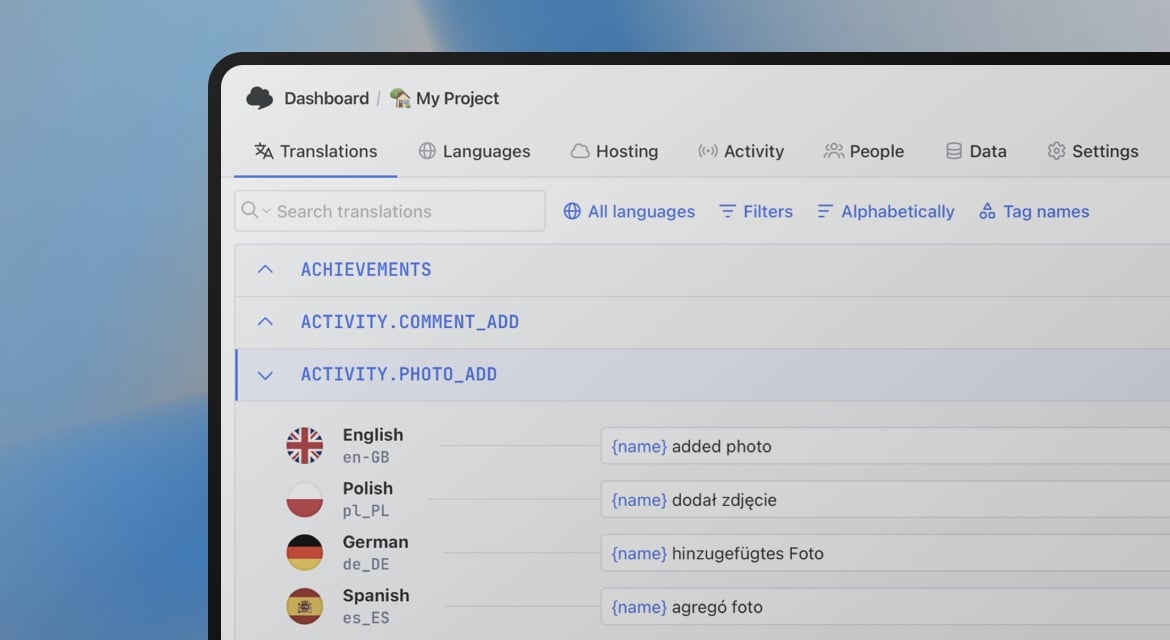
Manage translations with SimpleLocalize
- Import the same file formats you just converted or checked
- Auto-translate with DeepL, Google, OpenAI, Claude or Gemini using your own API keys
- Free plan for small projects, no credit card required
Start for free
No credit card required∙5-minute setup