How to use Markdown in Android and iOS translations

Sometimes a part of a translation needs to stand out, for example: "Tap Save to keep all changes". The easiest way to keep this styling in one translation for both platforms is Markdown. iOS supports it natively, and on Android you need one small extra step.
iOS
SwiftUI renders Markdown in Text out of the box (iOS 15+).
When you pass a string literal to Text, SwiftUI treats it as a localization key and renders Markdown from the translation:
// Localizable.xcstrings: "save_hint" = "Tap **Save** to keep _all_ changes"
Text("save_hint")
Bold, italic, strikethrough, inline code, and links work. Block elements like headings and lists are not rendered.
If your text is stored in a String variable, SwiftUI shows it as plain text. Convert it to AttributedString first:
let hint = String(localized: "save_hint")
Text(try AttributedString(markdown: hint))
In UIKit, use AttributedString with a UILabel:
let hint = AttributedString(localized: "save_hint")
label.attributedText = NSAttributedString(hint)
Learn more in Apple documentation about Text and AttributedString.
Android
Android string resources don't understand Markdown. Instead, they support a small set of HTML tags like <b>, <i>, and <s>.
You have two options.
Option 1: Convert Markdown to HTML on export
SimpleLocalize can convert Markdown styling to HTML tags when you download strings.xml files with the MARKDOWN_TO_HTML option (see CLI examples below).
The translation Tap **Save** to keep _all_ changes becomes:
<string name="save_hint">Tap <b>Save</b> to keep <i>all</i> changes</string>
Now set the string resource directly on a TextView, and Android will show the styling:
textView.setText(R.string.save_hint)
Use getText() instead of getString() if you need the text in code, because getString() removes the styling:
val hint: CharSequence = getText(R.string.save_hint)
Upload and download with CLI
If you also upload strings.xml files to SimpleLocalize, add the HTML_TO_MARKDOWN option to the upload command.
It converts the HTML tags back to Markdown, so your iOS translations stay correct:
simplelocalize upload \
  --apiKey PROJECT_API_KEY \
  --uploadFormat android-strings \
  --uploadLanguageKey en \
  --uploadPath ./app/src/main/res/values/strings.xml \
  --uploadOptions HTML_TO_MARKDOWN
The <string name="save_hint">Tap <b>Save</b> to keep <i>all</i> changes</string> string is saved in SimpleLocalize as Tap **Save** to keep _all_ changes.
Then, download translations with the MARKDOWN_TO_HTML option to convert Markdown back to HTML tags:
simplelocalize download \
  --apiKey PROJECT_API_KEY \
  --downloadFormat android-strings \
  --downloadPath ./app/src/main/res/values-{lang}/strings.xml \
  --downloadOptions MARKDOWN_TO_HTML
You can also keep both options in the simplelocalize.yml configuration file, and run simplelocalize upload and simplelocalize download without parameters:
apiKey: PROJECT_API_KEY

uploadFormat: android-strings
uploadLanguageKey: en
uploadPath: ./app/src/main/res/values/strings.xml
uploadOptions:
  - HTML_TO_MARKDOWN

downloadFormat: android-strings
downloadPath: ./app/src/main/res/values-{lang}/strings.xml
downloadOptions:
  - MARKDOWN_TO_HTML
Only bold, italic, and strikethrough are converted. Learn more about Markdown styling in Android strings and CLI configuration.
Option 2: Keep Markdown and use a library
If you use Jetpack Compose, or you need more than bold and italic (for example, links or lists), keep Markdown in your translations and render it with a library.
For Jetpack Compose, you can use multiplatform-markdown-renderer:
import com.mikepenz.markdown.m3.Markdown

Markdown(stringResource(R.string.save_hint))
For classic views, you can use Markwon:
val markwon = Markwon.create(context)
markwon.setMarkdown(textView, getString(R.string.save_hint))
Editing Markdown in SimpleLocalize
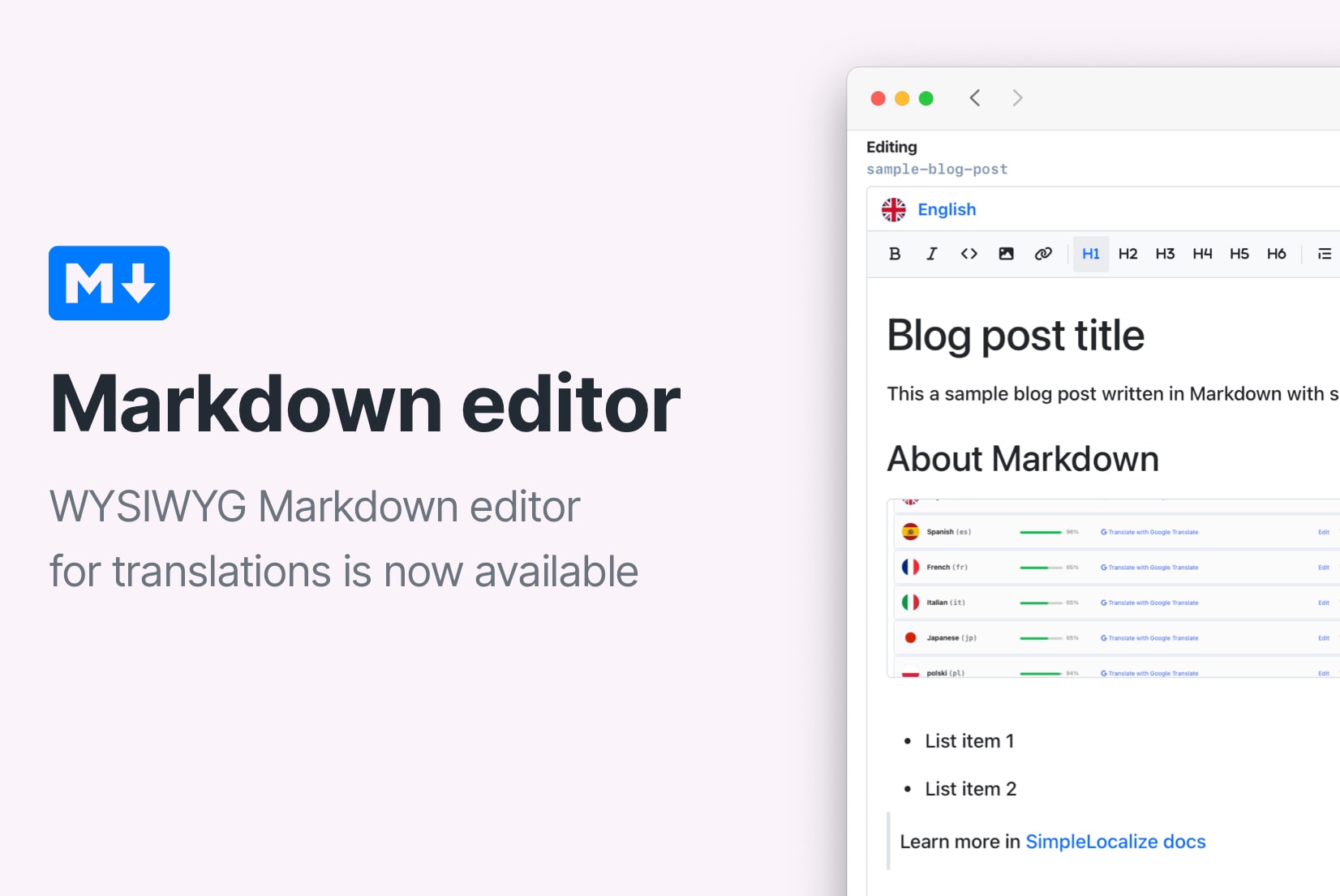
Translators don't need to know Markdown syntax.
SimpleLocalize Text Editor lets them format text visually, and saves it as Markdown in the background.
Then you export the same translations to Localizable.xcstrings for iOS, and to Android strings with or without the MARKDOWN_TO_HTML option for Android.