The In-Context Editor script is deprecated. Use the SimpleLocalize Chrome extension instead: it finds, edits and reviews translations directly on your website, and adds comments and screenshots. The script keeps working on your website, but gets no new features. See how to migrate.
In-Context Editor is a powerful tool that allows you to preview and edit translations directly in your application. This feature is particularly useful for developers and translators who want to see how translations look in context, ensuring that the final product meets their expectations.
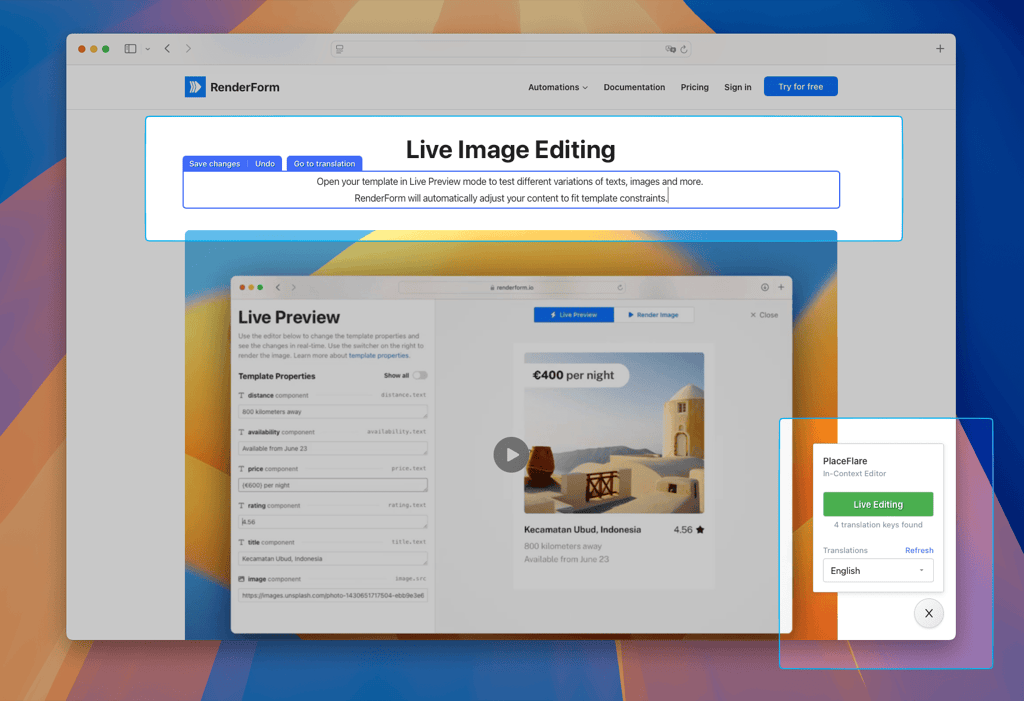
In-Context Editor is available for all SimpleLocalize users, including those on the free plan, and it can be integrated with any HTML, React, Vue, or Angular application. The integration process is straightforward and can be completed in just a few steps.
Features
The In-Context Editor offers a range of features to enhance your translation workflow:
- Live Preview: Pick a language and see its translations rendered directly on your page.
- Live Editing: Click any translatable element to edit its text inline and save it back to SimpleLocalize.
- Add missing translations: Create a translation key that's marked up on the page but doesn't exist yet, prefilled with the page's own text as the source-language translation.
- Highlight found keys: Outline every detected element on the page, labeled with its translation key. Elements whose key doesn't exist in SimpleLocalize yet are outlined and labeled automatically, even with highlighting turned off.
- Review translations: Highlight translations that haven't been reviewed yet directly on the page, and accept them on the spot without needing to open the Translation Editor.
- Go to translation: Navigate to the translation in the SimpleLocalize dashboard for further editing.
- Suggestions: Propose a translation change directly from the page — as a project member (if your project has suggestions enabled) or, if the project accepts anonymous suggestions, without logging in at all.
Installation
Installation requires adding a script tag to your HTML file and the SimpleLocalize configuration with your project token.
<script>
  window.simplelocalize = {
      projectToken: 'your-project-token',
  };
</script>
<script src="https://get.simplelocalize.io/js/in-context-editor.iife.js" defer/>
After adding those lines, the In-Context Editor will be automatically initialized on your application and you will be able to see a small icon in the bottom right corner of your application with the SimpleLocalize logo.
Configuration
In-Context Editor highlights the text that can be translated in your application, and the identification of the translatable text is done by the data-translation-key attribute on the HTML elements,
for example:
<div data-translation-key="welcome_message">
  Welcome to our application!
</div>
it also works with namespaces:
<div
  data-translation-key="welcome_message"
  data-translation-namespace="common"
>
    Welcome to our application!
</div>
If you're already using other attributes to identify translatable text, you can configure the In-Context Editor to use those attributes instead of data-translation-key and data-translation-namespace,
by adding the following configuration to your window.simplelocalize object:
window.simplelocalize = {
    projectToken: "your-project-token",
    dataAttributeKey: "data-i18n-key",
    dataAttributeNamespace: "data-i18n-namespace"
};
Line breaks
When you press Enter while editing text inline, the In-Context Editor needs to know how your app represents a
line break in translation content, you can configure it with linebreakFormat property:
window.simplelocalize = {
    projectToken: "your-project-token",
    linebreakFormat: "newline" // "space" (default) | "newline" | "br"
};
space- line breaks are collapsed into a single space when the translation is saved. Use this if your app doesn't support multi-line translations.newline- saved as a literal\ncharacter.br- saved as<br/>.
If your setup uses something different, you can use linebreakToken property use custom string instead:
window.simplelocalize = {
    projectToken: "your-project-token",
    linebreakToken: "\\n"
};
Whichever format you use, the In-Context Editor converts it back into real line breaks when previewing an existing translation, so multi-line text correctly instead of showing the raw token on one line.
Usage
Once the In-Context Editor is installed, click the SimpleLocalize logo in the bottom right corner of your application to open the widget panel. The widget never interrupts your page on its own — nothing is requested until you interact with it.
If your project accepts anonymous suggestions, you can start right away: pick a language and turn on Live Editing. Otherwise, click Log in and provide a personal access token to unlock full editing.
Once a language is picked, Live Editing lets you click any translatable element to edit it inline, Highlight found keys outlines every detected element with a small label showing its key — elements whose key doesn't exist in SimpleLocalize yet are outlined and labeled automatically, regardless of that toggle — and Highlight needs review translations outlines, in yellow, every element whose translation hasn't been reviewed yet.
Clicking a translatable element opens a small popover with actions for that text. If you're logged in as a project contributor, it shows Go to translation (jumps straight to it in the dashboard) before any edit, plus Accept translation alongside it if that translation still needs review — or Update translation / Undo once you've edited the text inline, with a Suggest translation button appearing alongside them if your project has suggestions enabled. If the key doesn't exist yet, Add translation creates it on the spot, prefilled with the page's own text as the source-language translation. If you're not logged in, editing an element reveals a Suggest translation button; either way, it opens a small optional message field before submitting the suggestion, so it's clear why you think the translation should change.
Further improvements
We are continuously working to improve the In-Context Editor and its surrounding ecosystem by adding new features and automatic linking of translation keys, so you can open them directly from the SimpleLocalize editor. Feel free to share your ideas on how we could make it even better.