The SimpleLocalize Chrome extension highlights the translations on your website and opens them in Chrome's side panel, so you can edit, review, and comment on them in context.
Get started
-
Install the extension, click its icon in the Chrome toolbar (if you don't see it, pin it from the puzzle piece menu), and sign in with a personal access token.
-
Open your website and click Enable on your website.
-
The popup shows the element your page needs, for the project and language you pick. Add it to your website, e.g. on staging, with the language the page currently shows:
<div data-simplelocalize-project-token="YOUR_PROJECT_TOKEN" data-simplelocalize-language="de" hidden ></div> -
Reload the page and click Show translations.
-
For the best results, add translation key attributes to your elements.
Mark translatable elements
Key attributes are the foundation of the extension. With data-translation-key on your elements, every translation is found exactly, including repeated texts, plurals, and translations you've just changed, and highlighting, review, and screenshots work best. It's worth setting them up once in your i18n library.
The extension finds translations on the page in two ways:
-
By the
data-translation-keyattribute. This is the most reliable option:<h1 data-translation-key="welcome_message">Willkommen</h1> -
By text. Without the attributes, the extension matches the texts on the page with the translations in the page's language. This works without any changes in your app, but a text used by several keys can't be told apart, plurals aren't matched.
If you use namespaces, the extension finds the namespace of a key by itself. Add
data-translation-namespaceonly for keys that exist in more than one namespace; without it, you pick the right one in the side panel.
Add the attributes in your i18n library
You usually don't add the attributes by hand: let the code that renders your translations add them.
Libraries that render translations with a component or directive (e.g., a <Trans> component, or your own
wrapper) can set the attribute on the element they render:
function Message({ id }: { id: string }) {
  const { t } = useTranslation();
  return <span data-translation-key={id}>{t(id)}</span>;
}
Libraries that return plain strings (e.g., react-intl formatMessage, or translations used in alt, title
and placeholder) can't pass an attribute along with the text. Instead, each translated string can carry an
invisible marker with its key, and a small script turns the markers into data-translation-key on the elements
that show them. See the example for react-intl,
which turns this on only for translators, with ?i18n-keys=1 in the URL.
Every library is different, so treat these as starting points. An AI coding assistant can adapt them to your setup: point it to this page and the example above. Consider enabling the attributes only on staging or for translators.
Use other attribute names
If your app already uses other attribute names, set them on the element from Get started:
<div
  data-simplelocalize-project-token="YOUR_PROJECT_TOKEN"
  data-simplelocalize-language="de"
  data-simplelocalize-key-attribute="data-i18n-key"
  data-simplelocalize-namespace-attribute="data-i18n-namespace"
  hidden
></div>
Work with translations
Translations on the page are outlined: green when accepted, blue when they need review, orange when not translated, and red when the key doesn't exist. Hover a text and click its label to open it in the side panel, where you can:
- see the text in the project's default language, as the source to translate from,
- edit and accept the translation (Accept & next goes to the next one waiting for review),
- accept all translations on the page with the Needs review filter and Accept all,
- edit the key's description and add comments,
- open the key in the Translation Editor.
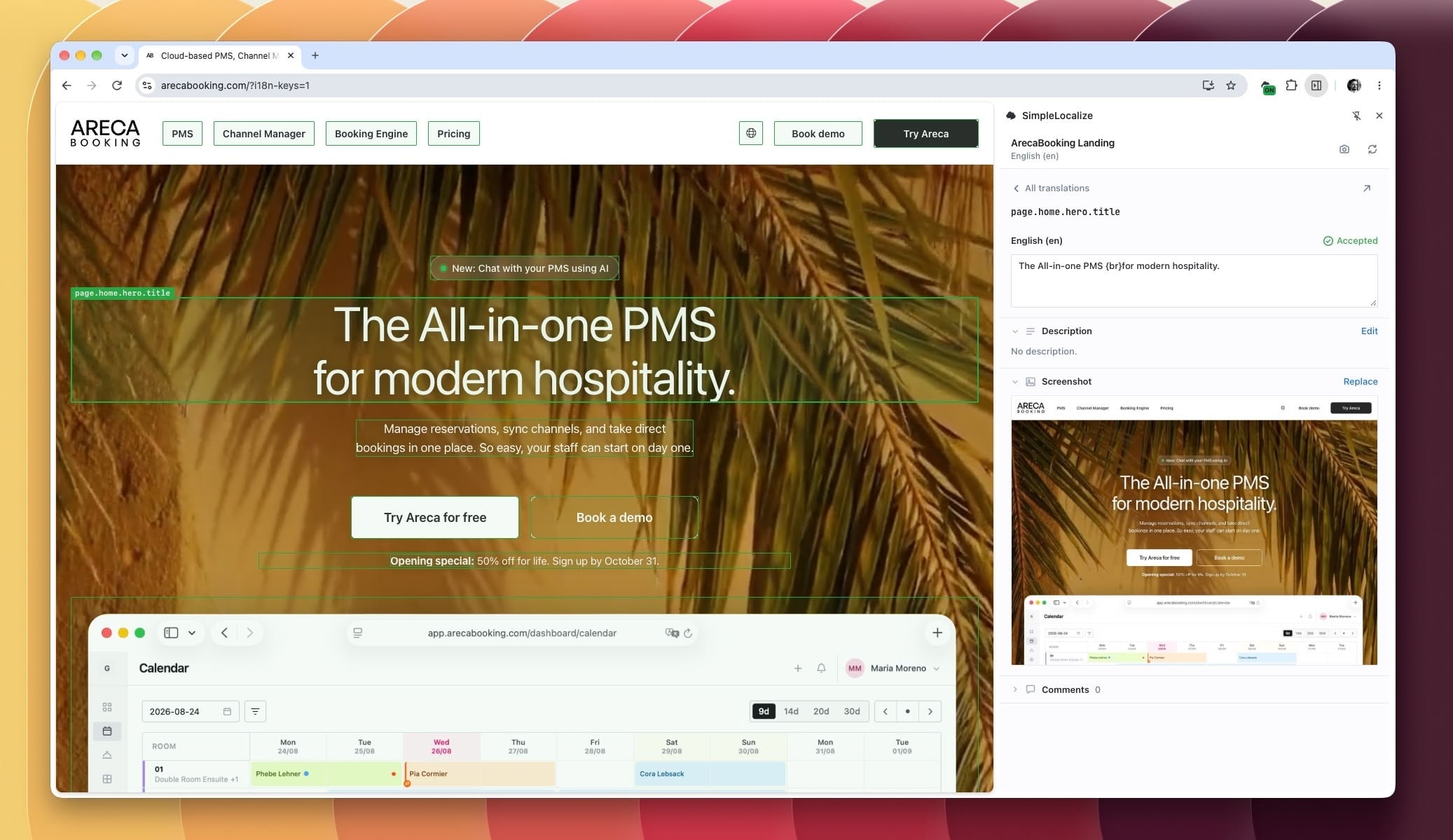
All actions follow your permissions in the project.
Your page shows a changed translation after you publish it or deploy your app. Until then, texts matched without key attributes are marked Changed, not live yet.
Capture screenshots
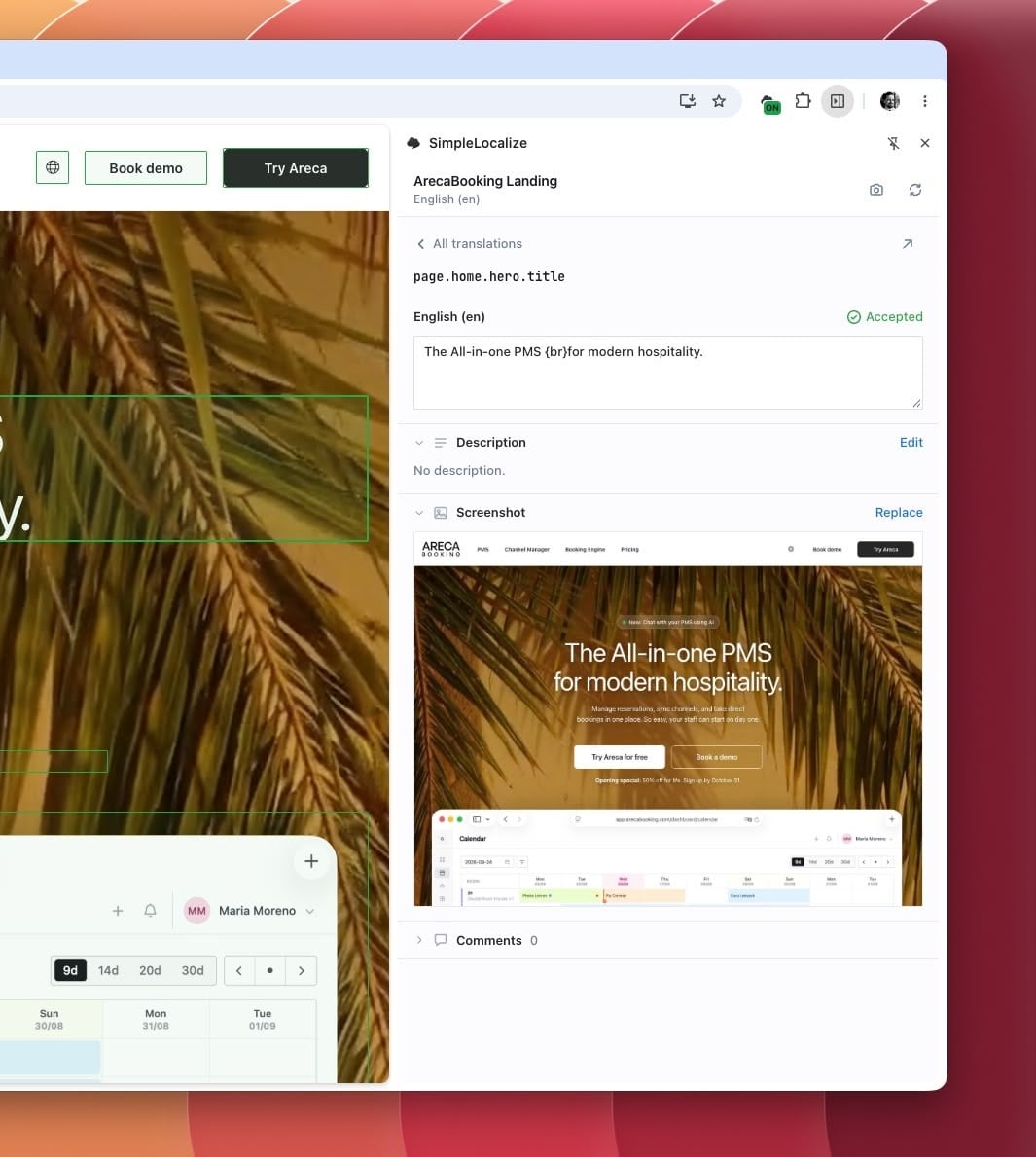
Click the camera button in the side panel, or press Ctrl + Shift + S. Select the translation keys in view and click Attach. The screenshot replaces the previous one of each key.
Migrate from the In-Context Editor
The extension replaces the In-Context Editor script. Remove its <script>
tags and window.simplelocalize configuration, and add the element from Get started. Your
data-translation-key attributes keep working.
Troubleshooting
The extension icon is missing
Pin it from the puzzle piece menu in the Chrome toolbar.
This page isn't set up yet
Add the element from Get started and reload the page.
No translations found on the page
The data-simplelocalize-language must be the language the page shows right now.
Most texts are matched by their content
Add key attributes for exact matching.
A text is marked “Not in the project”
The key in data-translation-key doesn't exist in the project: create it from the side panel, or check its namespace.
A text matches several keys
The same text is used by more than one key. Pick the right one in the side panel, or add key attributes.
A translation you changed isn't highlighted anymore
Your page shows the new text after you publish it or deploy your app. Until then, it's marked Changed, not live yet.
Translations changed in SimpleLocalize don't show up
Click the reload button in the side panel, or Reset cache in the popup.