RTL design guide for developers: Bidirectional layout done right

Arabic is the fifth most spoken language in the world (language data from Ethnologue). Hebrew, Persian, and Urdu together add hundreds of millions more. Supporting these languages is not a niche but a real market, and one that most software skips entirely because RTL layout feels intimidating.
The intimidation is understandable. RTL isn't just flipping text direction. It affects margins, padding, icons, flexbox behavior, animations, form fields, and how users navigate your UI. A product that looks polished in English can look completely broken in Arabic if RTL hasn't been thought through.
This guide is practical and developer-focused. We'll walk through the mechanics of RTL layout, cover the most common mistakes, and use a hotel booking UI as a running example to illustrate exactly what breaks and how to fix it.
If you're building a multilingual product, RTL support is one of the more complex technical challenges in the broader space of software internationalization and localization architecture. This post focuses specifically on the layout layer.
What RTL actually means for layout
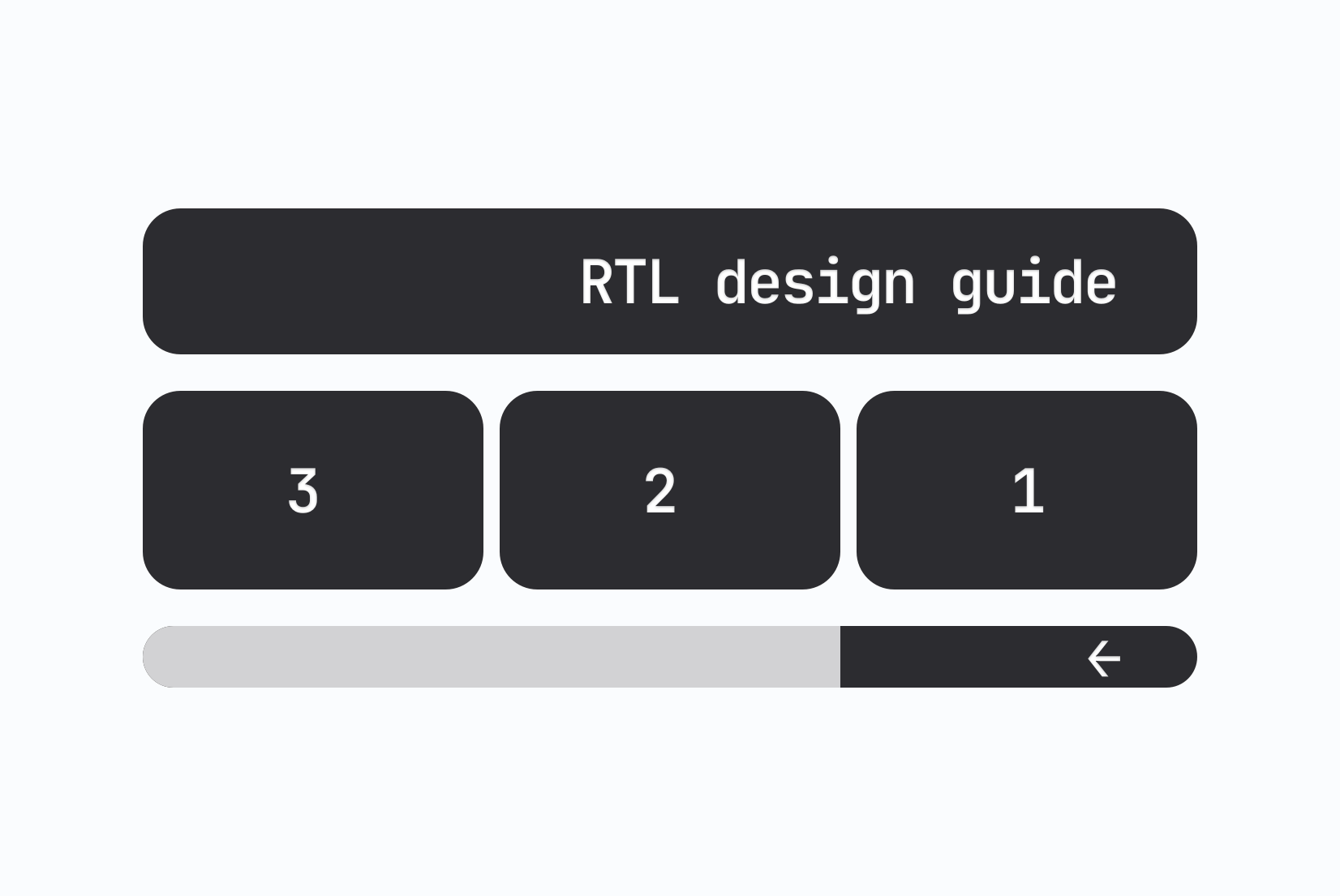
Right-to-left (RTL) layout means that the visual reading direction of your interface is reversed. Text flows from right to left, navigation is mirrored, and the overall page composition is horizontally flipped compared to a left-to-right (LTR) layout.
This affects far more than text:
- Page structure flows from right to left (sidebar on the right, content on the left)
- Navigation items are ordered right-to-left
- Form fields are right-aligned by default
- Progress indicators move from right to left
- Directional icons (arrows, chevrons, back/forward buttons) are mirrored
- Animations that slide or scroll horizontally are reversed
The four main RTL languages you're likely to encounter in software localization:
| Language | Script | Locale code |
|---|---|---|
| Arabic | Arabic | ar, ar-SA, ar-EG |
| Hebrew | Hebrew | he, he-IL |
| Persian (Farsi) | Arabic-Persian | fa, fa-IR |
| Urdu | Nastaliq | ur, ur-PK |
Each has nuances in typesetting, but from a layout engineering perspective, they all share the same core RTL behavior.
Setting direction in HTML
The foundation of RTL support is the dir attribute on the <html> element:
<html lang="ar" dir="rtl">
This single attribute does a surprising amount of work. The browser automatically:
- Aligns text to the right by default
- Reverses the order of inline elements
- Adjusts punctuation placement
- Applies the Unicode Bidirectional Algorithm to mixed-direction content
For a Next.js application, this attribute is typically set dynamically based on the active locale:
// pages/_document.tsx
const directionMap: Record<string, 'rtl' | 'ltr'> = {
  ar: 'rtl',
  he: 'rtl',
  fa: 'rtl',
  ur: 'rtl',
};

export default function Document() {
  const { locale } = useRouter();
  const dir = directionMap[locale ?? 'en'] ?? 'ltr';

  return (
    <Html lang={locale} dir={dir}>
      <Head />
      <body>
        <Main />
        <NextScript />
      </body>
    </Html>
  );
}
For applications that render multiple languages simultaneously (e.g., a mixed-content page), you can scope direction to individual elements:
<div dir="rtl" lang="ar">
  <p>حجز الفندق</p>
</div>
<div dir="ltr" lang="en">
  <p>Hotel booking</p>
</div>
CSS logical properties: The right way to handle direction
The biggest paradigm shift in modern RTL support is adopting CSS logical properties. If you've built interfaces with physical directional properties like margin-left, padding-right, border-left, or left: 0, you've written code that will break in RTL.
Logical properties replace physical directions with flow-relative concepts:
| Physical property | Logical equivalent |
|---|---|
margin-left | margin-inline-start |
margin-right | margin-inline-end |
padding-left | padding-inline-start |
padding-right | padding-inline-end |
border-left | border-inline-start |
text-align: left | text-align: start |
text-align: right | text-align: end |
left: 0 | inset-inline-start: 0 |
right: 0 | inset-inline-end: 0 |
float: left | float: inline-start |
When dir="rtl" is active, the browser automatically swaps inline-start and inline-end. You write one rule, it works in both directions.
Example: Room card component
Here's a room card component. The LTR version uses physical properties:
/* Breaks in RTL */
.room-card__badge {
  position: absolute;
  top: 16px;
  left: 16px;
}

.room-card__price {
  text-align: right;
}

.room-card__icon {
  margin-right: 8px;
}
The RTL-safe version:
/* Works in both directions */
.room-card__badge {
  position: absolute;
  top: 16px;
  inset-inline-start: 16px;
}

.room-card__price {
  text-align: end;
}

.room-card__icon {
  margin-inline-end: 8px;
}
In Arabic, inset-inline-start maps to the right edge. In English, it maps to the left. The badge appears correctly positioned in both cases without any direction-specific overrides.
Shorthand logical properties
CSS also provides shorthand logical properties for common patterns:
/* Physical shorthand (breaks RTL) */
padding: 16px 24px 16px 24px; /* top right bottom left */

/* Logical shorthands */
padding-block: 16px;   /* top and bottom */
padding-inline: 24px;  /* left and right (direction-relative) */

/* Or individually */
margin-block-start: 8px;  /* top */
margin-block-end: 16px;   /* bottom */
margin-inline-start: 0;   /* left in LTR, right in RTL */
margin-inline-end: 24px;  /* right in LTR, left in RTL */
Browser support for logical properties is now excellent, all major browsers have supported them since 2021. There's no good reason to use physical directional properties for new code.
Flexbox and Grid in RTL
Flexbox and Grid behave differently in RTL than you might expect, and this is actually a good thing if you understand it.
Flexbox direction
flex-direction: row produces elements ordered from left to right in LTR, and from right to left in RTL. This means most flex layouts automatically mirror correctly, you don't need flex-direction: row-reverse for RTL.
/* This flex row automatically mirrors in RTL */
.search-controls {
  display: flex;
  flex-direction: row;
  gap: 16px;
  align-items: center;
}
In a hotel search bar, this means the check-in field, check-out field, and search button naturally appear in the right order for both directions.
Where row-reverse goes wrong: A common mistake is using row-reverse to handle RTL, or using it for a design effect in LTR without accounting for what it does in RTL. If you've used row-reverse for LTR layout purposes, it will produce double-reversed (i.e., LTR) layout in RTL, which is probably not what you want.
Grid auto flow
CSS Grid doesn't automatically mirror in RTL by default for explicit column definitions. If you define grid-template-columns with named areas or fixed column positions, these are treated as physical.
For RTL-safe grids, rely on auto-placement and logical properties rather than hardcoded column positions:
/* Physical column positions don't mirror */
.dashboard {
  display: grid;
  grid-template-columns: 280px 1fr;
}

.sidebar { grid-column: 1; }
.content { grid-column: 2; }
/* Let auto-placement and direction handle it */
.dashboard {
  display: grid;
  grid-template-columns: 280px 1fr;
}

/* Don't assign explicit column positions,
   let the document flow direction handle placement */
For an admin dashboard where the sidebar should appear on the right in Arabic and on the left in English, the simplest approach is to let the natural flow direction handle it by placing the sidebar element first in the DOM:
<!-- Sidebar comes first in DOM flow -->
<!-- In LTR: sidebar left, content right -->
<!-- In RTL: sidebar right, content left -->
<div class="dashboard">
  <aside class="dashboard__sidebar">...</aside>
  <main class="dashboard__content">...</main>
</div>
Icons: What to mirror and what to leave alone
Icon mirroring is one of the most misunderstood aspects of RTL design. The rule is straightforward but requires judgment:
Mirror icons that have directional meaning relative to reading flow.
Do not mirror decorative icons, logos, or symbols without directional meaning.
Mirror these
Icons whose meaning depends on left-right direction in context of navigation or flow:
- ← → Back and forward arrows
- ‹ › Chevrons used for navigation or carousels
- ↩ Reply/back actions
- ➡ "Continue" or "next step" arrows
- Progress indicators that fill left-to-right
- Breadcrumb separator arrows
Do not mirror these
Icons whose meaning is universal or non-directional:
- 🔍 Search (magnifying glass)
- ✓ Checkmark
- ✕ Close/dismiss
- ⚙ Settings gear
- ★ Star/rating
- 🔔 Notification bell
- 📅 Calendar
- 💳 Credit card
- ↕ Vertical arrows (sort ascending/descending)
Clock icons are not mirrored because time flows the same direction globally. Volume/audio icons are not mirrored either.
Implementing icon mirroring in CSS
The cleanest approach uses a utility class combined with a [dir="rtl"] selector:
/* Apply to icons that should mirror in RTL */
.icon-directional {
  display: inline-block;
}

[dir="rtl"] .icon-directional {
  transform: scaleX(-1);
}
In a React component:
interface IconProps {
  name: string;
  directional?: boolean;
}

const Icon = ({ name, directional = false }: IconProps) => (
  <svg
    className={directional ? 'icon-directional' : undefined}
    aria-hidden="true"
  >
    <use href={`#icon-${name}`} />
  </svg>
);

// Room search carousel navigation
<Icon name="chevron-right" directional />  // Mirrors in RTL
<Icon name="calendar" />                   // Never mirrors
Carousel navigation
A room image carousel uses back/forward controls. In Arabic, "next" moves toward the left edge of the screen (reading flow is right-to-left), so the arrow icon should point left. Because the CSS handles the visual flip via scaleX(-1), the component logic doesn't need to know about direction at all:
const CarouselControls = () => (
  <div className="carousel-controls">
    <button aria-label={t('carousel.previous')}>
      <Icon name="chevron-left" directional />
    </button>
    <button aria-label={t('carousel.next')}>
      <Icon name="chevron-right" directional />
    </button>
  </div>
);
The aria-label is translated separately through the normal localization flow.
Forms in RTL
Form fields require particular attention in RTL. The label-input relationship, field alignment, and inline validation messages all need to behave correctly.
Input text alignment
Text inputs should align text according to the document direction by default, but browser behavior is inconsistent for inputs with type="text" when the content is mixed. Explicit alignment is safer:
input, textarea, select {
  text-align: start; /* Right-aligns in RTL, left-aligns in LTR */
}
Placeholder direction
Placeholders in mixed-direction forms can render in the wrong direction if the placeholder text is LTR while the document is RTL:
<!-- Force LTR for inherently LTR fields -->
<input
  type="email"
  placeholder="email@example.com"
  dir="ltr"
/>

<!-- Direction auto-detected from Arabic placeholder content -->
<input
  type="text"
  placeholder="اسم الضيف"
/>
For inputs that should always be LTR regardless of document direction, e.g., email addresses, URLs, phone numbers, credit card numbers, passwords, add dir="ltr" explicitly.
Example: Guest booking form
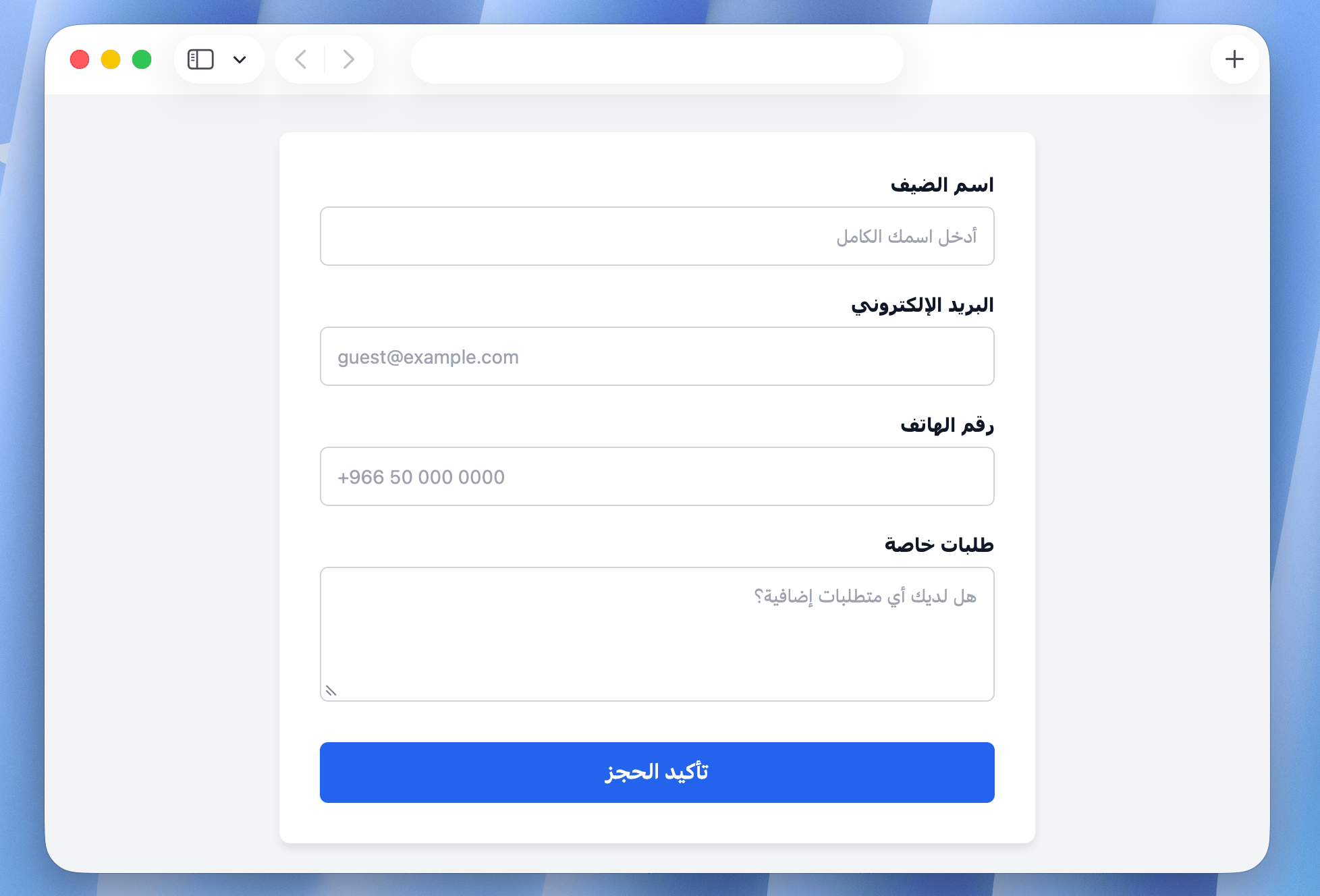
A guest check-in form collects name, email, phone, and special requests. In Arabic, the layout should mirror, but email and phone fields stay LTR:
const BookingForm = () => (
  <form>
    <div className="field-group">
      <label htmlFor="guest-name">{t('booking.guestName')}</label>
      <input
        id="guest-name"
        type="text"
        placeholder={t('booking.guestNamePlaceholder')}
      />
    </div>

    <div className="field-group">
      <label htmlFor="guest-email">{t('booking.email')}</label>
      <input
        id="guest-email"
        type="email"
        dir="ltr"
        placeholder="guest@example.com"
      />
    </div>

    <div className="field-group">
      <label htmlFor="phone">{t('booking.phone')}</label>
      <input
        id="phone"
        type="tel"
        dir="ltr"
        placeholder="+966 50 000 0000"
      />
    </div>

    <div className="field-group">
      <label htmlFor="requests">{t('booking.specialRequests')}</label>
      <textarea id="requests" rows={4} />
    </div>
  </form>
);
The form container inherits dir="rtl" from the document. Labels and the special requests textarea follow RTL naturally. Email and phone fields are explicitly LTR, which keeps them readable without affecting the surrounding layout.
Animations and transitions
Horizontal animations break in RTL. Any animation that uses physical values (translateX, left, right) needs to account for direction.
The problem
/* This slide-in animation goes the wrong direction in RTL */
@keyframes slide-in {
  from { transform: translateX(-100%); }
  to   { transform: translateX(0); }
}
In LTR, this slides in from the left, which is correct for a sidebar opening from the left edge. In RTL, the sidebar opens from the right edge, so the animation should slide in from the right (translateX(100%)).
Direction-aware animations
/* Logical approach using a CSS custom property */
:root { --slide-in-from: -100%; }
[dir="rtl"] { --slide-in-from: 100%; }

@keyframes slide-in {
  from { transform: translateX(var(--slide-in-from)); }
  to   { transform: translateX(0); }
}
Alternatively, drive it from JavaScript:
const isRTL = document.documentElement.dir === 'rtl';
const slideFrom = isRTL ? '100%' : '-100%';

element.animate(
  [
    { transform: `translateX(${slideFrom})` },
    { transform: 'translateX(0)' }
  ],
  { duration: 300, easing: 'ease-out' }
);
Example: Booking confirmation panel
A side panel that confirms a booking slides in from the trailing edge of the screen. inset-inline-end attaches it to the correct side automatically in both directions (only the animation offset needs the explicit RTL override):
.confirmation-panel {
  position: fixed;
  inset-block: 0;
  inset-inline-end: 0;
  width: 400px;
  transform: translateX(var(--panel-offset, 100%));
  transition: transform 300ms ease;
}

[dir="rtl"] .confirmation-panel {
  --panel-offset: -100%;
}

.confirmation-panel.is-open {
  transform: translateX(0);
}
Progress bars and step indicators
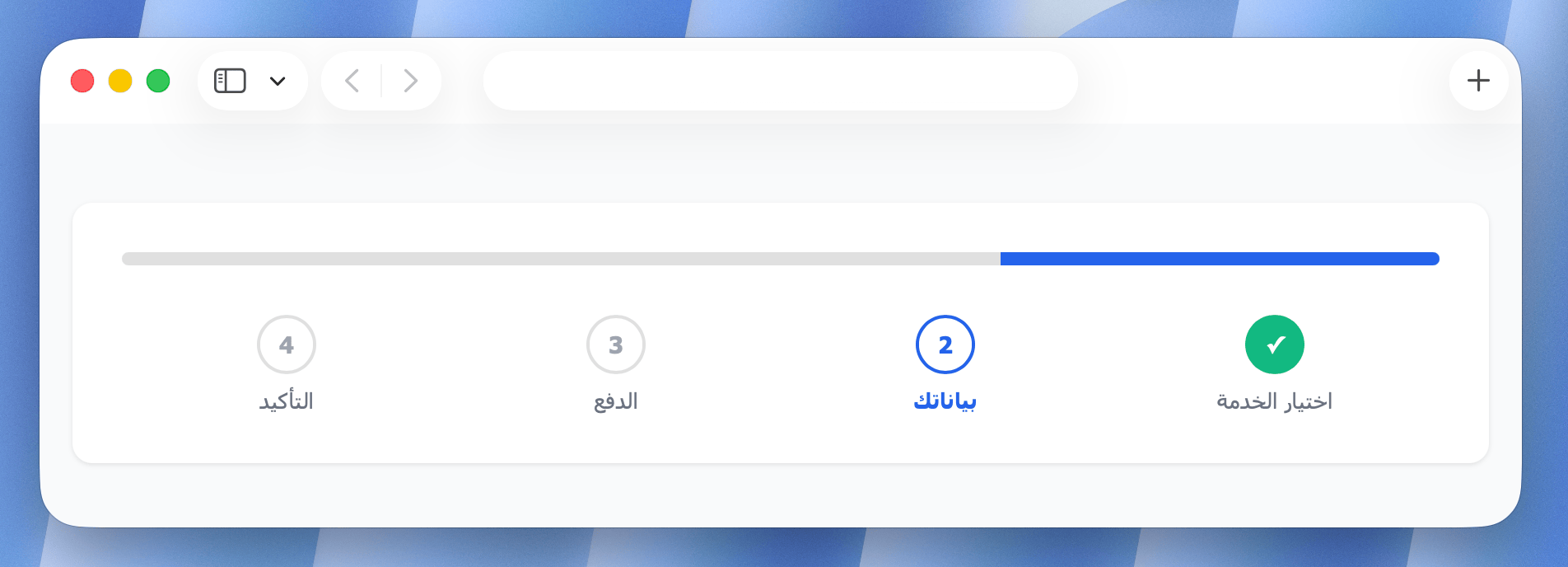
Progress indicators are visual representations of flow, and flow has direction. A booking funnel that shows "Step 1 → Step 2 → Step 3" in LTR should read right-to-left in RTL, with the first step on the right.
const BookingProgress = ({ steps, currentStep }: ProgressProps) => (
  <ol className="booking-steps" role="list">
    {steps.map((step, i) => (
      <li
        key={step.id}
        className={clsx('booking-steps__item', {
          'is-complete': i < currentStep,
          'is-active': i === currentStep,
        })}
      >
        <span className="booking-steps__number">{i + 1}</span>
        <span className="booking-steps__label">{t(step.labelKey)}</span>
      </li>
    ))}
  </ol>
);
.booking-steps {
  display: flex;
  flex-direction: row; /* Automatically mirrors in RTL */
  list-style: none;
  padding: 0;
  margin: 0;
}
For the fill bar inside a progress indicator, use flexbox rather than width transitions to keep the fill growing from the correct start edge:
.progress-bar {
  display: flex;
  direction: inherit;
}

.progress-bar__fill {
  flex: 0 0 var(--progress, 0%);
  /* Grows from the start edge in the current direction */
}

.progress-bar__empty {
  flex: 1;
}
Bidirectional text: The hard part
Mixed-direction content (Arabic text containing English product names, booking reference codes, URLs, or phone numbers) is where RTL support gets genuinely complex.
The Unicode Bidirectional Algorithm (UBA) handles most mixed-direction text automatically, but edge cases require explicit direction hints.
Numbers in RTL text
Arabic numerals (0–9) are treated as weakly typed by the UBA and appear LTR even in an RTL paragraph. This is standard in Arabic typography: numbers are read left-to-right regardless of surrounding text direction.
However, strings like phone numbers, reference codes, and dates can cause punctuation to appear in unexpected positions:
RTL paragraph: "رقم الحجز: PH-2024-1234"
If the surrounding punctuation (colon, dash) renders incorrectly, wrap sections in explicit direction spans:
<span dir="rtl">رقم الحجز: </span><span dir="ltr">PH-2024-1234</span>
Isolation for user-generated content
When a string could be either direction (guest reviews, messages, notes), use dir="auto":
<p dir="auto">{guestMessage}</p>
The browser inspects the first strongly-typed directional character and sets direction accordingly. This handles mixed-language content gracefully without requiring any server-side logic.
Testing RTL layouts
Testing RTL is frequently skipped because most development teams work in LTR environments. This is how RTL bugs reach production.
The minimum viable RTL test setup
Add Arabic and Hebrew to your test locales immediately, even before you have real translations. If you don't have Arabic translations yet, you can force RTL direction with placeholder content:
<!-- Test RTL layout without real translations -->
<html dir="rtl" lang="ar">
This applies RTL layout to your existing content, which immediately reveals every layout bug: misaligned elements, wrong-direction animations, physical property usages, and icon orientation issues.
Visual regression testing
Screenshot diffing is the most effective way to catch RTL layout regressions. Set up your visual regression suite to capture screenshots for dir="ltr" and dir="rtl" variants of every significant component: cards, forms, navigation, modals, and step indicators.
A component that overflows in Arabic will fail the diff before it reaches production.
Browser DevTools shortcut
Chrome DevTools lets you test RTL without touching code:
- Open DevTools → Elements panel
- Select the
<html>element - Double-click the
dirattribute value and change it tortl
Useful for quick audits of any page.
Testing with native speakers
Layout issues in RTL are often invisible to LTR-language developers reviewing screenshots. A form that looks correct to an English developer might have punctuation placed incorrectly, an awkward line break in a button label, or a mirrored icon that's confusing in context.
If you're launching in Arabic or Hebrew markets, budget for at least one review pass with a native speaker. A localization-aware designer who reads Arabic will catch issues that automated testing misses.
Common mistakes checklist
RTL bugs are almost always the result of one or two physical properties that were missed, or one animation that was never tested in the other direction. Use this checklist to audit your code for common RTL pitfalls:
| Mistake | Symptom | Fix |
|---|---|---|
| Physical margin/padding | Elements misaligned in RTL | Use margin-inline-start etc. |
text-align: left | Text wrong-aligned in RTL | Use text-align: start |
Physical position (left: 0) | Absolutely positioned elements on wrong side | Use inset-inline-start: 0 |
translateX in animations | Animations move wrong direction | Use CSS custom property or JS direction check |
flex-direction: row-reverse for LTR layout | Double-reversed in RTL | Use row and let direction handle it |
| Hardcoded LTR icons | Navigation arrows point wrong way | Use scaleX(-1) on directional icons in [dir="rtl"] |
dir attribute missing | Browser default (usually LTR) applied | Set dir on <html> based on active locale |
| Email/phone fields inherit RTL | Phone numbers render unreadably | Add dir="ltr" to inherently-LTR inputs |
| No RTL test locale | Bugs reach production | Add ar or he to test locale set |
| Flags for language selection | Exclusionary for Arabic speakers | Use language names or ISO codes instead |
Wrapping up
RTL support is not a single fix, but a set of practices applied consistently across the codebase. The foundation is dir on <html>, CSS logical properties throughout, and direction-aware handling of icons, animations, and form fields.
None of these steps are technically complex in isolation. The challenge is completeness, as RTL bugs are almost always the result of one physical property that was missed or one animation that was never tested in the other direction.
For a broader look at how RTL fits into the larger picture of multilingual architecture, including locale detection, fallback chains, text expansion, and Unicode edge cases, the complete technical i18n guide covers all of those topics in one place.