Xcode String Catalog (.xcstrings): The complete guide for iOS localization

If you've created a new Xcode project recently, you've already met the .xcstrings file. Apple made string catalogs the default localization format in Xcode 15, and Xcode 26 pushed them even further with AI-generated context comments and type-safe symbol generation. The format replaces both .strings and .stringsdict with a single, structured JSON file: one file per table, all languages inside.
This guide goes beyond the basics. It covers the full JSON schema with every flag explained, pluralization from simple cases to complex multi-variable substitutions, how to handle Git merge conflicts in a file that grows with every language you add, the Xcode 26 features worth knowing about, and how to sync .xcstrings with SimpleLocalize for CI/CD automation, including the UNIVERSAL_PLACEHOLDERS option for teams that ship on both iOS and Android.
If you need a broader overview of iOS file formats including .strings, .stringsdict, .xcloc, and .xliff, see our complete guide to iOS translation files. For the full picture of internationalization architecture, file formats, and framework-level patterns, see our complete technical guide to internationalization and software localization. This post is the deep dive on string catalogs specifically.
What is a string catalog?
A string catalog is a single .xcstrings file that stores all translations for a given string table, across every language your app supports. Before Xcode 15, you needed one .strings file per language (in separate .lproj folders) plus a separate .stringsdict XML file for any string with pluralization. String catalogs consolidate all of that into one JSON file:
Before (Xcode 14 and earlier):
en.lproj/Localizable.strings
de.lproj/Localizable.strings
fr.lproj/Localizable.strings
en.lproj/Localizable.stringsdict   ← plurals
de.lproj/Localizable.stringsdict

After (Xcode 15+):
Localizable.xcstrings               ← everything, every language
The file lives in your project source directory, not inside .lproj folders. Xcode reads it directly, and the compiler extracts strings from your Swift or Objective-C source code automatically when you build.
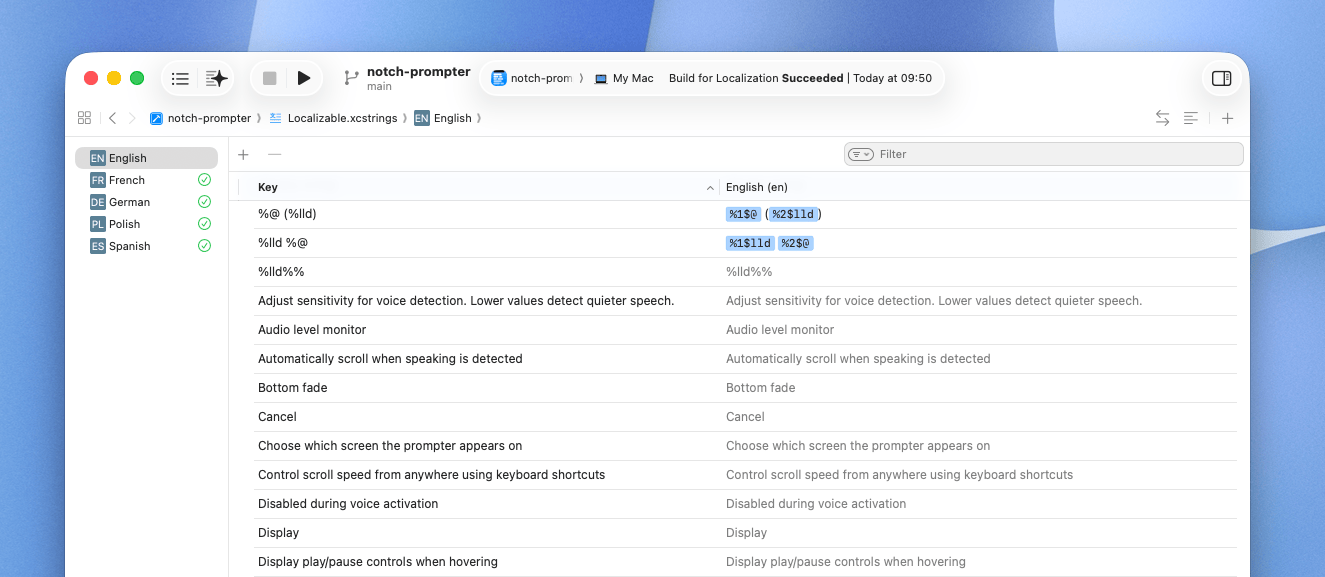
The JSON schema: every field explained
Understanding what every field does makes working with the format in automation pipelines and translation tools much easier.
{
  "version": "1.0",
  "sourceLanguage": "en",
  "strings": {
    "room_available": {
      "shouldTranslate": true,
      "comment": "Button label on the room search results page at Pillow Hotel app",
      "extractionState": "manual",
      "localizations": {
        "en": {
          "stringUnit": {
            "state": "translated",
            "value": "Book this room"
          }
        },
        "de": {
          "stringUnit": {
            "state": "translated",
            "value": "Dieses Zimmer buchen"
          }
        },
        "fr": {
          "stringUnit": {
            "state": "needs_review",
            "value": "Réserver cette chambre"
          }
        }
      }
    }
  }
}
Top-level fields
-
version: The format version. Currently"1.0"for files produced by Xcode 15-25. Xcode 26 introduces version"1.1"(covered in the Xcode 26 section below). If you're writing tooling that produces.xcstringsfiles, always set this explicitly. -
sourceLanguage: The ISO 639 language code for the original strings. This is almost always"en". When SimpleLocalize exports an.xcstringsfile, it uses your project's configured default language here. -
strings: A dictionary where each key is a translation key. Keys are typically the string value itself (Xcode's string extraction default) or a semantic identifier likeroom_available(the manual/symbol workflow).
Per-key fields
shouldTranslate: Whenfalse, Xcode excludes this key from localization exports. Use it for strings that must remain in a fixed language like product names, legal entity names, or non-translatable codes. Defaults totrueif omitted.
"pillow_hotel_brand_name": {
  "shouldTranslate": false,
  "localizations": {
    "en": {
      "stringUnit": { "state": "translated", "value": "Pillow Hotel" }
    }
  }
}
-
comment: A context note for translators. This is arguably the most important field for translation quality. A string like"Book"is ambiguous: is it a noun (a book) or a verb (to book a room)? A comment eliminates the ambiguity. Without comments, translators make educated guesses, and frequently guess wrong for short UI strings. -
extractionState: Tracks how Xcode discovered this string. The values you'll encounter:
| Value | Meaning |
|---|---|
extracted_with_value | Xcode found this string in source code and extracted the value automatically |
manual | The string was added manually to the catalog, not from source code |
stale | The string existed in the catalog but Xcode can no longer find it in source code |
migrated | The string was migrated from a .strings or .stringsdict file |
stale is the value to watch for in CI. When a developer renames or removes a string in code, Xcode marks the catalog entry as stale on the next build. Stale entries should be reviewed and either deleted or re-keyed; they represent orphaned translations that are costing you money if auto-translated and never used.
Per-localization fields
state inside stringUnit: The translation workflow state for each language:
| Value | Meaning |
|---|---|
translated | Translation is approved and complete |
needs_review | Translation exists but requires human review |
new | String was just added, no translation yet |
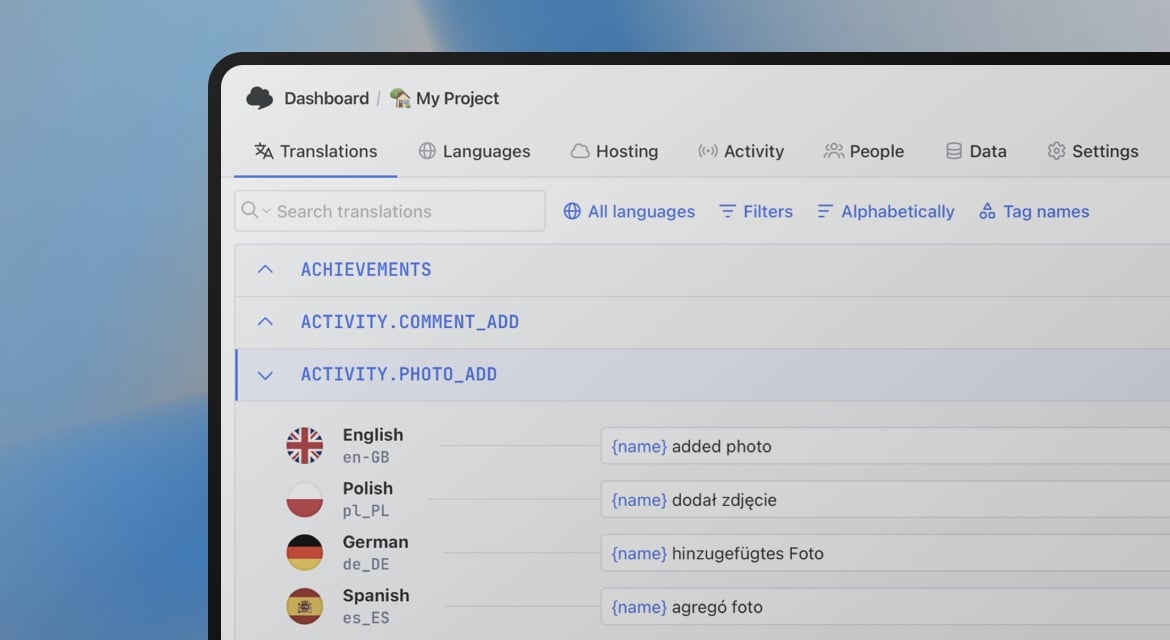
Xcode's String Catalog editor uses these states visually: needs_review strings show an amber indicator, new strings show as untranslated. SimpleLocalize maps these states to its own review status system on import, so you can filter and act on them in the translation editor.
Two workflows: string extraction vs. generated symbols
Xcode 26 makes a workflow choice explicit that developers have been navigating since Xcode 15. Understanding both helps you pick the right one for your project.
String extraction (recommended for most projects)
You write strings directly in your Swift views:
// SwiftUI
Text("Welcome back, \(guestName)", comment: "Greeting on the home screen after login")

// UIKit
NSLocalizedString("check_in_label", comment: "Check-in date label on the booking summary screen")
Xcode parses these at build time and adds them to your string catalog automatically. The key in the catalog is the string value ("Welcome back, \(guestName)") or the explicit key ("check_in_label"). This workflow pairs well with Xcode 26's automatic comment generation, which can write the comment parameter for you.
Generated symbols (Xcode 26, recommended for large teams)
When you enable the Generate String Catalog Symbols build setting, Xcode produces a Swift namespace from your catalog. You access strings through type-safe properties instead of string literals:
// Instead of:
Text("room_available")

// You write:
Text(.roomAvailable)
This gives you compile-time errors if a key doesn't exist, autocompletion in the editor, and the ability to refactor key names safely. For tables with non-default names, the namespace is scoped:
// Discover.xcstrings → automatically uses Discover table
Text(.Discover.featuredProperties)
New projects created in Xcode 26 have symbol generation enabled by default. For existing projects, enable it under Build Settings → Localization → Generate String Catalog Symbols.
Pluralization: Xcode GUI vs. direct JSON editing
Pluralization is one of the main reasons .xcstrings replaced .stringsdict. The old XML format was notoriously verbose. The new structure is much cleaner.
The plural structure in JSON
Instead of stringUnit, pluralized strings use variations.plural:
{
  "version": "1.0",
  "sourceLanguage": "en",
  "strings": {
    "rooms_available_count": {
      "comment": "Number of available rooms shown on the Pillow Hotel search results screen",
      "extractionState": "manual",
      "localizations": {
        "en": {
          "variations": {
            "plural": {
              "one": {
                "stringUnit": {
                  "state": "translated",
                  "value": "%lld room available"
                }
              },
              "other": {
                "stringUnit": {
                  "state": "translated",
                  "value": "%lld rooms available"
                }
              }
            }
          }
        },
        "pl": {
          "variations": {
            "plural": {
              "one": {
                "stringUnit": {
                  "state": "translated",
                  "value": "%lld pokój dostępny"
                }
              },
              "few": {
                "stringUnit": {
                  "state": "translated",
                  "value": "%lld pokoje dostępne"
                }
              },
              "many": {
                "stringUnit": {
                  "state": "translated",
                  "value": "%lld pokoi dostępnych"
                }
              },
              "other": {
                "stringUnit": {
                  "state": "translated",
                  "value": "%lld pokoi dostępnych"
                }
              }
            }
          }
        }
      }
    }
  }
}
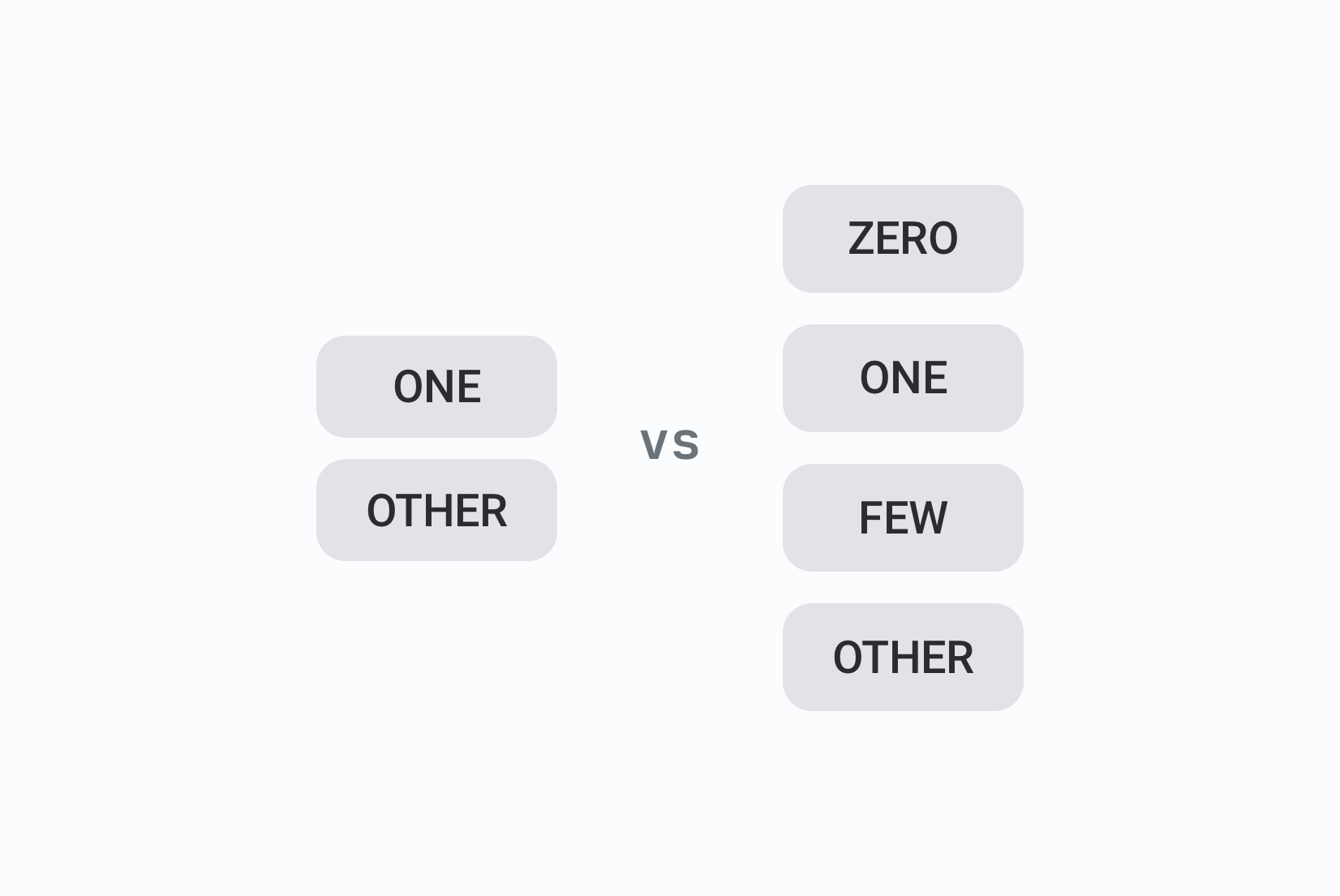
Notice that English needs only one and other, while Polish requires one, few, many, and other. The rule engine in Unicode CLDR determines which category applies for a given number: your app code just passes the count and Apple's localization runtime picks the right form automatically.
The available plural categories (defined by Unicode CLDR) are: zero, one, two, few, many, other. Not all languages use all categories. Arabic uses all six. English uses two. Most translators know which forms their language needs, but providing all applicable categories in the catalog entry is your responsibility as a developer.
Using the Xcode GUI for plurals
In Xcode's String Catalog editor, select any string and click the + button next to the language to add plural variants. Xcode automatically offers the correct categories for each language based on CLDR data — so you won't accidentally be asked to provide a two form for a language that doesn't distinguish duals.
The GUI is the right tool for initial setup and manual additions. For reviewing translations at scale, the raw JSON is more efficient since you can diff it, search it, and bulk-edit it in any editor.
Triggering plural extraction from Swift
Xcode can automatically extract a string as pluralized if you use the right Swift API:
// This extracts as a pluralized string in the catalog
let message = String(
    localized: "rooms_available_count \(roomCount)",
    comment: "Number of available rooms"
)
Alternatively, use String(format:) with LocalizedStringResource and let Xcode's string extraction handle the pluralization annotation.
SimpleLocalize and plurals
When you upload an .xcstrings file to SimpleLocalize, plural variations are converted to ICU message format internally:
# Stored in SimpleLocalize as ICU:
{COUNT, plural, one {%lld room available} other {%lld rooms available}}
This means you can export the same pluralized string to Android XML or other formats without losing the pluralization information. On download back to .xcstrings, SimpleLocalize converts the ICU format back to the variations.plural structure.
Device variants
Some strings need different wording depending on the device. The classic example is tap-vs-click:
"action_prompt": {
  "comment": "Instruction shown on the booking confirmation screen at Pillow Hotel",
  "extractionState": "manual",
  "localizations": {
    "en": {
      "variations": {
        "device": {
          "iphone": {
            "stringUnit": {
              "state": "translated",
              "value": "Tap to confirm your reservation"
            }
          },
          "mac": {
            "stringUnit": {
              "state": "translated",
              "value": "Click to confirm your reservation"
            }
          },
          "other": {
            "stringUnit": {
              "state": "translated",
              "value": "Select to confirm your reservation"
            }
          }
        }
      }
    }
  }
}
Available device values: iphone, ipad, mac, watch, tv, other. The other variant is the fallback for any device not explicitly listed.
SimpleLocalize converts device variants to ICU select format for storage:
{DEVICE, select, iphone {Tap to confirm your reservation} mac {Click to confirm your reservation} other {Select to confirm your reservation}}
This allows the variant information to survive round-trips through the translation editor and be exported to formats that support select expressions.
Multiple string catalogs and namespacing
The default catalog is Localizable.xcstrings. You can create additional catalogs for different feature areas, which maps to the namespacing pattern common in web localization:
Localizable.xcstrings    ← shared/common strings
Onboarding.xcstrings     ← onboarding flow strings
Booking.xcstrings        ← booking flow strings
Settings.xcstrings       ← settings screen strings
Reference a non-default catalog in Swift using the tableName parameter:
// Reads from Booking.xcstrings
Text("confirm_booking_cta", tableName: "Booking", comment: "CTA button on the final booking step")

// With String(localized:)
let label = String(localized: "confirm_booking_cta", table: "Booking")
With generated symbols enabled in Xcode 26, the table name becomes a namespace prefix:
Text(.Booking.confirmBookingCta)
Using multiple catalogs has real advantages: different teams own different files, diffs are smaller and more focused, and partial translation completeness per feature becomes visible. The trade-off is that shared strings need to live somewhere (typically Localizable.xcstrings) and you need discipline about where new strings go.
In SimpleLocalize, multiple catalogs map to namespaces. Use {ns} in the CLI path to upload and download them separately:
simplelocalize upload --apiKey <PROJECT_API_KEY> \
  --uploadFormat localizable-xcstrings \
  --uploadPath ./{ns}.xcstrings

simplelocalize download --apiKey <PROJECT_API_KEY> \
  --downloadFormat localizable-xcstrings \
  --downloadPath ./{ns}.xcstrings
Migrating from .strings to .xcstrings
Xcode's built-in migration converts .strings (and .stringsdict) files to a string catalog in one operation.
In Xcode: Select your .strings file in the navigator → Editor → Convert to String Catalog.
Xcode creates a new .xcstrings file alongside your existing files, then removes the source .strings files from the target (but doesn't delete them from disk). The migration preserves:
- All existing keys and translations
- Comments from
.stringsfiles - Plural forms from
.stringsdict(converted tovariations.plural)
What the migration does not do automatically:
- It doesn't convert string keys that Xcode couldn't match to source code. These appear as
extractionState: "manual"in the new catalog. - It doesn't remove the
.stringsfiles from your repository. Do that in a separate commit so the migration diff is readable.
Gradual migration strategy:
If you have a large project, migrate one table at a time. Start with a feature namespace (e.g., convert Settings.strings → Settings.xcstrings) before touching your main Localizable.strings. Xcode supports both formats simultaneously, so there's no need to do everything at once.
After migration, run a build and verify that:
- No strings appear as
staleunexpectedly (this indicates a key that Xcode can't find in source code, usually a dynamically constructed key). - Pluralization in languages with many plural forms (Polish, Arabic, Russian) looks correct in the catalog editor.
- Xcode's localization report (Product → Localization → Export) includes the migrated strings.
Solving merge conflicts in .xcstrings files
This is the practical problem that trips up most teams. An .xcstrings file for an app with 5 languages and 500 keys is roughly 10,000-20,000 lines of JSON. When two developers touch strings in the same feature area, or when a translator's tool writes back to the file at the same time a developer adds keys, conflicts are inevitable.
Why xcstrings conflicts are painful
Unlike most source files, a .xcstrings conflict often involves JSON structure: closing braces, commas, nested objects. A conflict marker inserted by Git into the middle of a JSON structure makes the file unparseable until resolved. You can't just "accept ours" or "accept theirs" on a single key without carefully merging the surrounding JSON.
Prevention: the most effective strategy
-
Keep branches short-lived.
The longer a branch lives without merging, the more translation updates accumulate on main. Merge translation changes to main daily or at least every few days. The cost of frequent integration is paid in seconds; the cost of resolving a three-week divergence is paid in hours. -
Separate translation commits from code commits.
When your CI pipeline pulls updated translations from SimpleLocalize, have it commit them in a dedicated commit with a standard message likechore: sync translations from SimpleLocalize. This makes these commits easy to identify in the log and easy to rebase around. -
Use a
.gitattributesunion merge driver for xcstrings files.
This won't solve all conflicts, but it prevents Git from inserting conflict markers inside JSON structures that it can resolve by accepting both sides:
# .gitattributes
*.xcstrings merge=union
The union strategy appends both sides' non-conflicting changes. This works well when two developers added different new keys, which is the most common conflict type. It doesn't work for changes to the same key's translation value, those still need manual resolution.
When a conflict does happen: a step-by-step approach
-
Don't open the file in a text editor first.
Rungit statusto confirm which files are conflicted, then open them in a JSON-aware diff tool. VS Code's built-in merge editor handles JSON reasonably well. -
Identify the conflict scope.
Find the<<<<<<< HEADand>>>>>>> branch-namemarkers. Because each string key is a self-contained JSON object, most conflicts are localized to a single key block. -
Accept the correct version of each conflicting key.
For a key where one side added a new translation and the other updated an existing one, you'll need to manually construct the merged result. This is a hand-edit, not a tool-click. -
Validate the JSON.
Before committing, run:python3 -m json.tool Localizable.xcstrings > /dev/nullOr use
jq:jq . Localizable.xcstrings > /dev/nullIf there's a JSON parse error, you have a leftover conflict marker or a comma issue. Fix it before committing — Xcode will silently fail to load a malformed catalog.
-
Verify in Xcode.
Open the String Catalog editor after resolving. If Xcode shows the catalog correctly with all expected strings, the resolution was successful.
A note on tooling: use SimpleLocalize as the source of truth for translations
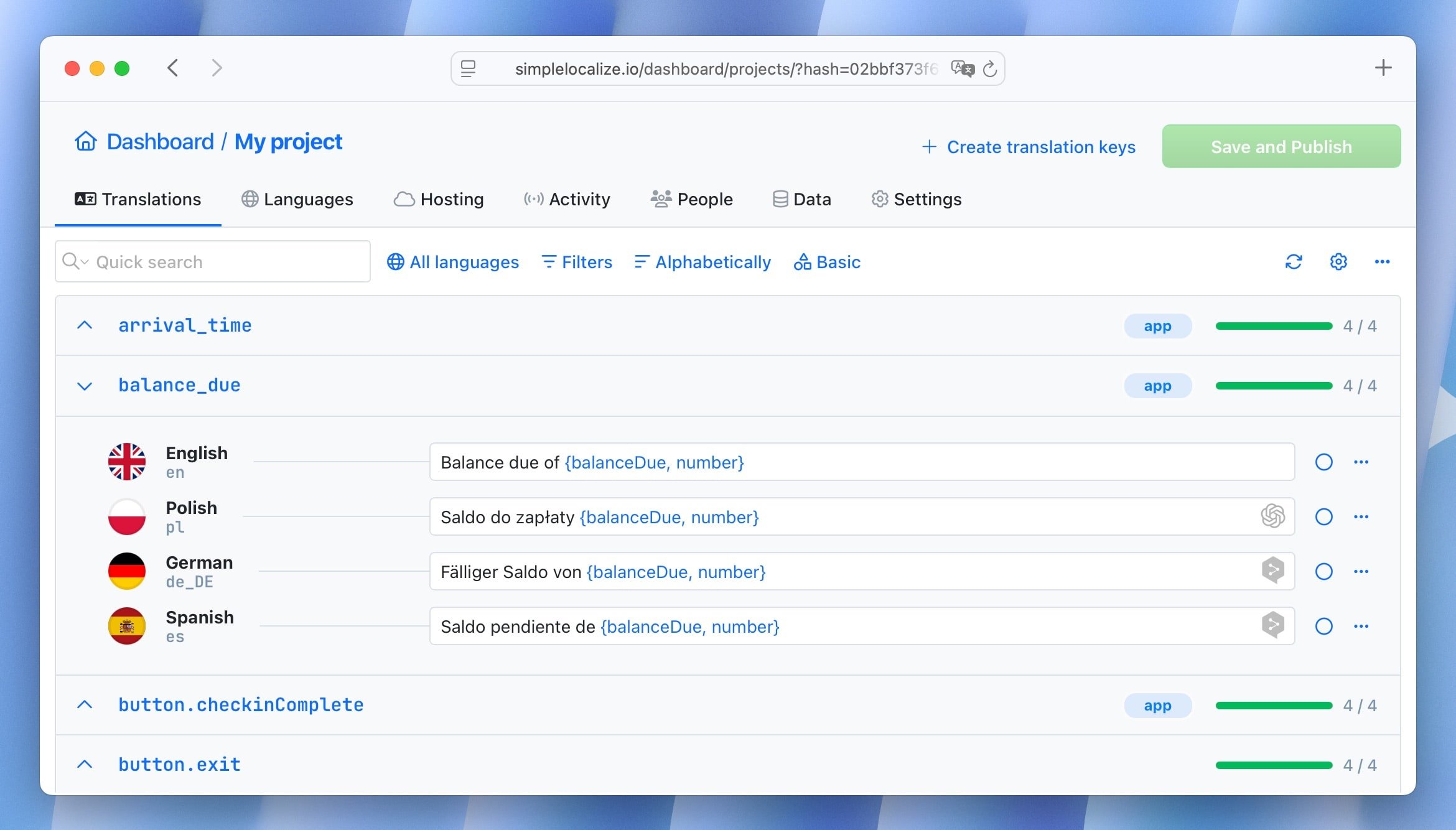
The most effective way to reduce xcstrings merge conflicts involving translation content is to stop editing translations in the file directly. If all translation updates flow through SimpleLocalize (translators work in the editor, CI pulls updated files), then the only conflicts in your xcstrings come from code changes; which are easier to reason about. Translation content conflicts happen when two humans edit the same JSON file from different directions; routing all translation work through the TMS eliminates that class of conflict entirely.
Xcode 26: what's new for string catalogs
Automatic comment generation
Xcode 26 uses an on-device model to analyze your code and can now write comments for you. When you add a new string in source code without a comment parameter, Xcode can generate one automatically by examining the surrounding code context, e.g. view hierarchy, nearby variable names, control flow.
Enable it at Xcode → Settings → Editing → Automatically Generate String Catalog Comments.
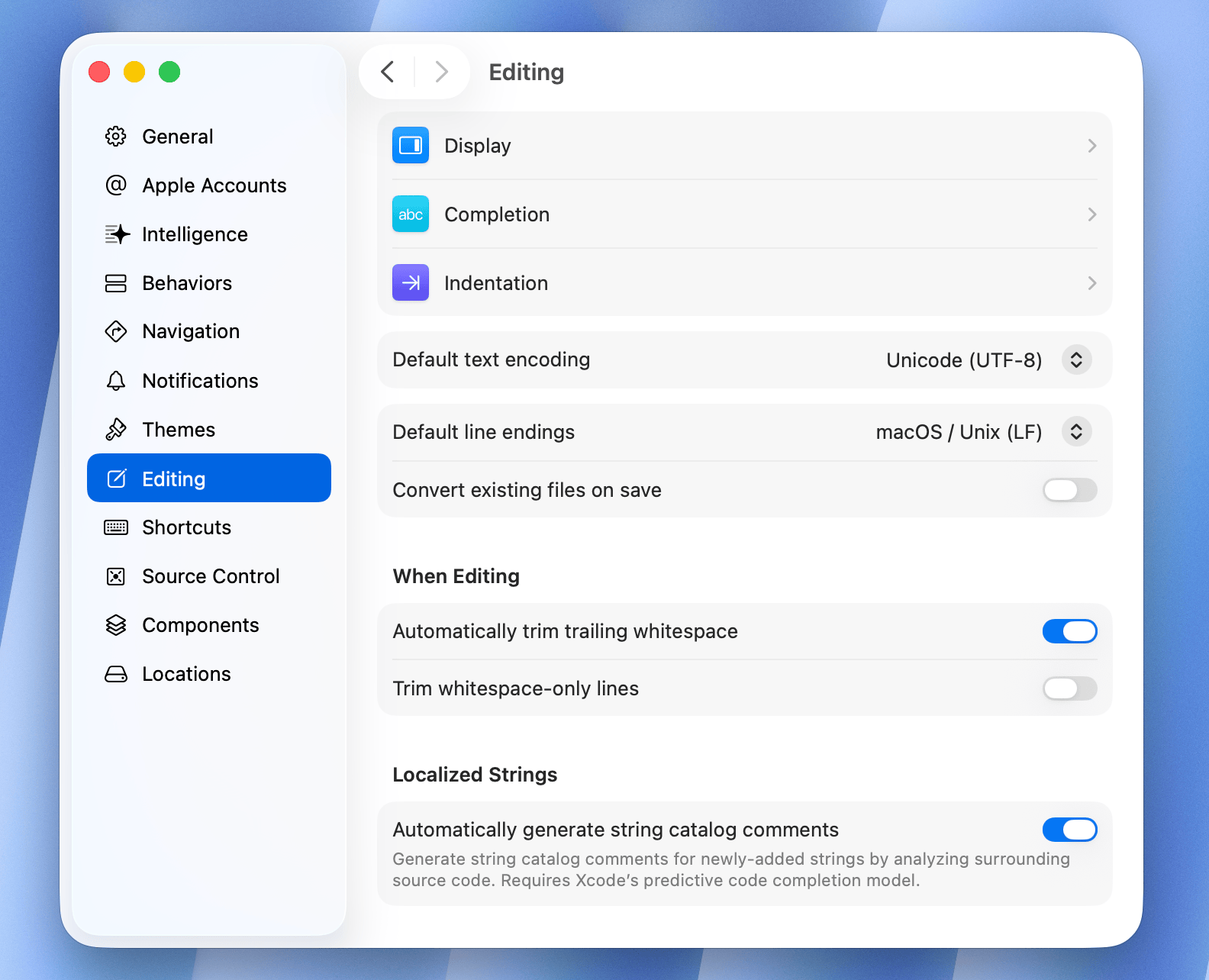
The model doesn't just look at the string. It analyzes the surrounding code context, UI hierarchy, and usage patterns. For a string like Button("Cancel"), Xcode might generate: "The text label on a button to cancel the current action." For a string with placeholders, it explains what each placeholder represents.
You can also trigger it manually: right-click any string in the String Catalog editor and select Generate Comment. This is useful for retroactively adding comments to existing strings that lack context.
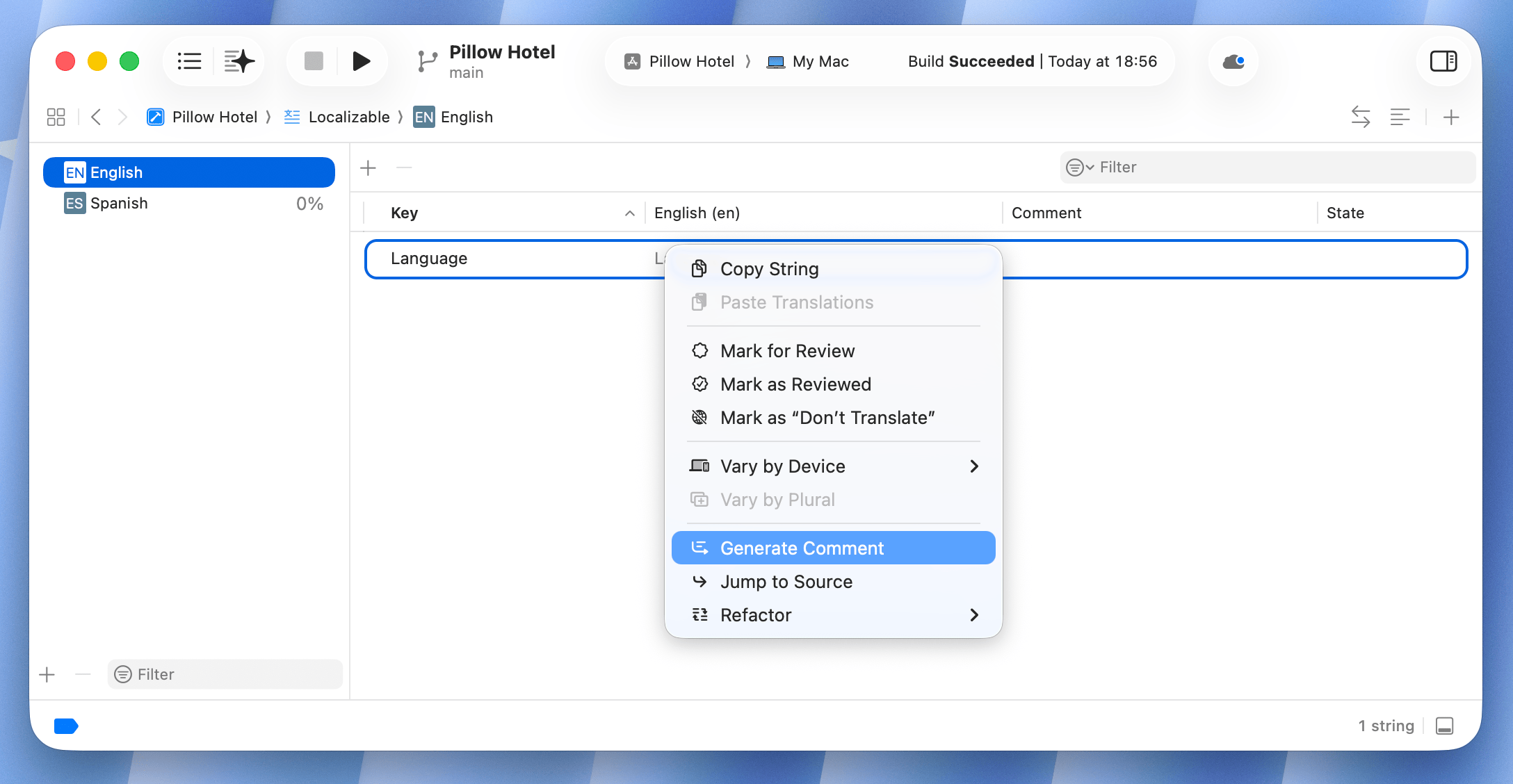
The practical impact on translation quality is significant. Most localization quality issues trace back to ambiguous source strings, especially short ones. Automated comments don't eliminate the need for human review, but they dramatically reduce the number of strings that reach translators with zero context.
In the exported XLIFF (when you export via File → Export Localizations), auto-generated comments are marked as such:
<note from="auto-generated">Button to cancel the current hotel booking action</note>
This allows translation tools to distinguish AI-generated context from human-written notes.
Generated symbols
Xcode can now generate type-safe Swift symbols for manually-managed strings in String Catalogs. For example, a string in Localizable.xcstrings with key "Landmarks" and value "%(count)lld landmarks" can be accessed via LocalizedStringResource.landmarks(count: 42). You can enable this via the build setting "Generate String Catalog Symbols".
For teams using the manual key workflow (explicit string keys rather than the string value as the key), this replaces stringly-typed identifiers with compiler-checked property access.
Format version 1.1
Xcode 26 produces files with "version": "1.1" when new features (auto-generated comments, symbol generation metadata) are used. Files without these features remain at "1.0". If you're writing tooling or a CI script that produces .xcstrings files for Xcode 26 projects, check whether the format version matters for your Xcode version target.
Universal placeholders: syncing iOS and Android from one TMS
If your product ships on both iOS and Android, you're managing two different placeholder syntaxes for the same user-facing strings:
| Platform | String format |
|---|---|
| iOS (.xcstrings) | %@, %lld, %d, %1$@ |
| Android (strings.xml) | %s, %d, %1$s |
SimpleLocalize's UNIVERSAL_PLACEHOLDERS option solves this by converting native format specifiers to a platform-independent format on upload and converting back on download.
How it works
On upload (iOS → SimpleLocalize), native iOS placeholders are converted:
| iOS native | Universal |
|---|---|
%@ | {%s} |
%lld | {%i} |
%d | {%i} |
%f | {%f} |
%1$@ | {%1$s} |
%.2f | {%.2f} |
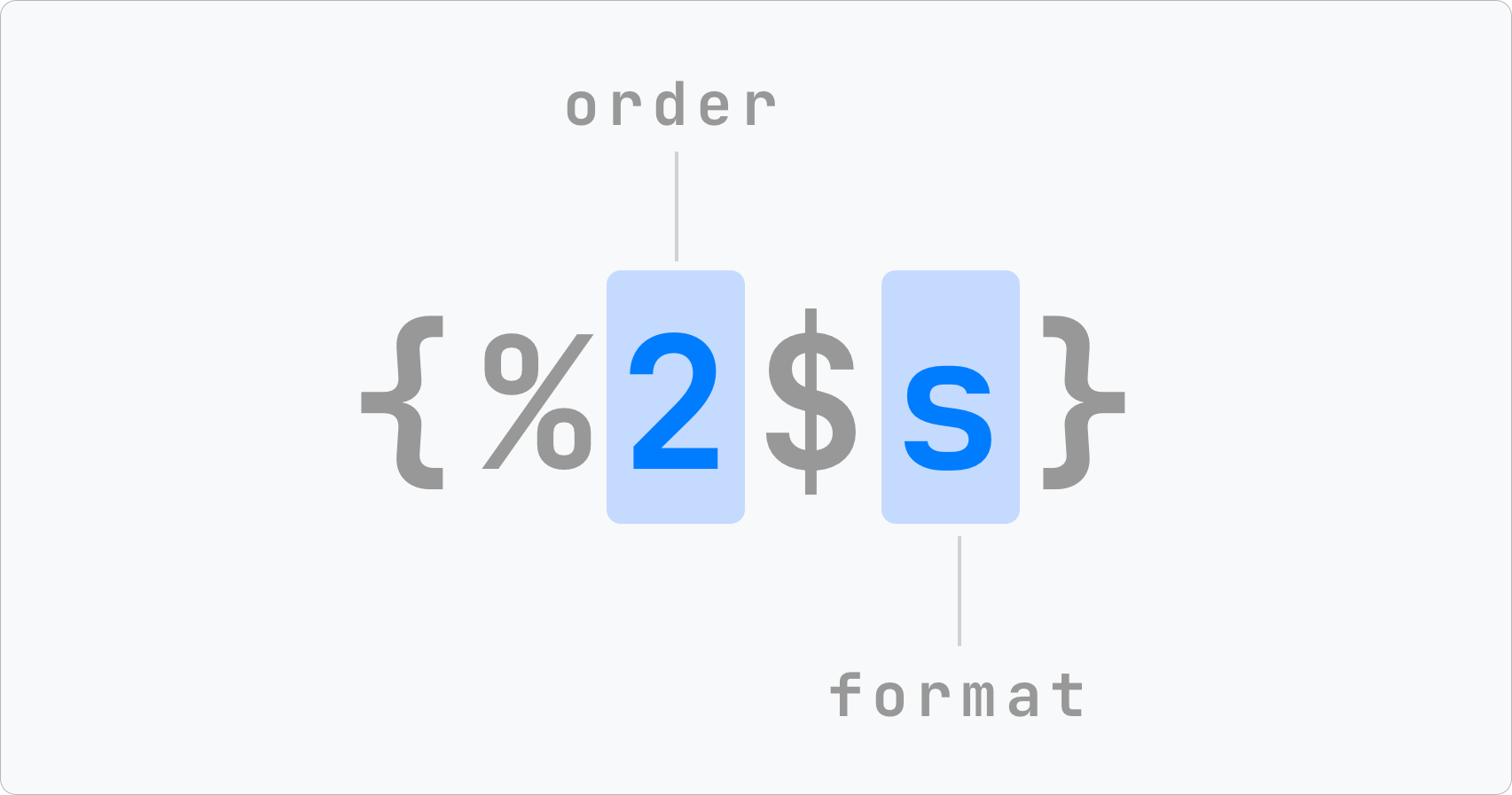
On download (SimpleLocalize → iOS), the universal format is converted back to native iOS specifiers. On download to Android, the same universal placeholders are converted to Android format specifiers instead.
CLI usage
# Upload: iOS xcstrings → SimpleLocalize (converts to universal placeholders)
simplelocalize upload --apiKey <PROJECT_API_KEY> \
  --overwrite \
  --uploadFormat localizable-xcstrings \
  --uploadPath ./Localizable.xcstrings \
  --uploadOptions UNIVERSAL_PLACEHOLDERS

# Download: SimpleLocalize → iOS xcstrings (converts back to native iOS)
simplelocalize download --apiKey <PROJECT_API_KEY> \
  --downloadFormat localizable-xcstrings \
  --downloadPath ./Localizable.xcstrings \
  --downloadOptions UNIVERSAL_PLACEHOLDERS
A real example: Pillow Hotel app on iOS and Android
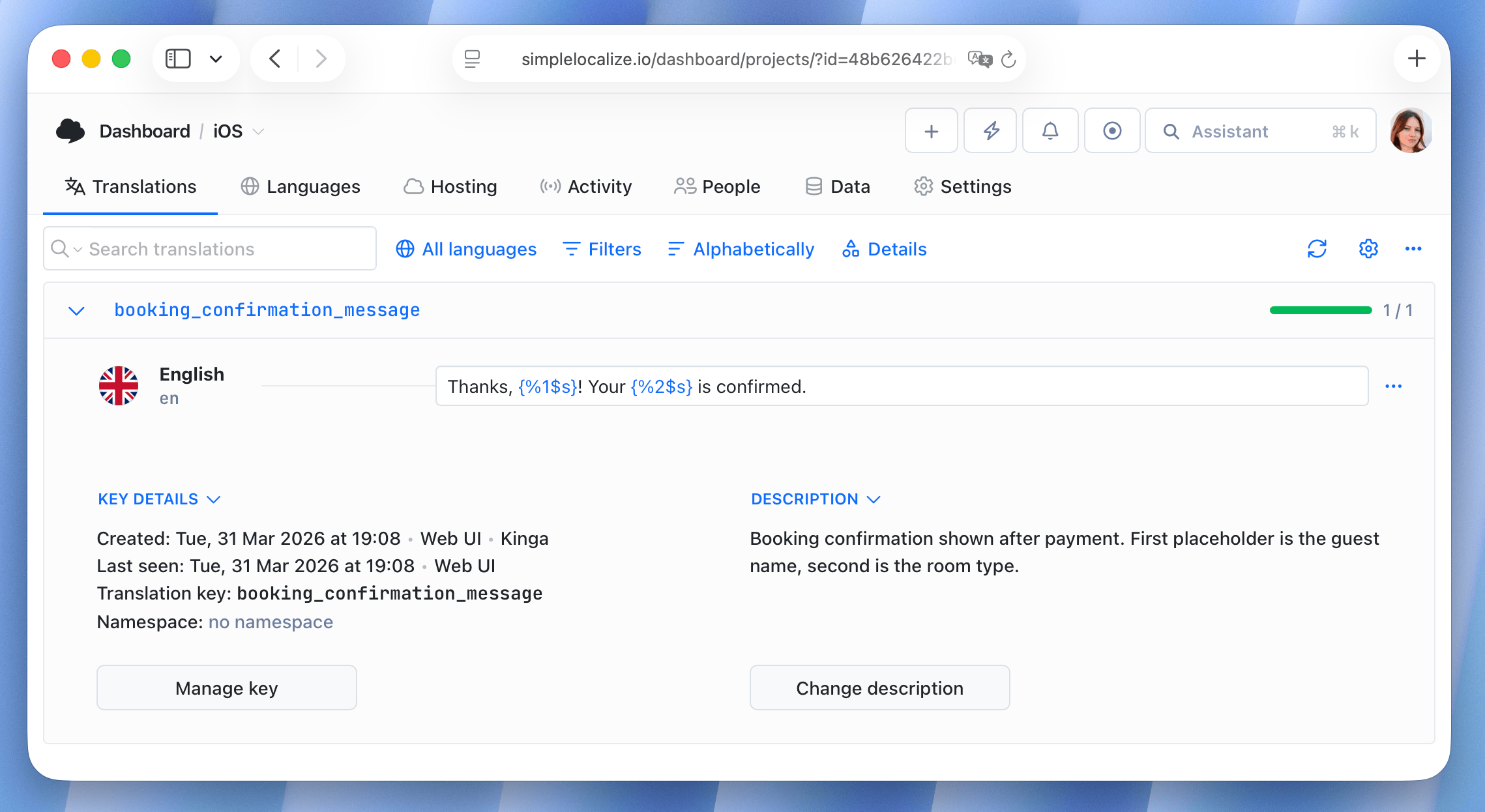
The booking confirmation string in the Pillow Hotel app looks like this in the iOS catalog:
"booking_confirmation_message": {
  "comment": "Booking confirmation shown after payment. First placeholder is the guest name, second is the room type.",
  "localizations": {
    "en": {
      "stringUnit": {
        "state": "translated",
        "value": "Thanks, %1$@! Your %2$@ is confirmed."
      }
    }
  }
}
After upload with UNIVERSAL_PLACEHOLDERS, it's stored in SimpleLocalize as:
Thanks, {%1$s}! Your {%2$s} is confirmed.
A translator sees the universal format and translates it once. On download to iOS, it returns to %1$@ and %2$@. On download to Android, it becomes %1$s and %2$s. One translation source, two native formats.
CI/CD integration with SimpleLocalize
A complete sync workflow for a project with multiple string catalogs:
# simplelocalize.yml
apiKey: ${SIMPLELOCALIZE_API_KEY}

# Upload all catalogs (namespaced)
upload:
  uploadFormat: localizable-xcstrings
  uploadPath: ./{ns}.xcstrings
  uploadOptions: UNIVERSAL_PLACEHOLDERS
  overwrite: true

# Download all catalogs
download:
  downloadFormat: localizable-xcstrings
  downloadPath: ./{ns}.xcstrings
  downloadOptions: UNIVERSAL_PLACEHOLDERS
In a GitHub Actions workflow:
name: Sync translations

on:
  push:
    branches: [main]

jobs:
  sync:
    runs-on: macos-latest
    steps:
      - uses: actions/checkout@v4

      - name: Install SimpleLocalize CLI
        run: curl -s https://get.simplelocalize.io/install | bash

      - name: Push new keys to SimpleLocalize
        run: simplelocalize upload
        env:
          SIMPLELOCALIZE_API_KEY: ${{ secrets.SIMPLELOCALIZE_API_KEY }}

      - name: Pull approved translations
        run: simplelocalize download
        env:
          SIMPLELOCALIZE_API_KEY: ${{ secrets.SIMPLELOCALIZE_API_KEY }}

      - name: Commit translation updates
        run: |
          git config user.name "SimpleLocalize Bot"
          git config user.email "ci@simplelocalize.io"
          git add "*.xcstrings"
          git diff --staged --quiet || git commit -m "chore: sync translations from SimpleLocalize"
          git push
This pipeline pushes new keys on every commit to main and pulls back approved translations. Translators work in the SimpleLocalize editor on their own schedule; the CI pipeline picks up their work automatically.
Best practices summary
Here are the key takeaways for working effectively with .xcstrings string catalogs:
-
Always provide comments.
Even a single sentence of context eliminates the most common source of mistranslation. With Xcode 26, you can generate them automatically — there's no longer a good excuse for leaving thecommentfield empty. -
Use
shouldTranslate: falsefor non-translatable strings. Brand names, product model names, country codes, and other fixed strings should never reach translators. Mark them explicitly. -
Monitor
stalekeys in CI.
A key markedstalemeans it no longer exists in source code. Stale translations waste translator time and inflate your translation file. Add a CI check to fail on unexpected stale entries, or at minimum alert on them. -
Keep
.gitattributesconfigured for xcstrings.
The union merge driver won't solve all conflicts, but it prevents the most common one (two developers each adding a new key on separate branches). -
Use separate catalogs for large projects.
One catalog per feature module or per team keeps diffs reviewable and translation completeness measurable at a granular level. -
Route all translation edits through your TMS.
Never edit translation values directly in the.xcstringsfile if you have multiple contributors. Use SimpleLocalize as the source of truth for translations, and let CI sync the file. This eliminates the merge conflict category caused by parallel human edits. -
Test with pseudo-localization before adding real languages.
Before you add German or Japanese, run pseudo-localization to catch layout issues caused by text expansion and font coverage gaps. Read our pseudo-localization guide for a practical approach.