Translate CSV
Language Files
Upload your CSV language files to SimpleLocalize, use auto-translation and download ready-to-go translation files in seconds.
"key","english","spanish","polish"
"welcome_message","Welcome","Bienvenido","Witamy"
"logout","Log out","Cerrar sesión","Wyloguj się"
"language","Language","Idioma","Język"
"save","Save","Guardar","Zapisz"
Why teams use CSV for translations
CSV is a plain, row-and-column format that every spreadsheet application already opens, which makes it an easy way to hand translations to a translator, an agency or a non-technical reviewer who would never open a code editor.
An optional description column carries context for translators, and an optional namespace column groups related keys, both read automatically on import with no extra configuration.
"key","english","description","namespace"
"welcome_message","Welcome","Main welcome message","home"
"login.title","Sign In","Login page title","auth"
Beyond key and value
What SimpleLocalize keeps from your CSV files
Optional description column
Read automatically as translator context, no extra setup needed.
Optional namespace column
Group related keys, matching how your project organizes translations.
Quoting handled for you
Commas and quotes inside a value are quoted and escaped correctly on export.
Opens everywhere
Excel, Google Sheets and LibreOffice all read and write CSV natively.
Translate a CSV file end to end
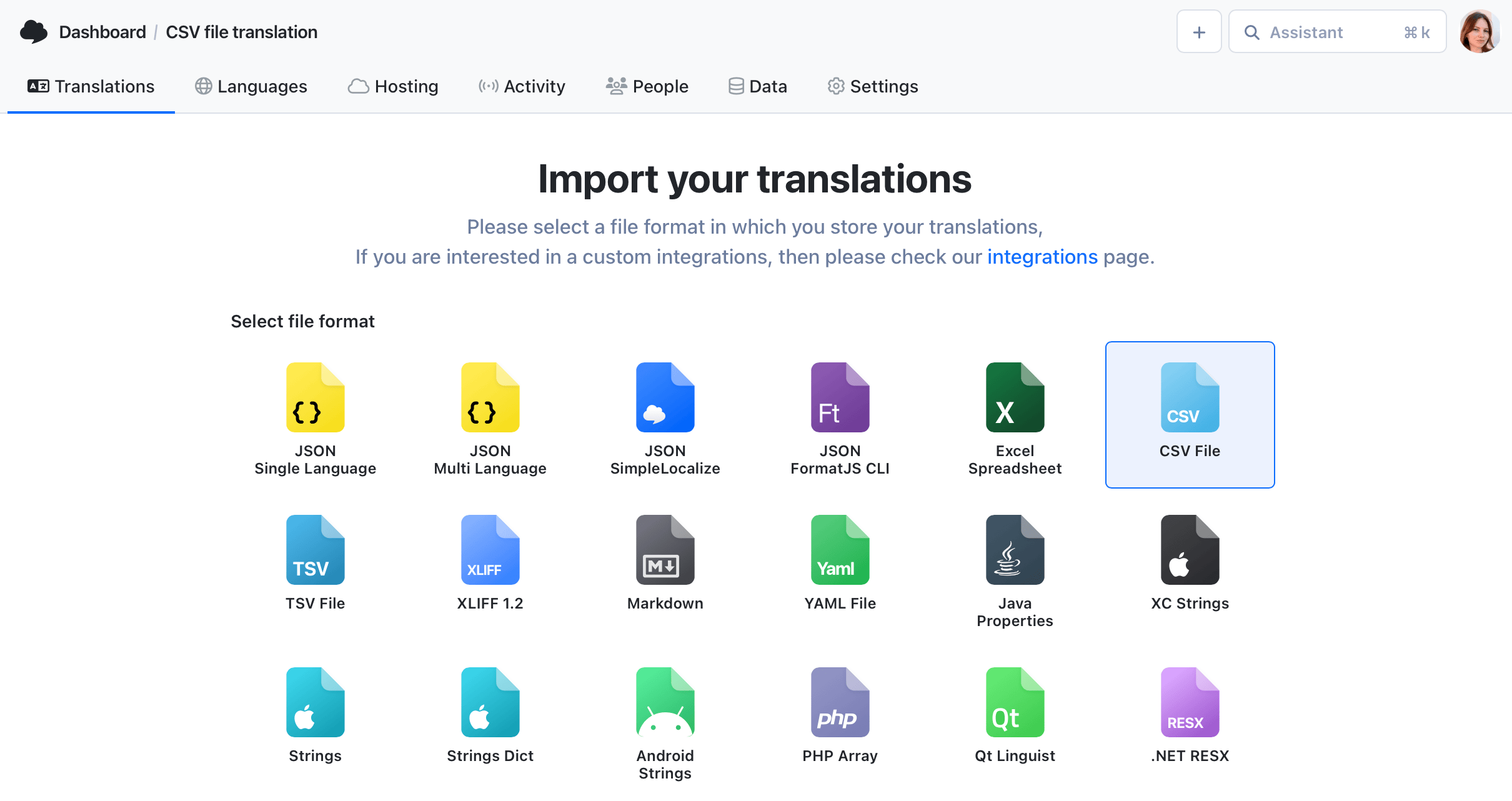
Upload CSV file
1Upload your CSV file with translations or use our CLI tool to upload translations from your terminal.
- Include a "description" column in your CSV file to provide context for translators
- Add a "namespace" column to group translations by context
- Use our CLI tool to upload translations from your terminal
- Preview translations from the file before uploading
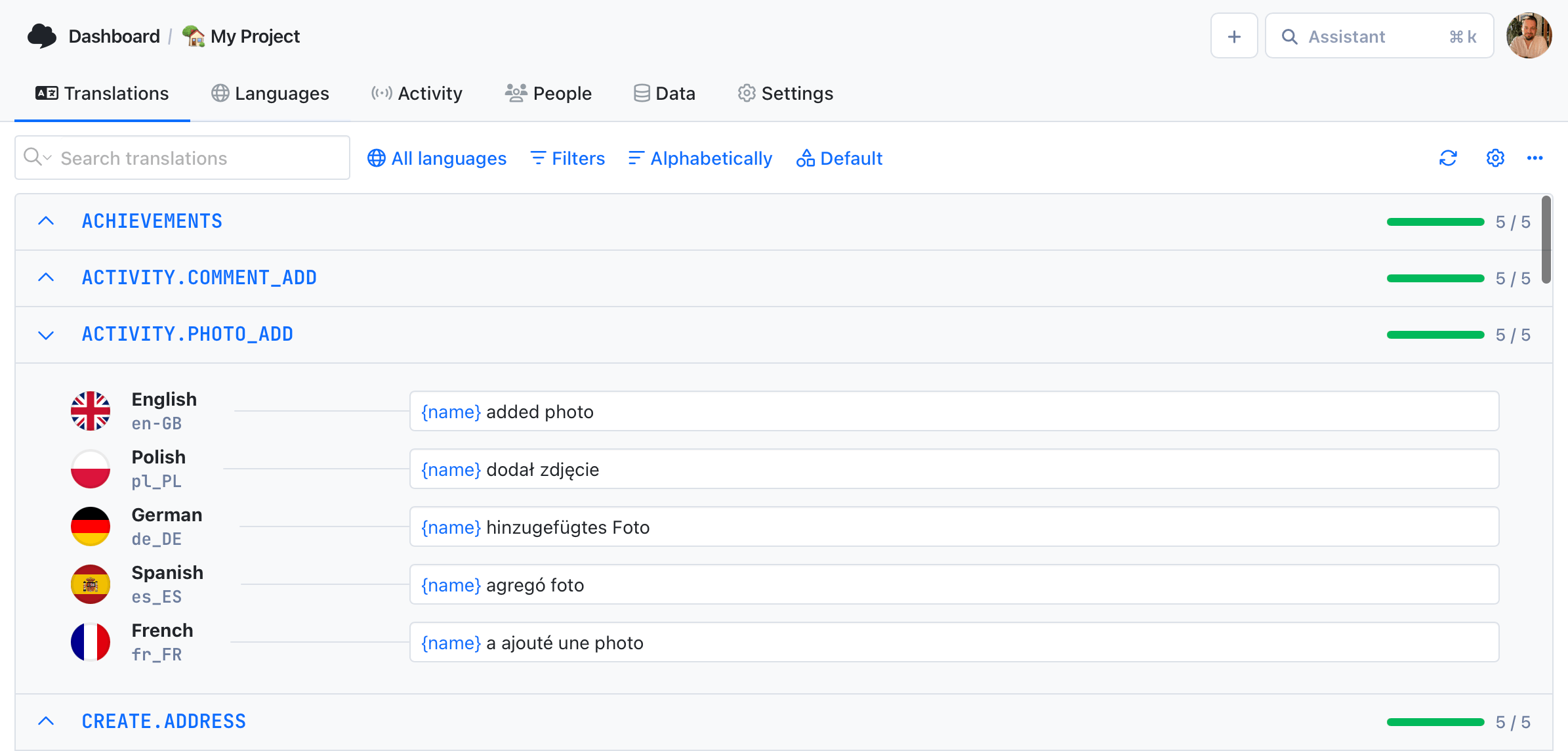
Translate texts
2Your data will show up in a translation editor which can be handed over to translators or other team members.
- Auto-translate with DeepL, Google Translate, OpenAI, Claude or Gemini.
- Invite your team members to the project
- Track changes with activity log
- Add comments or screenshots for better context
"key","english","spanish","polish"
"welcome_message","Welcome","Bienvenido","Witamy"
"logout","Log out","Cerrar sesión","Wyloguj się"
"language","Language","Idioma","Język"
"save","Save","Guardar","Zapisz"
Download translations
3Download your translations in CSV, JSON, or XLSX format. You can also use our CLI tool to download translations from your terminal.
- Download a ready CSV file with translations
- Choose different file formats like JSON, XLSX and more
- Automate the download process with our CLI tool or API
- Host your translations online and use them in your application
For developers
A localization platform,
not just a spreadsheet
A CSV file is rows and columns. SimpleLocalize turns it into a shared editor with review, automation and everything a spreadsheet can't do on its own.
Optional description column
A description column is read automatically as translator context, no extra setup needed.
Optional namespace column
Group related keys with a namespace column, matching how your project organizes translations.
AI auto-translation
Translate new and changed rows with DeepL, Google Translate, OpenAI, Claude or Gemini.
CLI and CI/CD sync
Keep CSV files in sync with a couple of commands, so translations can be pulled into any pipeline alongside your code.

More conversions
Convert CSV to other formats
Free online converter, no account required. Upload a CSV file and download it in the format you need.
Start translating CSV files
- Optional description and namespace columns, read automatically
- Free community plan, no credit card required
- Auto-translation with DeepL, Google, OpenAI, Claude and Gemini
"The product
and support
are fantastic."
"The support is
blazing fast,
thank you Jakub!"
"Interface that
makes any dev
feel at home!"
"Excellent app,
saves my time
and money"
Related articles
We found some articles that might be interesting for you
How to manage translations in CSV files: Best practices, examples & workflow
Manage translations in CSV files with SimpleLocalize. Learn CSV formats, workflows, and best practices to simplify localization for apps and websites.
Frequently asked questions about CSV translations
Does the CSV file need a specific column order?
No. Column headers are matched by name, such as key, description or namespace, so the order of columns in your file does not matter.
Can I add context for translators?
Yes. Add an optional description column to your CSV file and it is imported automatically as context shown next to each key in the editor.
Can I group translations with a CSV file?
Yes. Add an optional namespace column, and keys are grouped in the editor the same way as if they came from separate namespaced files.
Can I export to a different format later?
Yes. Upload a CSV file once and export the same project to JSON, XLSX, YAML or any other supported format at any time.