 VS Code Extension available! Install now
Translate Excel Translation Files
Upload your Excel file to SimpleLocalize, use the translation editor or auto-translation feature, and export ready-to-use translations.
Why teams use Excel for translations
Excel is a spreadsheet everyone on a team already knows how to open, which makes it a practical way to hand off translations to a reviewer, a client or a translation agency that would never touch a code editor or a CLI.
Beyond the plain key and translation columns, SimpleLocalize reads a few optional columns by name: DESCRIPTION for translator context, NAMESPACE for grouping keys, TAGS for labels, and CHARACTERS_LIMIT for a soft length limit. Column names are case-sensitive, and column order does not matter.
KEY               DESCRIPTION              en             pl
welcome_message   Shown on homepage        Welcome        Witamy
login.title       Login screen title       Sign in        Zaloguj się
login.submit                               Log in         Zaloguj
Beyond import and export
What you get once your workbook is in SimpleLocalize
A spreadsheet gets translations started. A shared editor is where your team actually finishes them.
Intuitive translation editor
SimpleLocalize's intuitive translation editor offers a user-friendly experience, making translation management effortless. With features such as real-time updates, translation screenshots and descriptions, sharing options, and customizable views, the editor keeps the localization process efficient and accurate.
Use translation editor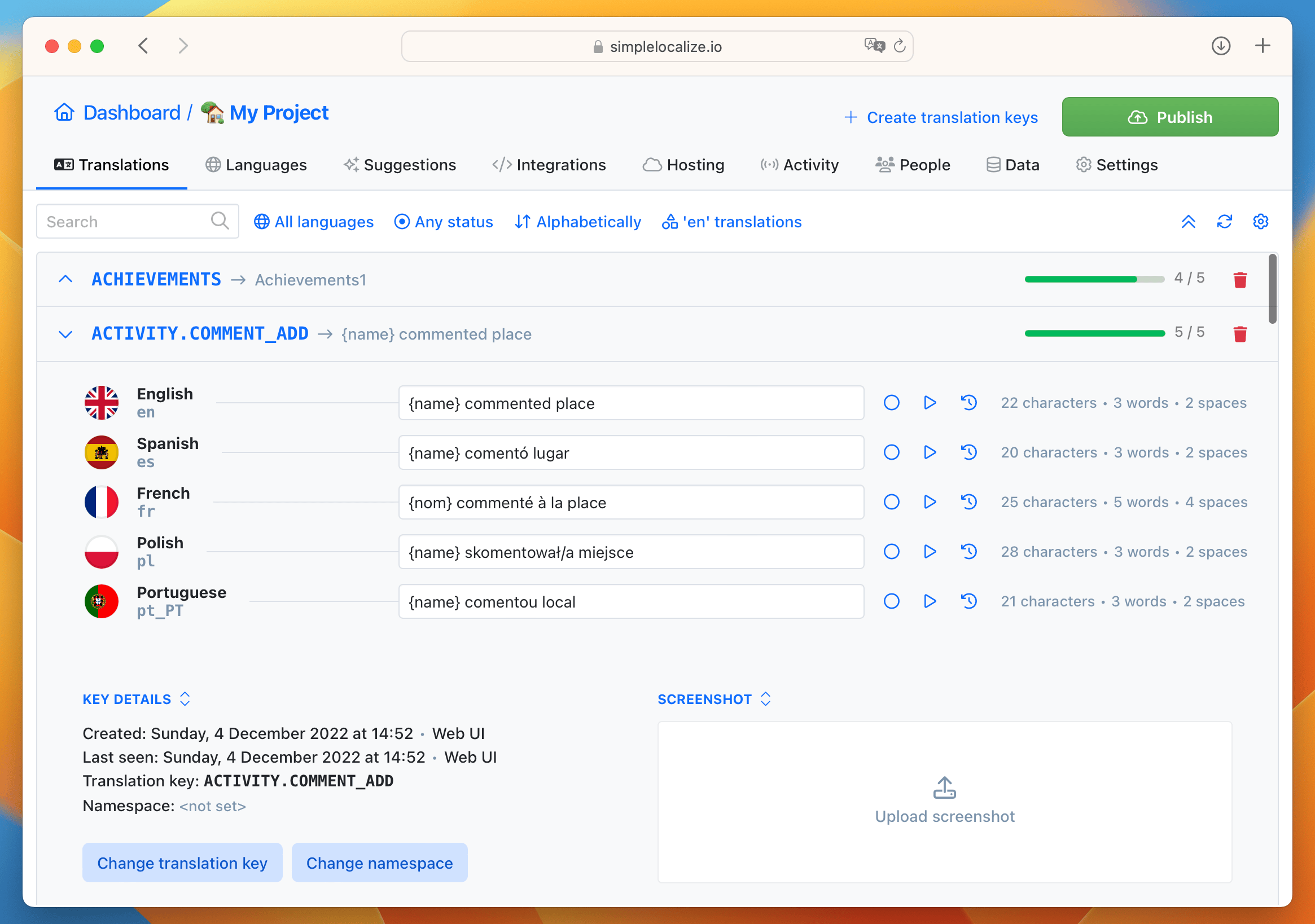
Manage multiple languages
With SimpleLocalize, you can work with multiple languages in a user-friendly and intuitive translation EditorViews. Easily filter languages, assign them to translators, and manage the entire language translation process within the customizable online editor.
Add languages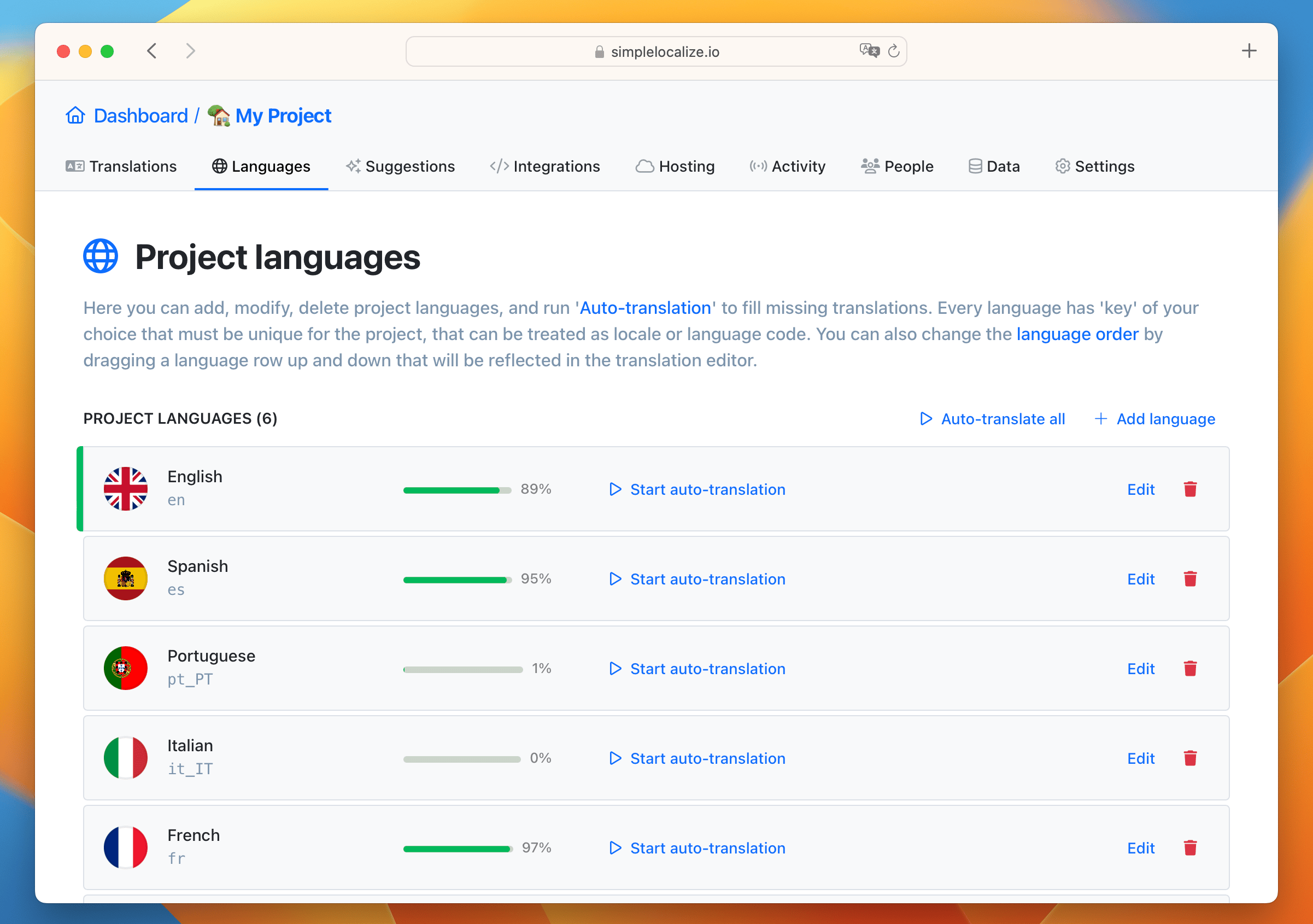
Easy import & export
Importing your existing translation file into SimpleLocalize takes just two clicks. First, upload your file, and then confirm the upload. Simple as that. Exporting ready-to-use translations is just as convenient. With a single click of the Export button, you'll receive the file in the format you chose, containing your translated data.
Upload translations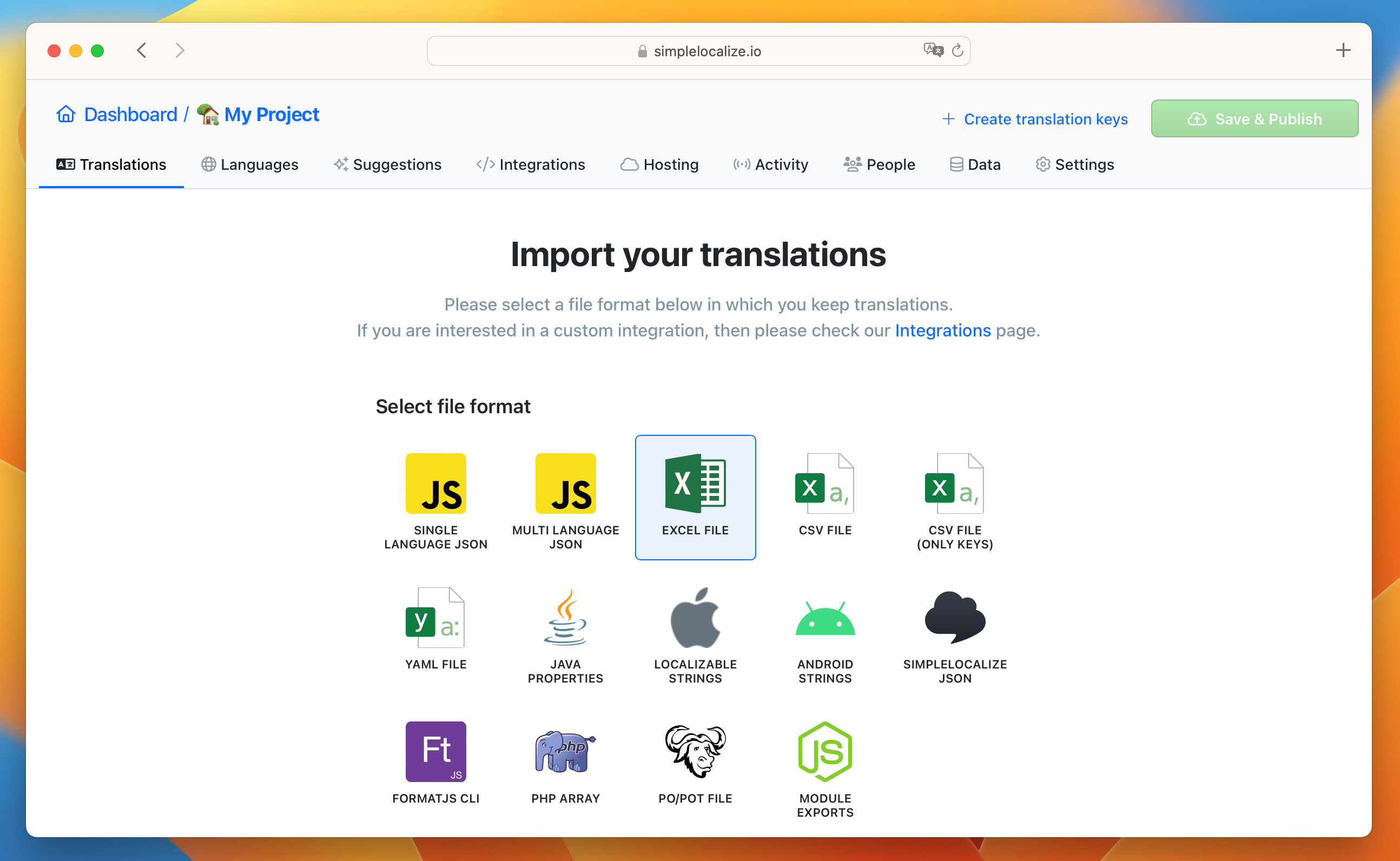
For developers
A localization platform,
not just a spreadsheet mapper
SimpleLocalize reads the columns your team already puts in a translation workbook, and gives you a place to manage what happens around them.
DESCRIPTION column as context
An optional DESCRIPTION column is imported automatically as translator context for each key.
NAMESPACE column for grouping
Group related keys with an optional NAMESPACE column, matching how your project organizes translations.
TAGS and character limits
Optional TAGS and CHARACTERS_LIMIT columns are read on import, so labels and soft length limits travel with the workbook.
AI auto-translation
Translate new and changed rows with DeepL, Google Translate, OpenAI, Claude or Gemini.

More conversions
Convert Excel to other formats
Free online converter, no account required. Upload an .xlsx file and download it in the format you need.
Start translating Excel files
- DESCRIPTION, NAMESPACE, TAGS and CHARACTERS_LIMIT columns read automatically
- A shared editor for translators, reviewers and developers
- Auto-translation with DeepL, Google, OpenAI, Claude and Gemini
"The product
and support
are fantastic."
"The support is
blazing fast,
thank you Jakub!"
"Interface that
makes any dev
feel at home!"
"Excellent app,
saves my time
and money"
Related articles
Read more about translating Excel files and managing translations in SimpleLocalize.
The complete guide to managing translation projects with Excel
Learn how to manage translation projects efficiently using Excel or Google Sheets. Discover modern AI translation formulas (Gemini & Copilot) and when to graduate to an automated localization workflow.
Frequently asked questions about translating Excel files
Which columns does SimpleLocalize recognize in an Excel file?
Beyond the key and language columns, an optional DESCRIPTION column is imported as translator context, NAMESPACE groups keys, TAGS adds labels, and CHARACTERS_LIMIT sets a soft length limit. All column names are case-sensitive.
Does column order matter?
No. Columns are matched by their header name, not by position, so you can add or reorder columns without breaking the import.
Is translation editor better than Excel?
A dedicated translation editor adds things a spreadsheet does not: collaboration among translators, developers and project managers with real-time updates, plus contextual information, quality assurance checks and version control that raise translation accuracy and speed.
Can I keep working in Excel and still use SimpleLocalize?
Yes. Export a project to Excel any time a reviewer wants it in spreadsheet form, then re-import the file once they are done, and the DESCRIPTION and NAMESPACE columns keep everything organized on the way back in.