Android String resources: Complete guide to localizing Android apps

Localization is a cornerstone of the Android ecosystem. By moving user-facing text into resource files, you ensure your app is ready for a global audience without changing a single line of code.
However, true localization goes beyond just translating words. It requires a solid Internationalization (i18n) foundation. If you are new to the broader concepts of preparing software for global markets, check out our comprehensive guide to software localization before diving into the Android specifics below.
In this guide, we'll walk through everything you need to know about Android string resources: the file format, directory structure, plurals, arrays, HTML tags, placeholders, and how to automate the whole workflow.
What are Android String Resources?
Android uses XML-based resource files to store all user-facing text. These files are typically named strings.xml and live inside language-specific resource directories. At runtime, Android loads the appropriate file based on the device's locale.
A basic strings.xml file looks like this:
<?xml version="1.0" encoding="utf-8"?>
<resources>
    <string name="app_name">My Awesome App</string>
    <string name="welcome_message">Welcome back, %s!</string>
</resources>
The name attribute is the translation key. It must be unique and should follow a consistent naming convention. For naming strategies that scale, see our guide on best practices for translation keys.
Implementation in code vs. layout
You reference these strings in your Kotlin/Java code:
val welcome = getString(R.string.welcome_message, userName)
Or directly in your XML layouts:
<TextView
    android:layout_width="wrap_content"
    android:layout_height="wrap_content"
    android:text="@string/welcome_message" />
Jetpack Compose
If you're building with Jetpack Compose (the default for new Android projects since 2023), you access string resources with stringResource():
@Composable
fun WelcomeScreen(userName: String) {
    Text(text = stringResource(R.string.welcome_message, userName))
}
For plurals, use pluralStringResource():
@Composable
fun ItemCount(count: Int) {
    Text(text = pluralStringResource(R.plurals.items_found, count, count))
}
Both functions are composable-aware, so they automatically recompose when the configuration (including locale) changes. Under the hood, they still read from the same strings.xml resource files.
The Context problem
getString() requires an Android Context, which is available in Activities, Fragments, and Services, but not in ViewModels, Repositories, or plain Kotlin classes. This is a common architectural hurdle.
The cleanest solution is to pass string resource IDs instead of resolved strings:
// In your ViewModel — pass the resource ID, not the string
sealed class UiMessage {
    data class StringResource(val resId: Int, val args: List<Any> = emptyList()) : UiMessage()
}

// In your Activity/Fragment/Composable — resolve it where Context is available
when (val msg = uiMessage) {
    is UiMessage.StringResource -> getString(msg.resId, *msg.args.toTypedArray())
}
Avoid injecting Context into ViewModels. It creates lifecycle leaks and makes testing harder. If you absolutely need resolved strings outside the UI layer, use Application context via AndroidViewModel, but prefer the resource-ID pattern above.
Directory structure & resource suffixes
Every strings.xml file sits in a values-{lang} directory inside res/. Android uses a "best-match" logic to pick the right file.
res/
  values/              # Default fallback (usually English)
    strings.xml
  values-es/           # Spanish
    strings.xml
  values-fr/           # French
    strings.xml
  values-pt-rBR/       # Brazilian Portuguese
    strings.xml
Regional variants: the r prefix gotcha
Regional variants use the values-{lang}-r{REGION} syntax — note the lowercase r before the region code. This is one of the most common and time-consuming mistakes in Android localization:
| Directory | Result |
|---|---|
values-en-rUS/ | Correct — matches en-US locale |
values-en-US/ | Wrong — Android may silently ignore this directory |
values-pt-rBR/ | Correct — Brazilian Portuguese |
values-zh-rTW/ | Correct — Traditional Chinese (Taiwan) |
The confusing part: Android Studio won't warn you if the directory name is wrong. Your translations simply won't load, and the app falls back to the default locale. If your regional translations seem to be ignored, check the directory name first.
The importance of the default fallback
The values/ directory (no suffix) is your safety net. If a user's language is set to Dutch but you don't have a values-nl/ folder, Android falls back to values/. Always ensure your default directory contains the complete set of strings to prevent app crashes.
String types in Android resources
Android supports three primary string types in strings.xml: simple strings, plurals, and string arrays. Each handles a different localization need.
Simple strings
The most common type. One key maps to one translated string. Use these for buttons, labels, and headers.
<string name="no_internet_connection">No internet connection</string>
<string name="email_address">Email address</string>
<string name="save_changes">Save changes</string>
<string name="app_name" translatable="false">MyBrand</string>
Note the translatable="false" attribute on the last string. Use this for brand names, product names, or any string that should remain untranslated across all locales. Android Studio will skip these during lint checks, and SimpleLocalize will exclude them from translation workflows.
Plurals (quantity strings)
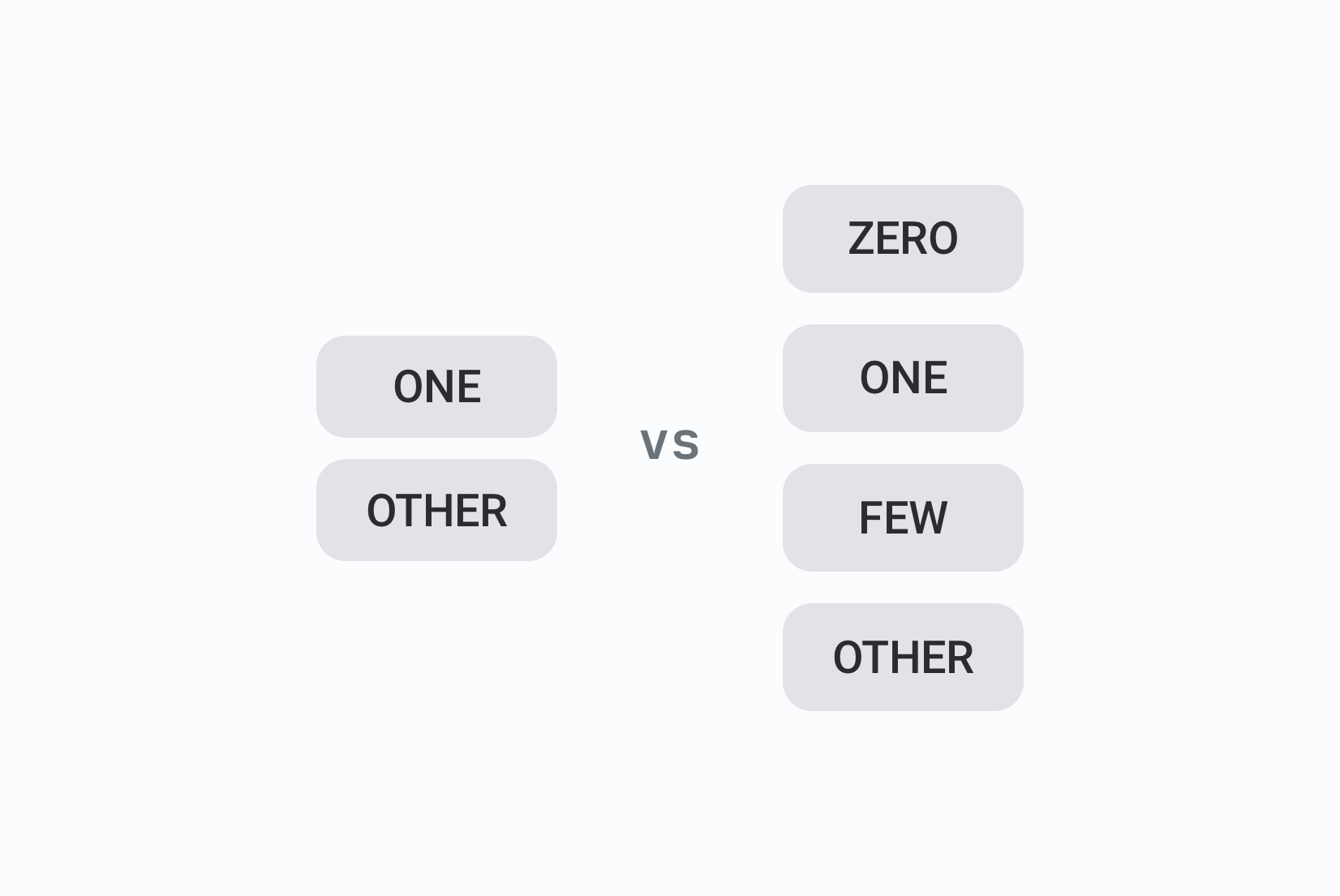
Different languages express quantity differently. English has two forms (1 item vs 2 items). Polish has four. Arabic has six. The <plurals> tag handles this correctly by letting you define translation variants per quantity category.
Android supports these quantity categories via the Unicode CLDR plural rules.
A pluralized string in English:
<plurals name="items_found">
    <item quantity="one">One item found.</item>
    <item quantity="other">%d items found.</item>
</plurals>
The same key in Polish, which requires four forms:
<plurals name="items_found">
    <item quantity="one">Znaleziono jeden przedmiot.</item>
    <item quantity="few">Znaleziono %d przedmioty.</item>
    <item quantity="many">Znaleziono %d przedmiotów.</item>
    <item quantity="other">Znaleziono %d przedmiotów.</item>
</plurals>
In your Kotlin code, use getQuantityString:
val count = getItemCount() // e.g., returns 5
val message = resources.getQuantityString(R.plurals.items_found, count, count)
You pass count twice because the two parameters serve different purposes: the first count tells Android which plural category to select (one, few, other, etc.), while the second count fills the %d placeholder in the actual string. They happen to be the same value, but they're doing two separate jobs.
Note: The other category is mandatory in all languages as it acts as the ultimate fallback.
Never hardcode plural logic in application code like
if (count == 1) "message" else "messages". This approach breaks immediately for any language beyond English. Always use<plurals>.
When SimpleLocalize imports Android plurals, it converts them to ICU message format internally:
{COUNT, plural,
    one {One item found.}
    few {# items found.}
    other {# items found.}
}
This makes it possible to manage Android plurals alongside other platforms (iOS, web) in a unified translation editor.
String arrays
String arrays group a fixed list of strings under a single key. A common use case is fixed lists like dropdown menus or onboarding steps.
<string-array name="subscription_plans">
    <item>Free</item>
    <item>Pro</item>
    <item>Enterprise</item>
</string-array>
Access in code:
val plans = resources.getStringArray(R.array.subscription_plans)
SimpleLocalize imports these as indexed keys (e.g., subscription_plans.0), allowing you to manage individual list items easily.
Array order is significant. Rearranging items in one language without updating all others will produce mismatched UI.
Placeholders and format arguments
Android string resources support standard Java format specifiers for injecting dynamic values:
| Specifier | Type | Example output |
|---|---|---|
%s | String | Hello, Anna |
%d | Integer | 5 items |
%f | Float | 3.14 |
%.2f | Float with precision | 9.99 |
%1$s | Positional string | Allows reordering |
%1$d | Positional integer | Allows reordering |
A simple example:
<string name="welcome_message">Welcome back, %s!</string>
Why use positional specifiers (%1$s)?
If your string has more than one variable, always use positional specifiers. Different languages have different word orders.
- English:
%1$s liked %2$s's photo - Other language:
%2$s's photo was liked by %1$s
By using %1$ and %2$, you allow translators to reorder the sentence without you needing to change the underlying code.
Universal placeholders
When you manage translations for multiple platforms (Android, iOS, web), native format specifiers differ between ecosystems. Android uses %s and %d; iOS uses %@ and %ld; JavaScript-based frameworks use {name} or {{name}}.
SimpleLocalize supports universal placeholders: a platform-independent representation that converts between native formats on import and export. For example, %1$s in Android becomes {%1$s} in SimpleLocalize's internal format, and is converted back to the appropriate specifier when exported to any target platform.
To enable this, add UNIVERSAL_PLACEHOLDERS to your upload and download options:
# Upload: converts Android native placeholders to universal format
simplelocalize upload \
  --apiKey PROJECT_API_KEY \
  --uploadLanguageKey en \
  --uploadFormat android-strings \
  --uploadPath ./values/strings-en.xml \
  --uploadOptions UNIVERSAL_PLACEHOLDERS

# Download: converts back to native Android format
simplelocalize download \
  --apiKey PROJECT_API_KEY \
  --downloadFormat android-strings \
  --downloadPath ./values-{lang}/strings.xml \
  --downloadOptions UNIVERSAL_PLACEHOLDERS
For the full technical specification of the Android Strings format — including all supported tags, placeholder conversions, and edge cases — see the Android Strings format documentation.
Comments and translator context
Comments in strings.xml are written using standard XML comment syntax:
<!-- Shown when a user's subscription payment fails -->
<string name="subscription_payment_failed">Payment could not be processed. Please try again.</string>
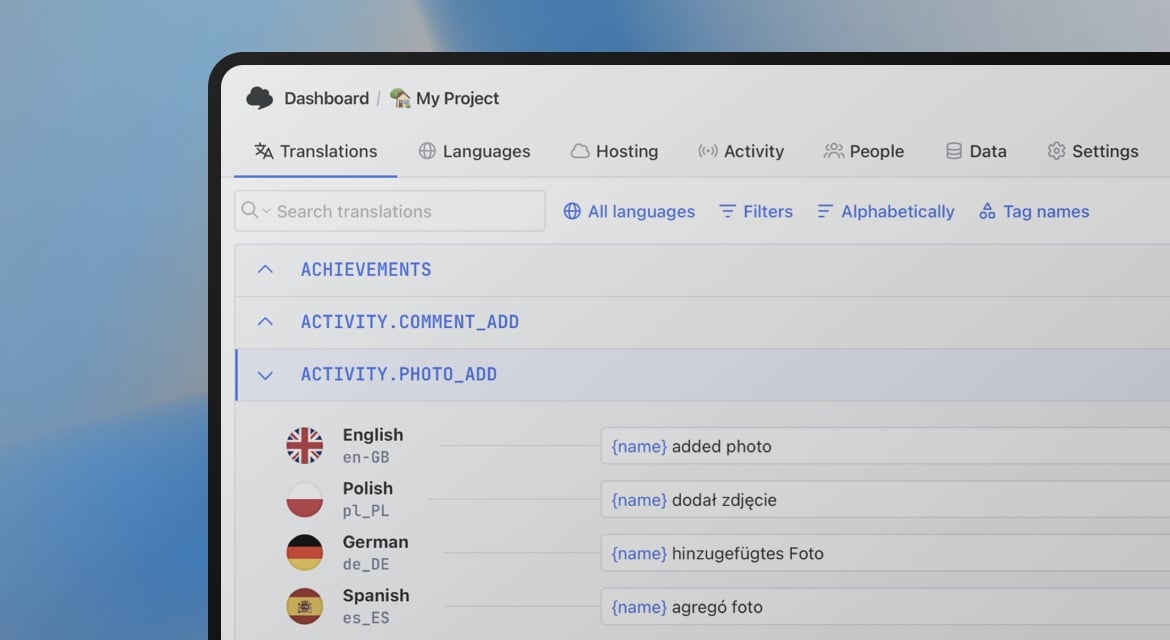
Comments placed directly above a <string>, <plurals>, or <string-array> tag are imported by SimpleLocalize as code descriptions: they appear in the translation editor to give translators context without them having to dig through source code.
This is one of the most underused features of Android localization. A one-line comment describing where a string is used and what any placeholders mean can prevent dozens of mistranslations.
Good comment:
<!-- Shown when a user tries to delete an account that has active subscriptions -->Poor comment:<!-- String 47 -->
Styling with HTML and CDATA
You can apply basic styling (bold, italic, links) directly in your XML. To ensure the XML parser doesn't get confused, wrap these in CDATA sections.
<string name="welcome_rich"><![CDATA[Welcome to <b>My App</b>! Click <a href="https://example.com">here</a>.]]></string>
Supported HTML tags in Android string resources include <b>, <i>, <u>, <br>, <font> (with attributes), and <a> (with href for Linkify). Not all tags are supported across all Android versions — test rendering before relying on markup.
To render this in a TextView:
textView.text = Html.fromHtml(getString(R.string.welcome_rich), Html.FROM_HTML_MODE_COMPACT)
Managing translations across namespaces
Large Android apps often split strings into multiple files to reduce merge conflicts and clarify ownership. A billing team owns strings_billing.xml, an onboarding team owns strings_onboarding.xml, and so on.
SimpleLocalize supports this pattern through namespaces. Use the {ns} placeholder in your CLI configuration:
# Upload all namespace files
simplelocalize upload \
  --apiKey PROJECT_API_KEY \
  --uploadLanguageKey en \
  --uploadFormat android-strings \
  --uploadPath ./values/strings-{ns}.xml

# Download to namespace-specific files
simplelocalize download \
  --apiKey PROJECT_API_KEY \
  --downloadFormat android-strings \
  --downloadPath ./values-{lang}/strings-{ns}.xml
Each namespace is managed independently in the translation editor, making it easy to see completeness per product area and give translators focused context.
Automating Android localization with SimpleLocalize
Manual file management is the "silent killer" of productivity. Use the SimpleLocalize CLI or our localization API to automate the sync between your code and your translators.
Step 1: Upload source strings
Point the CLI at your default English strings.xml:
simplelocalize upload \
  --apiKey PROJECT_API_KEY \
  --uploadLanguageKey en \
  --uploadFormat android-strings \
  --uploadPath ./values/strings-en.xml
Add --overwrite if you want to update existing translations when the source changes.
You can also use the localization API directly for programmatic integration:
# Import source strings via API
curl --request POST \
  --url 'https://api.simplelocalize.io/api/v2/import?uploadFormat=android-strings&uploadLanguageKey=en' \
  --header 'x-simplelocalize-token: API_KEY' \
  --form file=@./values/strings-en.xml
Step 2: Run auto-translation
Once new keys are imported, trigger auto-translation to generate a working draft in all target languages. SimpleLocalize supports DeepL, Google Translate, OpenAI, and other providers. This can be triggered manually in the editor or automated via translation automations.
Step 3: Review and approve
Translators work in the online editor with full context: descriptions from your XML comments, screenshots, and QA checks that flag broken placeholders or mismatched plural forms.
Step 4: Download translated files
Download the translated strings.xml files back to your project with the correct directory structure:
simplelocalize download \
  --apiKey PROJECT_API_KEY \
  --downloadFormat android-strings \
  --downloadLanguageKeys de,fr,ja,ar,pt-BR \
  --downloadPath ./app/src/main/res/values-{lang}/strings.xml
The {lang} token is replaced with the locale code for each language, producing the correct directory structure automatically.
You can also export translations via the API:
# Export translated strings via API
curl --request GET \
  --url 'https://api.simplelocalize.io/api/v2/export?downloadFormat=android-strings&downloadLanguageKey=de' \
  --header 'x-simplelocalize-token: API_KEY' \
  --output ./app/src/main/res/values-de/strings.xml
Step 5: Integrate into CI/CD
Add upload and download steps to your GitHub Actions, GitLab CI, or Bitbucket Pipelines workflow. A typical pipeline runs on every commit to main:
- Upload new or changed source strings from
values/strings.xml - Trigger auto-translation for any untranslated keys
- Download updated translations back into
values-{lang}/strings.xml - Commit the updated files or open a PR for review
This keeps translations in continuous sync with your codebase. See our continuous localization guide for more on this approach.
Common mistakes in Android localization
-
Hardcoding strings in layout files or Kotlin/Java code.
Any string that could ever need to be translated belongs in
strings.xml. Strings hardcoded in code require a code change to fix — strings in resource files require only a translation update. -
Using
String.format()directly instead ofgetString(R.string.key, args).Always go through the resource system so Android can apply locale-aware formatting.
-
Ignoring the
otherquantity in plurals.The
otherquantity is the required fallback for all plural categories. Omitting it will cause a runtime crash. -
Fixed-order format strings with multiple arguments.
As noted above,
%1$spositional syntax is required whenever a string has more than one dynamic value. -
Not testing RTL layouts.
If your app will support Arabic, Hebrew, Persian, or Urdu, test the layout with
android:supportsRtl="true"in your manifest and flip your layout direction in the emulator. See the RTL design guide for details. -
Missing translator comments.
A string like
"action_submit"with the value"Submit"gives a translator no context. Is this a form submit button? A file submission? A report submission? A one-line comment resolves this immediately.
Best practices summary
- Use descriptive, namespaced keys:
payment_card_error_declinedis far more maintainable thanerror7. - Keep
values/(default) complete — it's your fallback for every locale. - Always use positional specifiers (
%1$s) for strings with multiple arguments. - Add XML comments above every string that needs translator context.
- Use
<plurals>for any quantity-dependent text — never conditionally concatenate strings in code. - Wrap HTML-tagged strings in CDATA to prevent XML parsing issues.
- Automate extraction and sync with a CI/CD pipeline — manual file management doesn't scale.
- Run QA checks before shipping: catch missing plurals, broken placeholders, and empty translations.
FAQ
Conclusion
Android string resources are deceptively simple at first glance — they're just XML. But managing them correctly across multiple languages, handling pluralization, encoding HTML, keeping files in sync across releases, and integrating translation workflows into CI/CD pipelines requires deliberate architecture and good tooling.
The foundation is solid: use descriptive keys, write translator comments, lean on <plurals> for quantity-dependent text, and never hardcode strings in application code. From there, automating the workflow with the SimpleLocalize CLI and a CI/CD integration removes the manual overhead that slows down multilingual releases.
Ready to automate your Android localization? Import your strings.xml into SimpleLocalize and start shipping globally today.