





This guide will help you get started with SimpleLocalize and set up your localization project. Get started from scratch or migrate your existing translations to SimpleLocalize.
Import your content
In your new project, follow the onboarding steps to import your existing translation files. Choose a file format, upload your source translations.
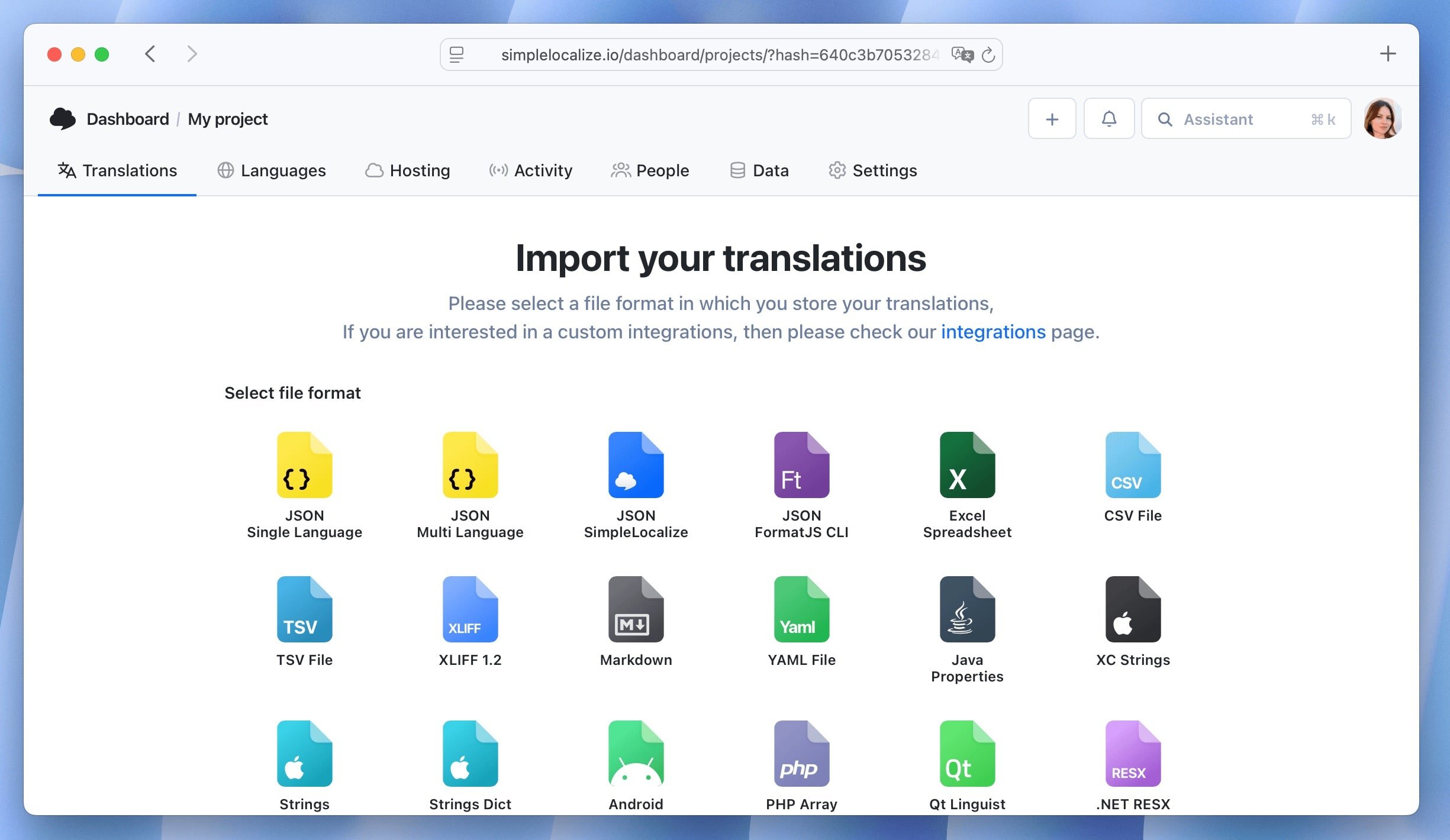
If you have more than one file with translations, you can upload other files after the onboarding from the "Data" tab in your project.
After importing, you can start managing your translations in SimpleLocalize. "Translations" tab shows all your translation keys and their translations in different languages in the translation editor. Here, you can, manage translations, add new keys (plus button), search and filter translations, bulk edit translations.
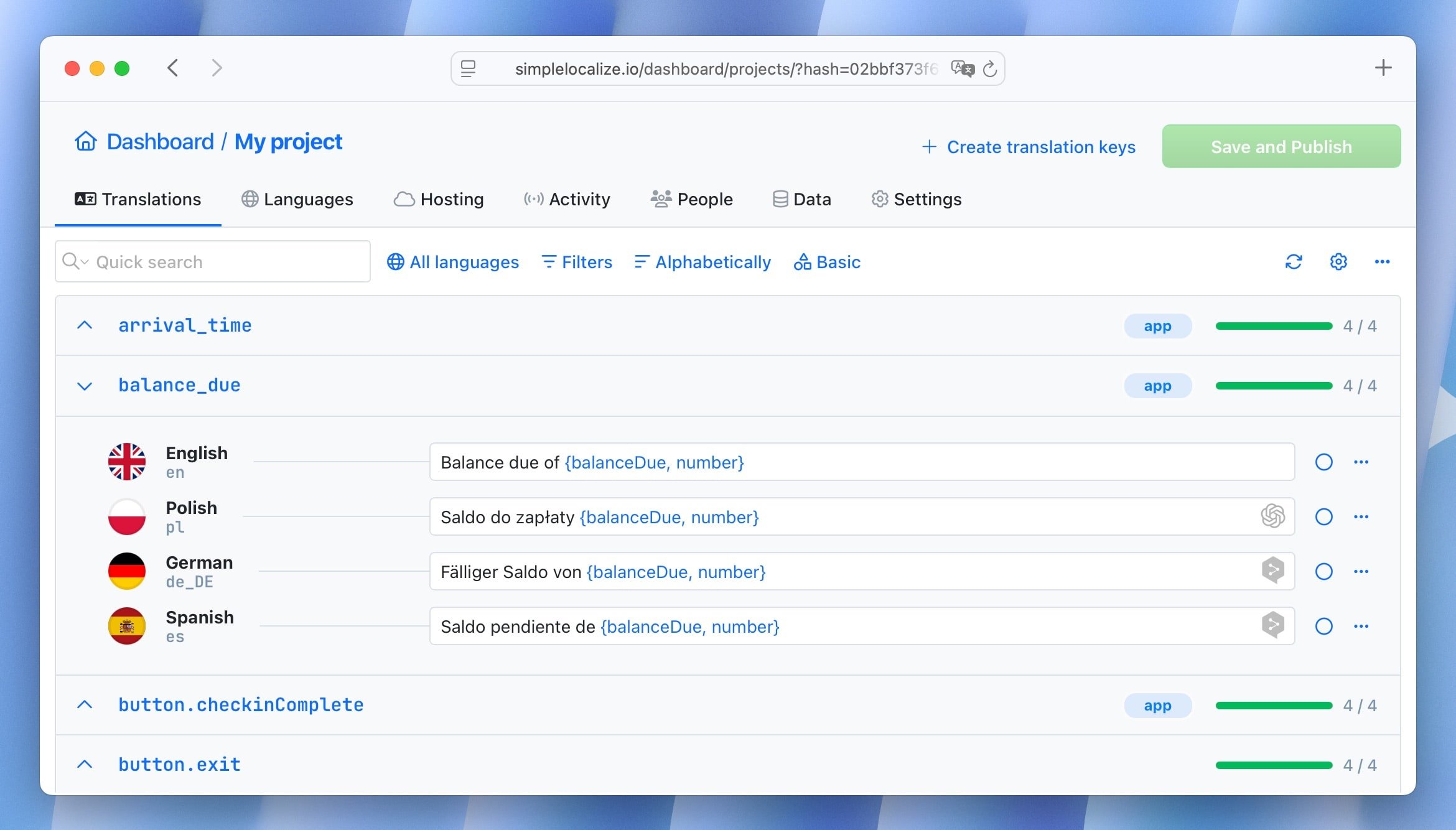
You can also customize the view and options of the translation editor to fit your needs. Give you a few minutes to explore the translation editor and its options, in doubt you feel free to contact us: contact@simplelocalize.io
Learn more about using the translation editor.
Add languages
Languages will be automatically created when you import translation files. You can also add new languages from the "Languages" tab in your project.
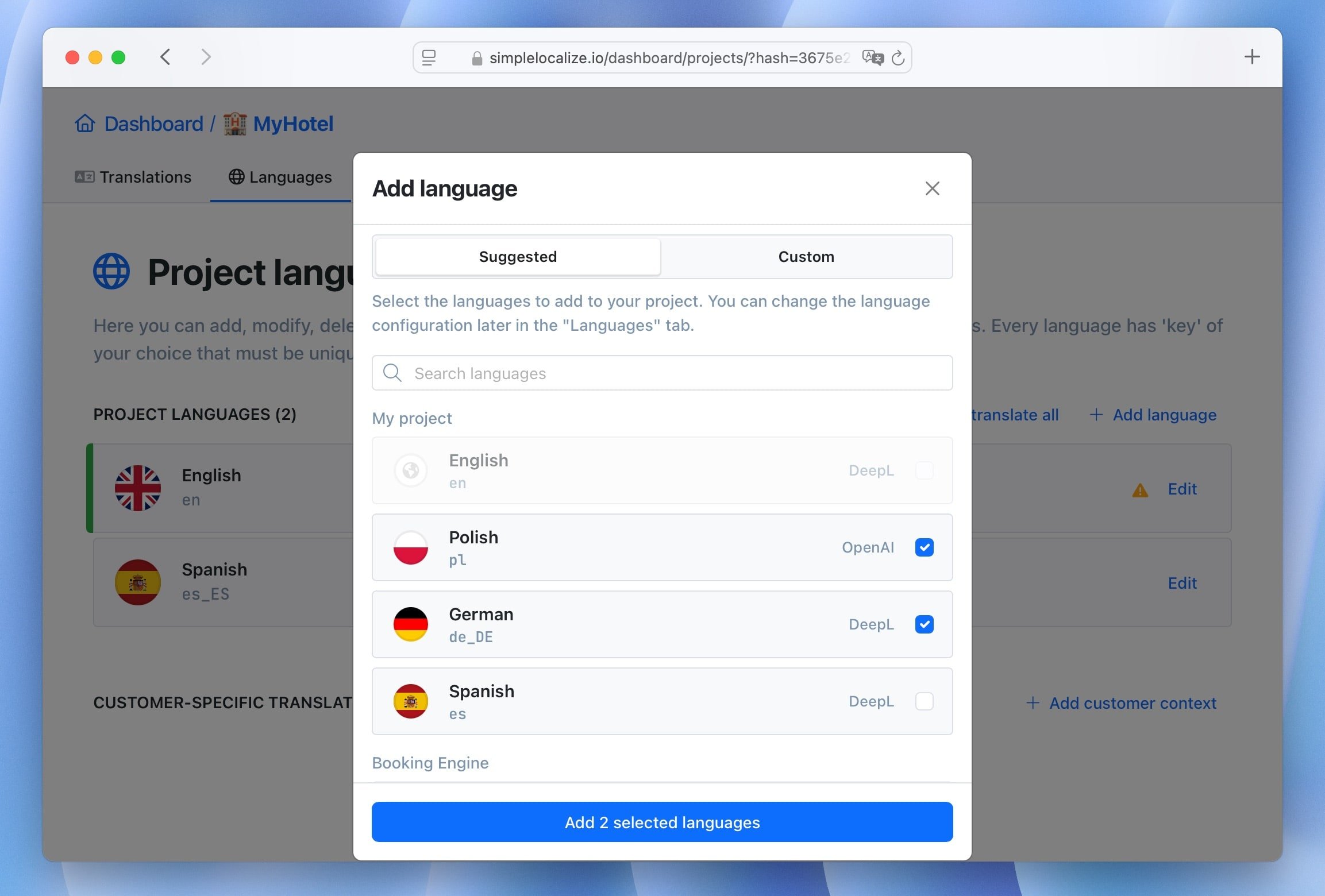
Learn more about managing languages.
Auto-translate
Before you start auto-translating, we recommend to choose your preferred machine translation provider in the language settings. DeepL and OpenAI will give you the best results for most languages, but you can also choose Google Translate if you prefer it.
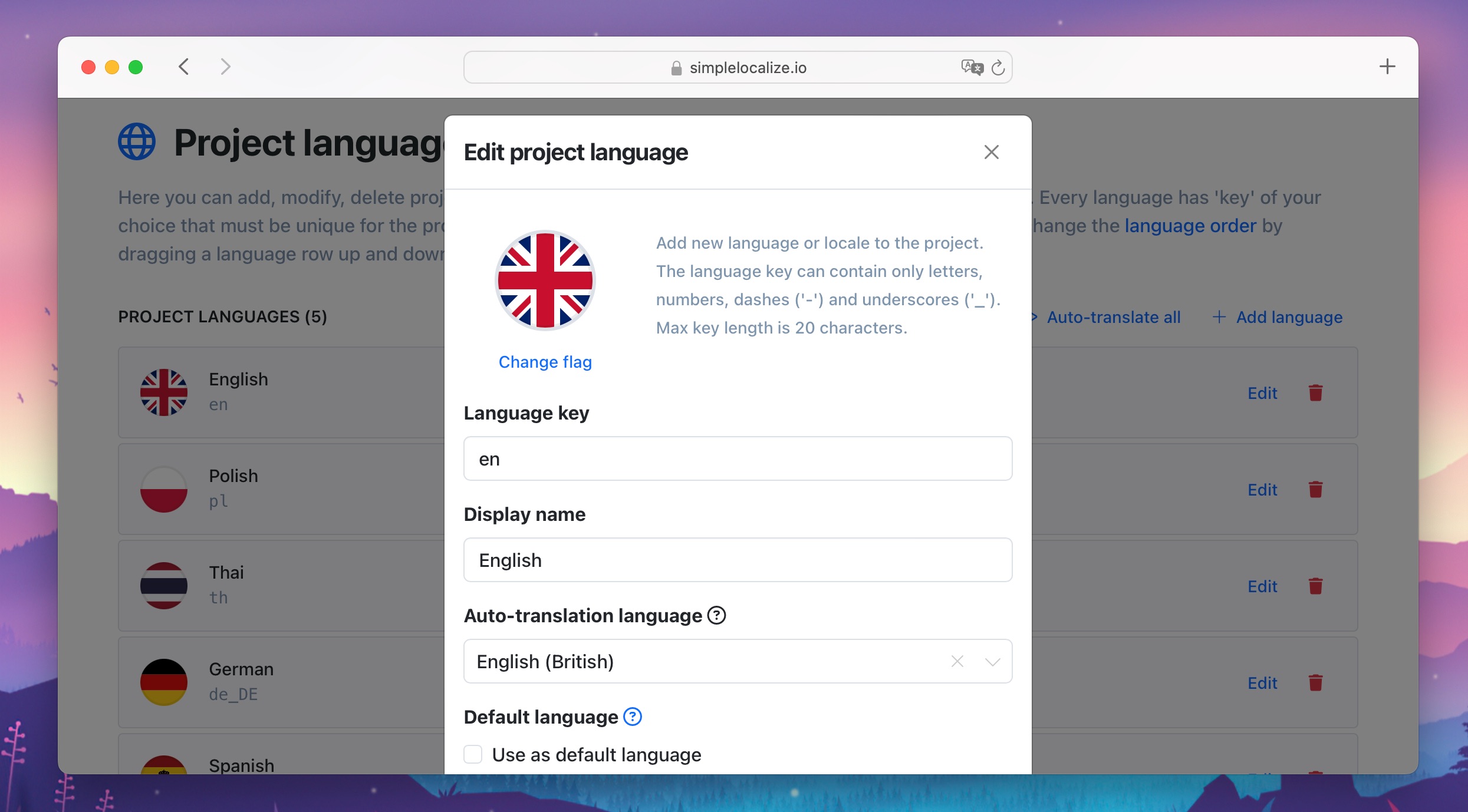
Now, you can auto-translate all or selected languages from the "Languages" tab or selected translations from the "Translations" tab.
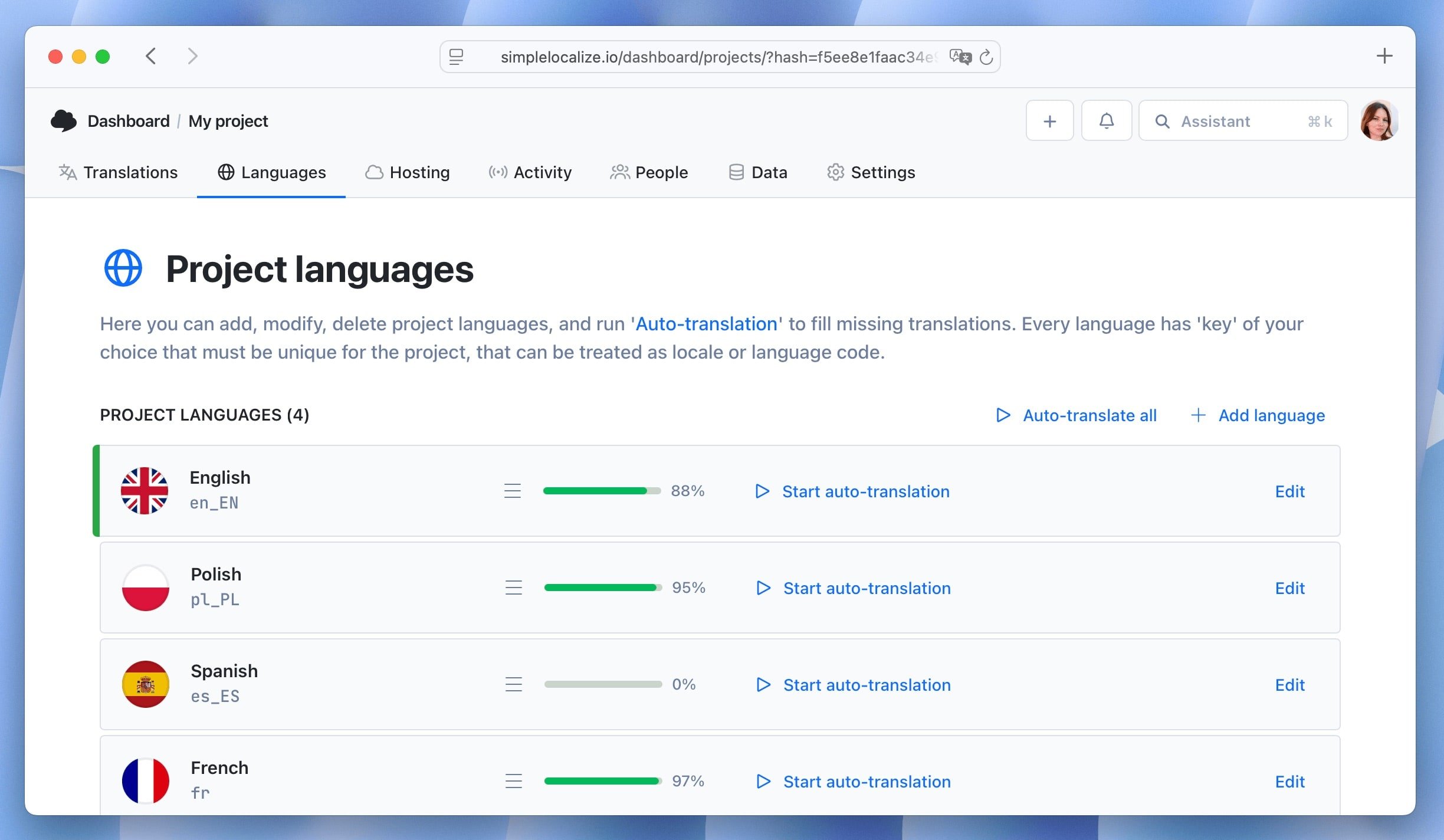
Auto-translation has an auto-translation character limit depending on your plan. You can check your remaining characters in Billing & Usage. You can also use your custom API keys to avoid the limit or purchase additional characters.
Learn more about auto-translation.
Invite your team
You can invite your team members to collaborate on your localization project from the "People" tab in your project. Note that your team members assigned as Project administrators will have access to the current project only.
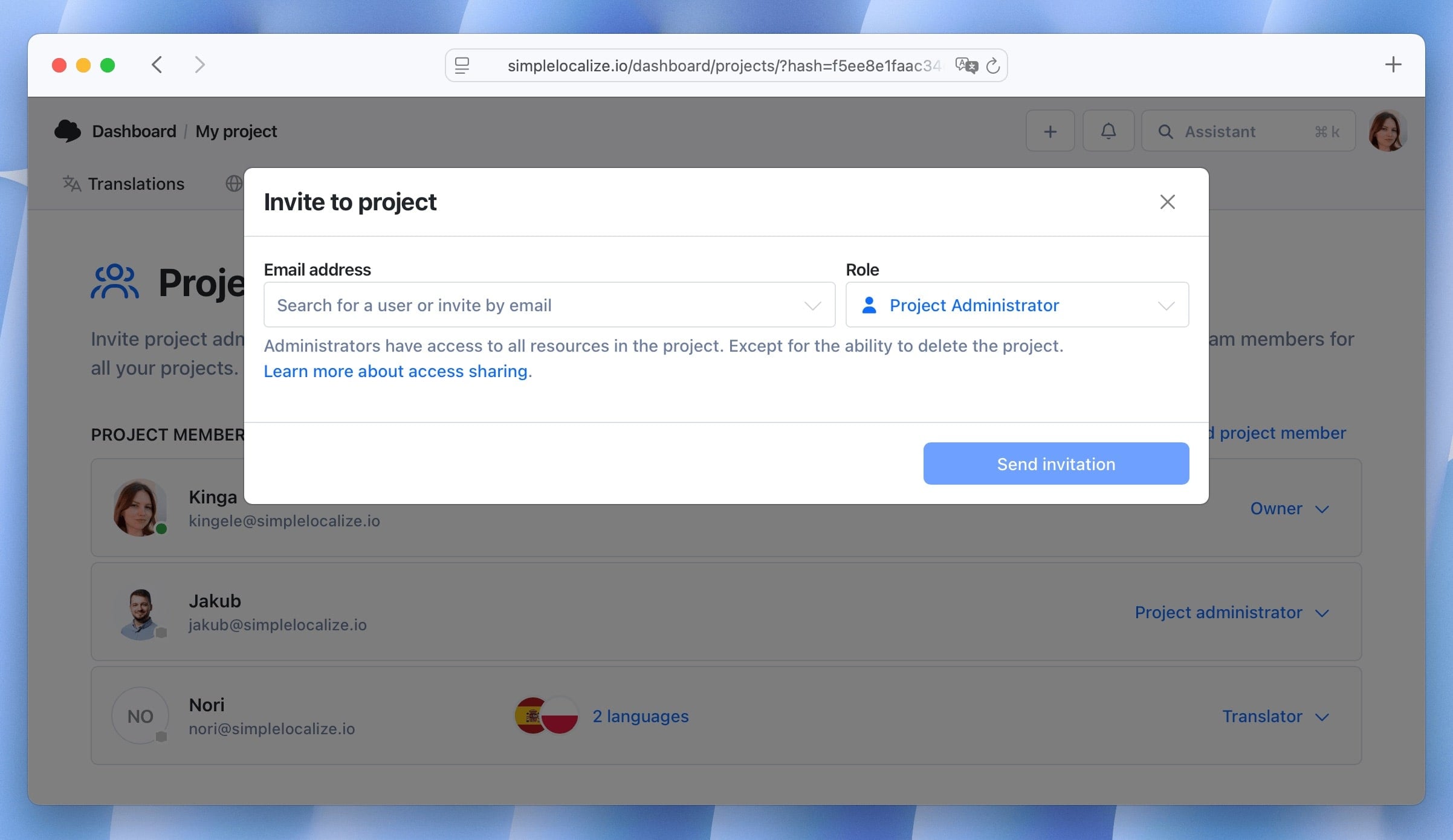
Invite your team as Team administrators to your organization to access all projects. Go to your account settings in the top right corner and open the "Team" section. Here, you can invite new team members and manage their accesses, roles and permissions.
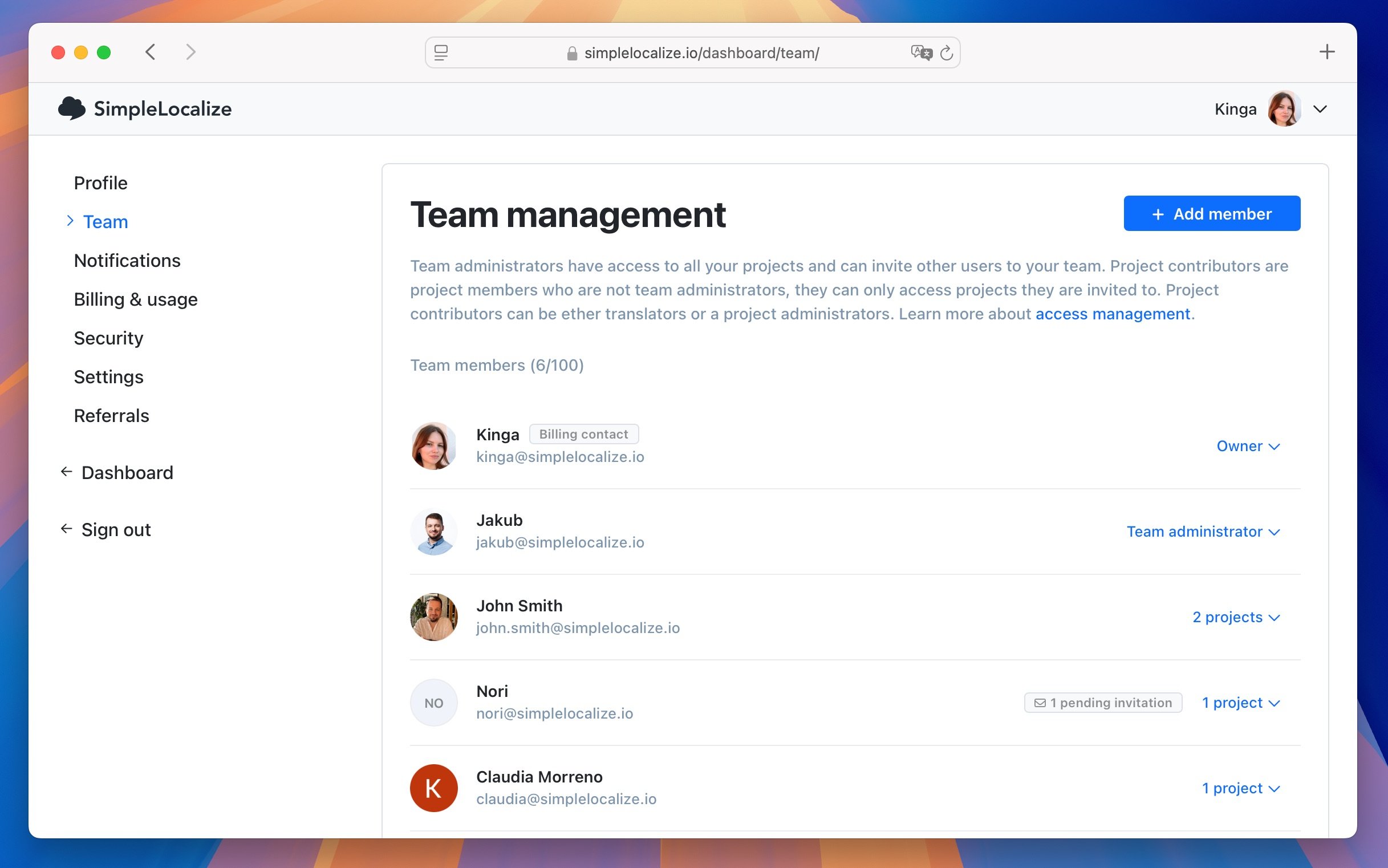
Learn more about project sharing and team management.
Build your workflow
Export your translations and integrate with your app. You can download translation files manually from the "Data" tab in your project.
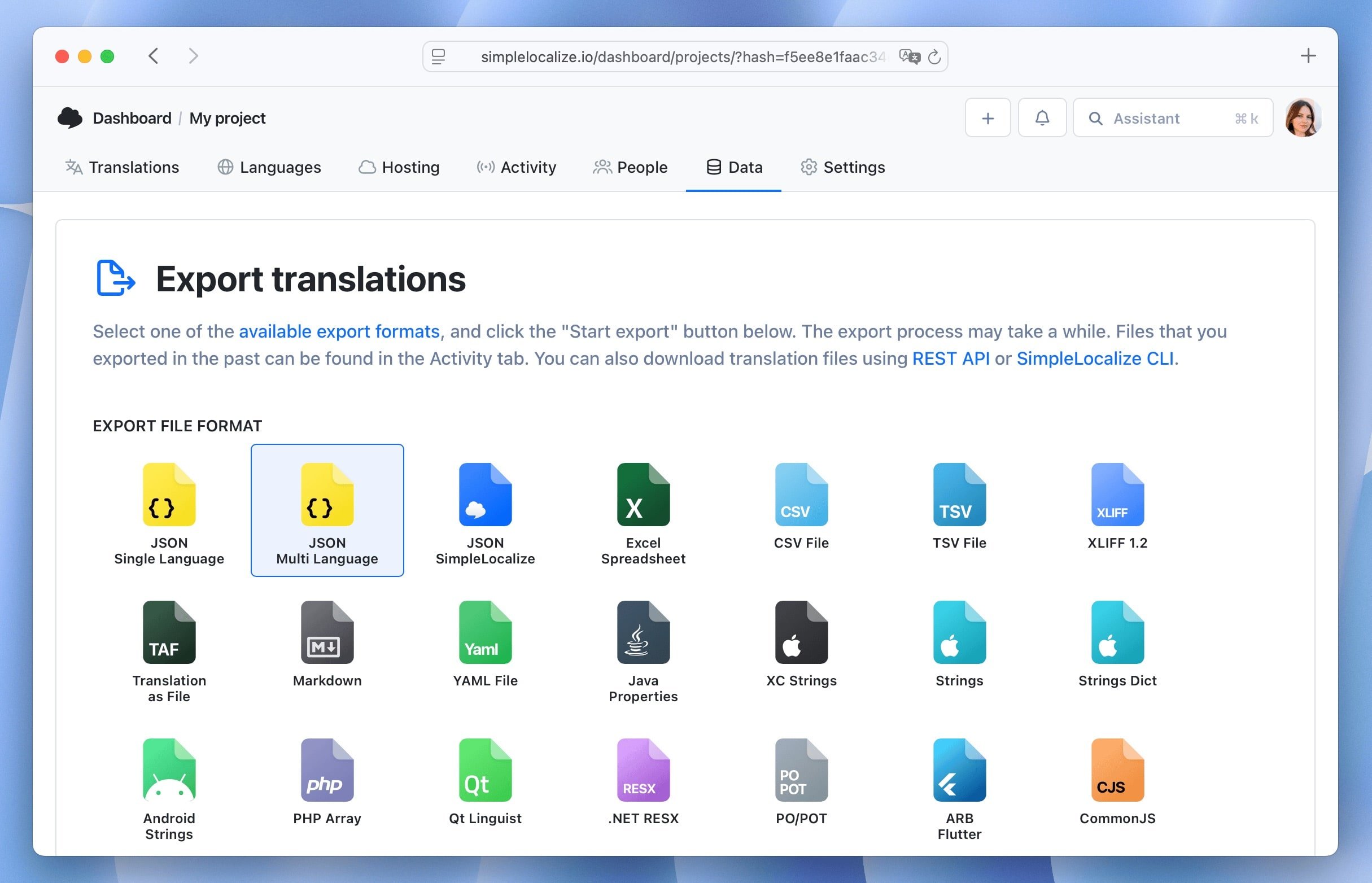
There are several ways to integrate SimpleLocalize with your app for a really sooth continuous localization workflow and automatic translation updates. Decide which method works best for you:
- Translation hosting: download translation files directly from the cloud.
- SimpleLocalize CLI: use CLI to download translations and integrate with your build process.
- GitHub App: sync your translations with your GitHub repository.
- GitHub Actions: automate your localization workflow using GitHub Actions.
- REST API: manage your translations using SimpleLocalize localization API.
Check all available integrations.
Beyond the basics
Automate and improve your localization workflow with additional SimpleLocalize features:
Developer tools
Install SimpleLocalize developer tools to manage your translations directly from your code editor:
- VS Code extension: manage translations without leaving your IDE
- IntelliJ IDEA plugin: manage translations in JetBrains IDEs
- MCP server: manage translations using AI agents, e.g. ChatGPT, Claude etc.
Automations
Set up automations to automate repetitive tasks in your localization project. For example:
- Run auto-translation when new keys are added or translation edited in the default language
- Mark translations as "Needs review" when edited
- Clear other languages translations when the default language is edited
- Auto-publish translations to CDN after auto-translation
- Notify your team on Slack, Discord or Teams when something happens via webhooks
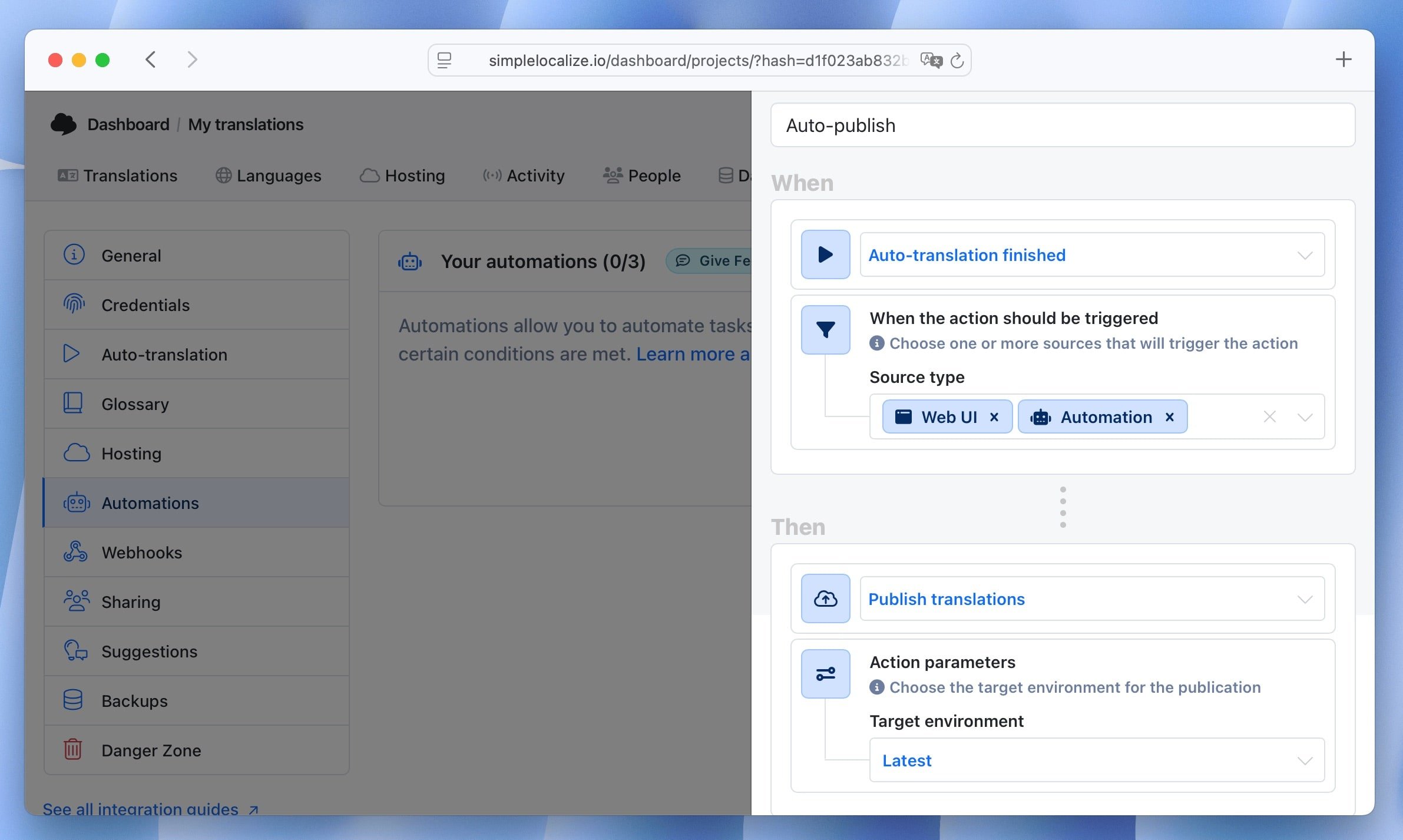
Learn more about using automations.
Crowdsource translations
Gather translation suggestions from your users or community using Public suggestions feature. You can enable it in the project settings and share a public link to your suggestion form.
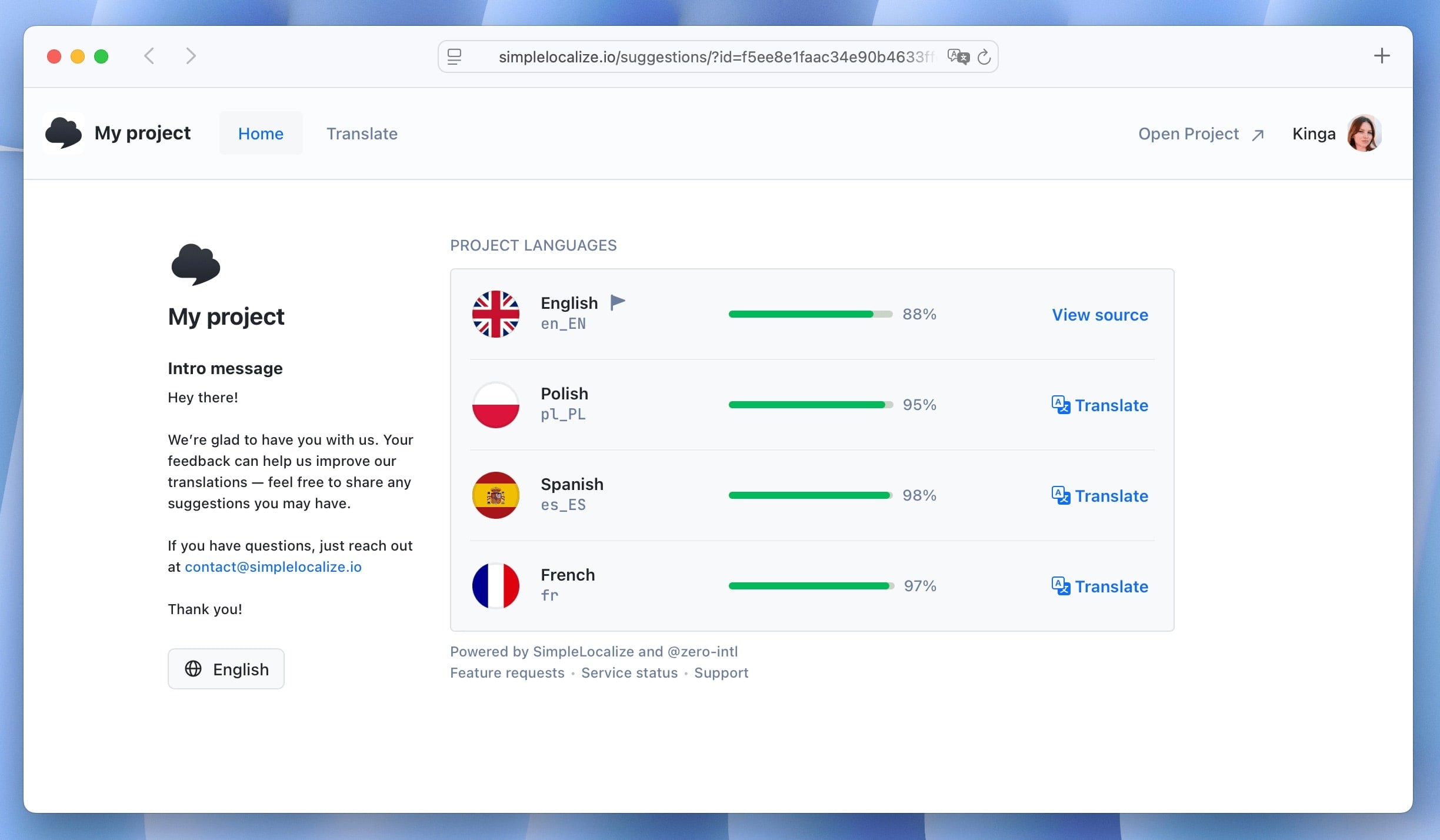
Learn more about public suggestions.